






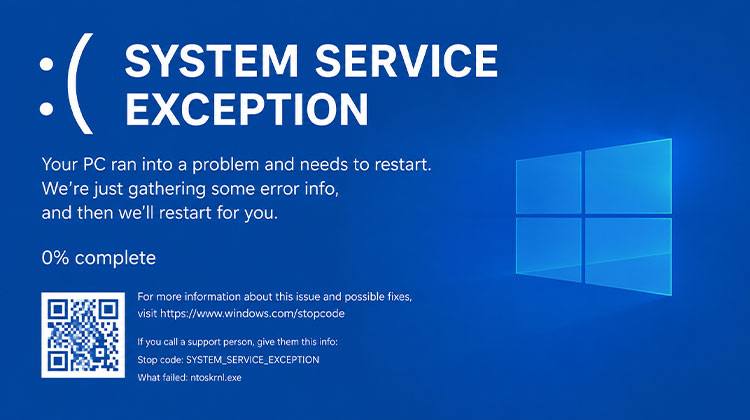
System Service Exception is a blue screen of death error message displayed by Windows PCs that states they encountered an issue and need a restart. We’re collecting details about your error before restarting it automatically for you. This error message contains the bug check number 0x0000003b and may be caused by old or damaged drivers, corrupt system files, and invalid registry entries – among many other potential sources.
This could sound like a disaster when there’s valuable information on your computer. There are a few tested methods that can eliminate the bug and make you feel at ease. Before you start troubleshooting, we’ll guide you through what the error 0x0000003B is and exactly how it affects your system.
What is System_Service_Exception?
System Service Exception is a Windows stop code that appears when an operating system encounters a critical system error while running system processes, rendering Windows incapable of safely continuing operations and prompting a blue screen and restart.
What Causes a Stop Code System Service Exception?
There could be several possible reasons behind the System_Service_Exception bug code.
- Outdated or corrupted device drivers
- Corrupted Windows system files
- Faulty or incompatible graphics drivers
- Defective RAM (memory)
- Hard drive or SSD errors
- Corrupted Windows updates
- Third-party antivirus conflicts
- Malware or virus infections
- Incorrect registry entries
- Faulty external devices or peripherals
Also read: Your Device Ran Into a Problem and Needs to Restart – Fix in 8 Steps
How to Fix a System Service Exception?
Use the methods below to get rid of this Windows System Service Exception bug. Each of these solutions is real and tested, and has helped numerous users.
1. Unplug Conflicting Peripherals
There are occasions when peripheral devices could conflict with your system drivers and cause this BSoD error. To remove a peripheral device like a printer, scanner, and more that is connected to the system, and then check if your system can boot normally.
2 Check RAM Issues
The premature freeing up of memory is thought to be one of the main reasons for the Blue Screen error. To get rid of this issue, use Windows’ internal RAM testing tool and look for any issues (if there are any). Follow the instructions below:
- Click Windows + S to open Windows Search. Enter memory, and when you see Windows Memory Diagnostic, click to open.
- On the next prompt, choose Restart now and Check for issues (recommended).
- Your system will restart while a testing process will be initiated.
- Press ESC and close the program after the test is completed. After that, restart your PC and check whether the issue has been resolved.
3. Update Graphics & Drivers
Since drivers are thought to be the primary reason that causes “blue screen of death” issues, you can try updating the network and graphics drivers. Follow the steps below:
- Press Windows + R and then open Device Manager.
- Go to the Display adapters category, expand it, then right-click on the driver. Select Update driver from the options available.
- Then click to search automatically for drivers.
- Windows will begin looking for updated driver software. If it’s available, download it. After that, restart your system to determine if the error persists.
4. Run SFC Scan
Missing, corrupted or damaged system files could result in a BSoD system service error. You can try to fix the problem by performing the System File Checker (SFC) scan. It replaces incorrect versions of the system files with the correct versions, thereby aiding in fixing the issue. Follow the steps below:
- In the Windows search bar.
- Choose Command Prompt when it is displayed in the menu. Then click Run as Administrator.
- In the elevated window, type the command sfc/scannow and then press Enter.
- The process takes just a few minutes. After the process, close the application and then restart your computer.
5. Run CHKDSK Command
CHKDSK command identifies the problematic sectors of your hard drive and fixes them. But it prevents Windows from storing information in the bad sectors on your drive, which can eventually cause data loss. In such a case, ensure you have a backup copy of important data, and then move on.
Follow the steps to run the CHKDSK command:
- Use Command Prompt as an administrator. Click Yes if you are asked.
- Within the elevated Command Prompt window, enter chkdsk: c /f /r and press the Enter key.
- Then, wait for the process to take its course. After that, type exit, and you’re finished.
- Reboot your system and see if the System_Service_Exception error is solved.
6. Scan PC for Malware
Virus attacks or malware on your system could cause a BSOD Error. Check your PC for malware and check whether the issue is fixed. To do this, follow these steps:
- You can access the System settings by pressing Windows + I.
- Then, go to Update and Security. Then, go to Update & Windows Security > Virus & threat protection > Scan options Microsoft Defender Offline Scan > Scan now.
- After the scan, the system will then reboot. You should ensure that you save any work you are working on by choosing”Scan” in the Scan options.
Find out if the issue is solved after your system is rebooted.
Also read: Top 10 Anti-Malware Software
7. Perform System Restore
If none of these solutions fix the error code 0x0000003b, it is recommended to do a System Restore. It can help restore your system to its previous working state. But it will erase any modifications that were made to your system after the restore point. Therefore, make backups of your computer (if it is possible) and then follow the steps:
- Use Windows Search and type restore point.
- Click Open when you see the Create a Restore Point option.
- In the System Properties window, go to the System Protection tab, and then click System Restore.
- In the Restore system settings and files window, click Next.
- Select the restore point and then select Scan to identify affected programs.
- All drivers and programs that are likely to be affected will pop up on the screen. If you click Close and continue.
- Then, click Next> Finish to allow the process to end.
The process could take a few minutes. Reboot your system and see whether the stop code System Service Exception is fixed. The issue you are having should be addressed within the next hour.
Final Thoughts
System Service Exception errors typically stem from driver conflicts, corrupted system files or hardware problems. By following the troubleshooting methods, you can fix your Blue Screen of Death error and restore system stability. Regularly updating Windows, keeping drivers up to date, and maintaining your PC can help mitigate future incidents causing System Service Exception errors.
FAQs: System Service Exception
Is System Service Exception caused by RAM?
Yes. Faulty or unstable RAM is a common cause of the System Service Exception blue screen. Running Windows Memory Diagnostic can help identify memory issues.
Does reinstalling Windows fix the error?
Yes, if the problem is caused by corrupted system files or software conflicts. However, hardware issues such as bad RAM or a failing SSD must be repaired or replaced.
Can graphics drivers trigger the System Service Exception error?
Yes. Outdated, corrupted, or incompatible graphics drivers from NVIDIA, AMD, or Intel can trigger this error. Updating or reinstalling the latest graphics driver often resolves the issue.
Is System Service Exception dangerous?
The error itself is not dangerous, but repeated crashes may indicate underlying software or hardware problems that should be addressed promptly to avoid data loss.









Leave a comment