






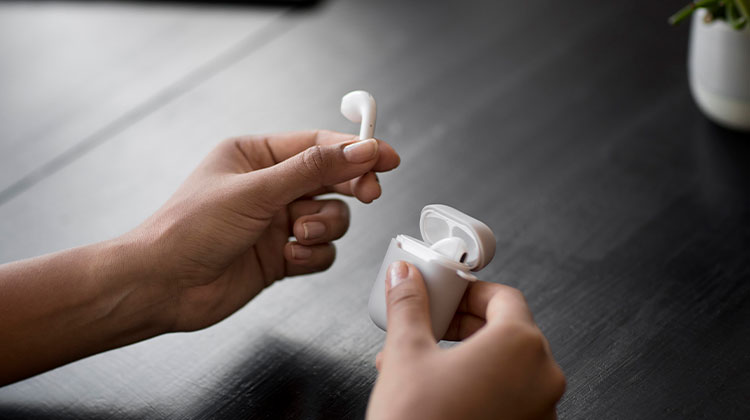
Apple is known for user-friendly devices, which explains why many are willing to spend extra for products like AirPods. Unfortunately, when your AirPods suddenly disconnect while listening to music or watching videos can be frustrating.
If you’re asking, “Why do my AirPods keep disconnecting? In this guide, we’ll explain the common causes and show how to fix AirPods connection issues.
Why Do My AirPods Keep Disconnecting?
Your AirPods may keep disconnecting for several reasons:
- Low AirPods or charging case battery
- Bluetooth connection problems
- AirPods are too far from the connected device
- Wireless interference from nearby devices
- Outdated iOS, iPadOS, macOS, or Windows
- Automatic device switching
- Incorrect Bluetooth settings
- Dirty AirPods or charging contacts
- Temporary firmware or software glitches
- Damaged AirPods or hardware problems
Before going to more advanced solutions, place both AirPods in their charging case, charge them for a few minutes, and ensure Bluetooth is enabled on your devices.
How to Fix AirPods Keep Disconnecting
1. Check the Battery
As AirPods are wireless, their performance depends heavily on battery level. This may be the reason your AirPods keep disconnecting. Before seeking other solutions, check that your AirPods have enough battery for use.
Make sure your AirPods battery stays between 20% and 80%, then check if disconnections persist before trying additional solutions. To try the next solutions.
Also read: AirPods Case Not Charging? 6 Quick Fixes for Apple Users
2. Improve Bluetooth Connection Stability
Your AirPods keep disconnecting from your iPhone even fully charged battery. An insecure Bluetooth connection could be to blame.
AirPods use Bluetooth technology for wireless connections with devices. However, Bluetooth signals can be affected by interference from solid surfaces like walls and doors, and your body. Something as seemingly innocuous as human sweat could wreak havoc with Bluetooth signal strength.
Interference with Bluetooth is also caused by radio frequencies generated by various Bluetooth-related wireless devices ( like your WiFi). The effective range decreases when you have more items between the AirPods and the device. Try turning off additional wireless devices in the vicinity and moving them away from your AirPods close to the audio source.
3. Clean the AirPods
Extreme wax accumulation, dust, dirt, and moisture inside your AirPods can cause Bluetooth interruptions and intermittent disconnects.
To clean your AirPods:
- Use a clean, soft, lint-free cloth to wipe the exterior.
- Gently remove visible buildup around small openings.
- Clean the charging contacts carefully.
- Make sure the AirPods are completely dry before putting them back in the case.
4. Reset Bluetooth
If your AirPods keep disconnecting, it’s most likely due to recently changed Bluetooth settings. Reset the Bluetooth settings on the iPhone, iPod, or iPad to their original operating state.
To reconnect your AirPods:
- Open Settings on your iPhone, iPad, or iPod.
- Tap Bluetooth.
- Turn Bluetooth off.
- Wait a few seconds and turn it back on.
- Reconnect your AirPods.
If the issue continues, you can remove the AirPods from your paired devices:
- Go to Settings > Bluetooth.
- Tap the ⓘ icon next to your AirPods.
- Select Forget This Device.
- Confirm the action.
- Restart your device.
- Pair your AirPods again.
5. Reset your AirPods
If your AirPods keep disconnecting from devices, this could be a problem with the AirPods firmware.
Any previous pairing history will be erased once the AirPods are reset. The reset will return them to their default settings, ensuring that your device is the first to be paired with AirPods.
To reset your AirPods:
- Open Settings on your iPhone or iPad.
- Tap Bluetooth.
- Tap the ⓘ (Info) button next to your AirPods.
- Select Forget This Device and confirm.
- Place both AirPods inside the charging case.
- Open the charging case with the AirPods inside.
- Press and hold the setup button on the back of the charging case.
- Continue holding the button until the status light flashes amber and then white.
- Bring the charging case close to your iPhone or iPad.
- Follow the on-screen instructions to pair your AirPods again
6. Reset iOS’s Network Settings
Your iOS device’s network settings track details about network preferences such as WiFI, VPN configuration, and Bluetooth connections. If your AirPods keep disconnecting, it may be due to an issue with your network settings.
When the network settings are reset, they will be reset to default values. This should solve your connection issues on AirPods.
To reset your network settings:
- Open Settings on your iOS device.
- Tap General.
- Select Transfer or Reset.
- Tap Reset.
- Choose Reset Network Settings.
- Enter your device passcode if requested.
- Confirm the reset.
7. Disable Automatic Ear Detection
Each AirPods has sensors that detect whether it is being worn. If the sensor incorrectly detects that an AirPods has been removed, it may pause playback or cause unexpected connection issues. Even a slight change in position can sometimes affect ear detection and make it seem like your AirPods have disconnected.
Here’s how:
- Connect your AirPods to your iPhone or iPad.
- Open Settings.
- Tap Bluetooth.
- Tap the ⓘ icon next to your AirPods.
- Find Automatic Ear Detection.
- Turn the feature off. This should hopefully resolve the AirPods connectivity problem.
8. Deactivate Automated Switching
iOS multipoint Bluetooth, also referred to as automatic switching, allows AirPods to switch between audio sources on devices linked to iCloud. If you’re experiencing the AirPods Pro disconnecting problem, you could have one of the causes.
If your two iOS devices are connected, AirPods automatically determine which one is playing the sound and then make AirPods the primary source.
These are steps you can take to disable the automatic switching
- Connect your AirPods to your iPhone or iPad.
- Open Settings.
- Tap Bluetooth.
- Tap the ⓘ icon next to your AirPods.
- Select Connect to This iPhone or the appropriate device option.
- Choose When Last Connected to This iPhone.
Also read: AirPods Microphone Not Working? 9 Fast Fixes for Clear Calls
9. Update Your iOS device
You may encounter issues or bugs that have been fixed in a newer version of iOS if your device is outdated. Problems with the technology of your AirPods and device could be a part of these problems. If your AirPods keep disconnecting with a full battery, the issue is likely related to your device, not the AirPods. Make sure you have the latest iOS version.
On an iPhone or iPad:
- Open Settings.
- Tap General.
- Select Software Update.
- Check for an available update.
- Install the latest compatible version.
- Restart your device after the update.
Check for available updates on your iPhone, iPad, Mac, or Windows computer and install the latest compatible software. After updating, restart your device and reconnect your AirPods.
10. Update your AirPods Firmware
The AirPods work with software similar to iOS on iPhones. This allows them to perform the calculations needed to support features like automatic switching, ANC (noise-cancelling features ), and ear detection. Certain bugs may cause the AirPods to malfunction, so if your AirPods keep disconnecting, you can fix the issue.
The firmware will be updated automatically when you connect your AirPods to your iOS device. However, here are the steps you can take to verify the version of your AirPods model’s firmware:
To check your current firmware version:
- Connect your AirPods to your iPhone or iPad.
- Open Settings.
- Tap Bluetooth.
- Tap the ⓘ icon next to your AirPods.
- Find the Version section.
- Check the firmware version listed there.
Wrapping Up
If you’re wondering why your AirPods keep disconnecting, these solutions should fix common connection issues. Try each method until one works best for your device. Your AirPods should return to a stable connection quickly! Let us know which solution worked for you by commenting here or below!
FAQs: AirPods Keep Disconnecting
Why do my AirPods keep disconnecting from iPhone?
Bluetooth glitches, outdated software, automatic switching, low battery, or incorrect AirPods settings can cause repeated disconnections from an iPhone.
How do I reset AirPods that keep disconnecting?
Place the AirPods in their charging case, open the lid, and use the case's setup/reset procedure for your specific AirPods model. Then pair them with your device again.
How do I stop my AirPods from disconnecting?
Check the battery, improve the Bluetooth connection, clean your AirPods, reset Bluetooth, reset your AirPods, disable Automatic Ear Detection, and update your device and AirPods firmware.
What is the fastest fix when AirPods keep disconnecting?
Check the battery, toggle Bluetooth off and on, restart your device, and reconnect the AirPods. If the issue continues, reset the AirPods.








Leave a comment