






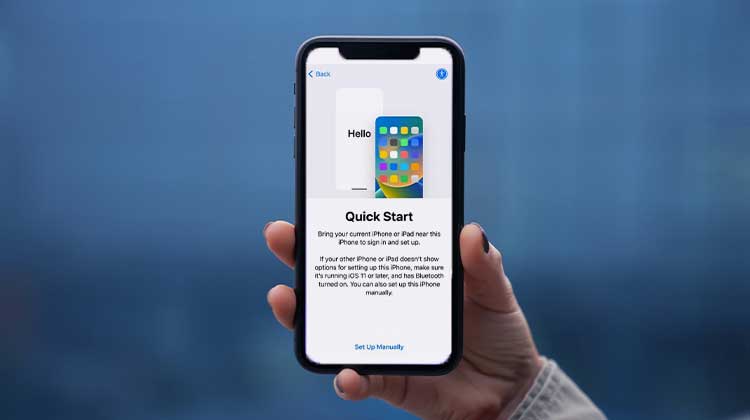
iOS setup assistant lets users set up their iPhones after installing the latest iOS 18 update or buying a new device. It helps in transferring data from your previous phone (whether iPhone or Android) to a newer one.
If you’re not sure about the iOS setup assistant for your iPhone, this article will guide you to learn more about how you can set up your brand-new iPhone using the iOS setup assistant. Let’s begin by discussing what the iOS setup assistant does and exactly what it can help you with!
What Does iOS Setup Assistant Do?
Set up assistant iOS 18 allows users to set up iPhones and recover data from older devices. Here’s a brief overview of what the iOS setup assistant can provide.
1. Set Up and Activate Your iPhone
It sets up your iPhone much more simply and easily. Users can choose their preferred region, language, and password type, among other important elements, to ensure the best and smooth experience.
Also read: How to Clone an iPhone: Quick and Easy Guide
2. Transfer Data and Apps to Your New iPhone
Use the iOS setup assistant to move data from an Android or an earlier iPhone device to the new device. It doesn’t matter if it’s apps or media; it is easy to transfer your data to the new device by either recovering it via iCloud Backup or from a Mac/PC.
There are different options on both Android and iPhone to transfer your data from your previous device to the newer one. If, for whatever reason, you’re unable to transfer your data or apps, you can select the ‘Don’t Transfer Applications and Data option.
3. Configure Network Settings
You can also configure advanced network settings by using the iOS setup assistant. When setting up your iPhone to connect to the internet, you’ll be asked to join a Wi-Fi connection or use cellular data. Hold this side button for two seconds before tapping ‘Wi-Fi Settings’.
You can configure your preferred network settings by navigating the options available on your network. You can configure DNS settings or install your own HTTP proxy, enable BootP, and a variety of other options.
How to Access iOS Setup Assistant Again
Did you skip the iOS setup assistant settings when setting up your iPhone? Well, don’t worry! This is how you can access the iPhone setup assistant and customize your iPhone to your preferences.
Steps
- Open the Settings app.
- Tap General.
- Select Transfer or Reset iPhone.
- Tap Erase All Content and Settings.
- Follow the on-screen instructions and enter your passcode if prompted.
- Wait for the device to erase and restart.
This is a great solution for those who are unsure where the iOS setup assistant is on their iPhones.
Also read: Can iPhones Get Viruses? How to Keep Your iPhone Safe
How to Transfer Data from Android to iPhone Using iOS Setup Assistant
Moving the data from one iPhone to another iPhone using the iOS 18 setup assistant is a breeze. All you require is an Internet connection and an up-to-date iCloud backup. The real issue comes when you need to transfer your information from an Android device to an iPhone.
Here is how to move your data effectively from Android to iPhone.
- Set up your iPhone by selecting your preferred language, region, and connecting to WiFi, and then registering Face ID or another security feature.
- After you have completed the screen to enter your passcode, your iPhone will ask you several questions on the Apps and Data screen. Tap on Move Data from Android.
- If you are using an Android device, download the app Moving to iOS from the Google Play Store. After downloading, click Continue and then agree.
- Once downloaded, click continue and accept by pressing Agree. Give all permissions to switch on an account on the Android device.
- On your iPhone, you can tap Continue, and you’ll get the code (6 digits). Enter the 6-digit code on your Android device.
- Connect to the device by pressing connect. Tap the items you want to move from Android to iPhone and then tap Continue. It could take a few minutes to transfer your data, but be patient.
- Once the transfer has completed, you can set up your iPhone using the on-screen instructions.
You can transfer your data from Android to iPhone using the iOS setup assistant. But! If you own an iPhone that is already configured, then you’ll need to reset all your data and reset the device, or transfer data manually.
Common iOS Setup Assistant Issues and Solutions
| Issue | Solution |
|---|---|
| iPhone Stuck on Setup Assistant | Restart your iPhone and connect to a stable Wi-Fi network before trying again. |
| Unable to Activate iPhone | Check your internet connection, reinsert the SIM card, and retry activation. |
| Data Transfer Taking Too Long | Keep both devices plugged in and connected to a strong Wi-Fi network. |
| Apple ID Verification Failed | Verify your Apple ID credentials and ensure you can receive verification codes. |
| Move to iOS Not Working | Restart both devices and make sure the iPhone has sufficient storage space. |
| Apps & Data Screen Missing | Reset your iPhone and restart the setup process if data transfer is required. |
| Face ID or Touch ID Setup Issues | Clean the camera or fingerprint sensor and follow the setup instructions carefully. |
| Setup Assistant Freezes After an Update | Force restart the iPhone or update the device using a computer. |
| Wi-Fi Connection Problems | Switch to a different network or restart your router and try again. |
| iCloud Backup Not Restoring | Ensure you’re signed in with the correct Apple ID and connected to a reliable internet connection. |
Bottom Line
With the recent release of iOS 18, users are looking to learn about the iOS setup assistant on the iPhone 16. It’s just like other setup assistants, which means you don’t need to worry about the process.
In this article, we have discussed the top efficient ways to access the iOS setup assistant and then transfer data from Android to iOS.
FAQs: iOS Setup Assistant
What data can I transfer using iOS Setup Assistant?
You can transfer contacts, messages, photos, videos, calendars, accounts, apps, and other important data from your previous device.
Does iOS Setup Assistant work with iCloud Backup?
Yes. You can restore your data, settings, and apps from an existing iCloud Backup during the setup process.
Why is my iPhone stuck on the Setup Assistant screen?
This usually happens due to a poor internet connection, activation issues, or software glitches. Restarting the device and reconnecting to Wi-Fi often resolves the problem.
Do I need an internet connection to use iOS Setup Assistant?
Yes. An internet connection is recommended for device activation, Apple ID sign-in, iCloud restoration, and data transfer features.








Leave a comment