






“Whenever I attempt to access a website, I get an Error 400 Bad Request message. Can anybody explain what this error is and how I can fix it?”
It can be extremely annoying to encounter HTTP Error 400 Bad Request when browsing any site. Even more so when your browser keeps getting this error across various pages. So how should we deal with such annoying messages as error 400?
Read this article and follow the methods below to fix error 400 bad request in browsers.
What Is HTTP Error 400 Bad Request
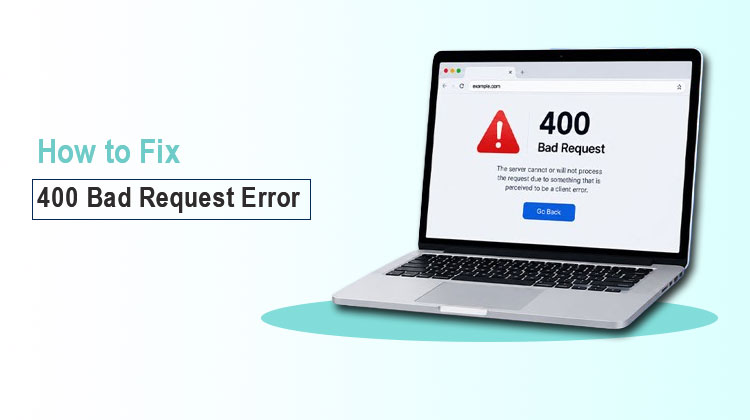
HTTP Error 400 is one of the HTTP response status codes that indicates your request was improper or corrupt. Simply, when the web server cannot recognize your request, it will display the error 400 Bad Request.
There are different kinds of error messages on different websites.
- 400 Bad Request
- HTTP Error 400
- Bad Request – Invalid URL
- 400 Request Header Or Cookie Too Large
- The server cannot process the request
Common Causes of Error 400 Bad Request
- Incorrect URL: Improper formatting, extra characters, or invalid links can all result in a 400 error.
- Corrupt Cookies or Cache: Outdated browser data could interfere with website requests and cause an error message to display.
- Large Request Headers: An excessively large header request could exceed server limits,
- Invalid API Requests: Missing data, incorrect formats, or improper parameters may lead to this error.
- Browser Extensions: Certain extensions may block or modify certain requests in a browser.
- Server Configuration Issues: Incorrect server settings may also lead to the 400 Bad Request error.
Also read: Fix This Site Can’t Be Reached Error – 10 Easy Troubleshooting Fixes
How to Fix a 400 Bad Request Error
1. Check and Correct the Requested URL
Primary causes for 404 bad request errors can include entering incorrect URLs, non-allowed characters, or objects that cannot be processed properly. Additionally, an incorrect URL could result in a 400 Bad Request error; thus, it’s wise to enter the URL carefully.
2. Clear Browser Cookies and Cache
Many websites utilize cookies to store the private information associated with your specific account. Thus, your browser will remember your user account, password, and other information. However, damaged or out-of-date cookies can trigger errors 400 and more. This is why you should eliminate duplicate or invalid local HTTP cookies.
- Open your browser settings.
- Go to privacy and security settings.
- Select cookies and site data options.
- Remove outdated or corrupted cookies.
- Restart the browser and try accessing the website again.
3. Clean DNS Cache and Browser Cache
Outdated DNS records may cause an HTTP error 400 Bad Request on your computer. To fix it, type “ipconfig /flushdns” in a command prompt window to flush your DNS cache and make updates available again.
Clear your browser cache if you experience error 400 bad requests. They are two distinct issues.
- Open Command Prompt on your computer.
- Type ipconfig /flushdns and press Enter.
- Wait for the DNS cache to clear.
- Clear your browser cache from settings.
- Restart your browser and check the website.
4. Log Out and Log Back Into Your Account
Sign in to your account to test whether error 400 persists. If you previously deleted browser cookies, sign out and back into your account before refreshing the page to see whether the 400 bad request error has been resolved or not.
5. Disable or Remove Browser Extensions
Given that different management systems use various extensions, plugins or modules for functionality purposes, pinpointing an exact cause may prove challenging. Have you recently installed any extensions or plugins that could have contributed to this issue? Try uninstalling or disabling recently installed extensions, plugins, or modules to identify anything that could be negatively affecting your system.
- Open your browser extension or plugin settings.
- Find recently installed extensions.
- Disable or remove suspicious extensions.
- Refresh the website to check the result
6. Upload a Smaller File
Your server could recognize files uploaded from other computers as uploads for purposes of running your app. As a website administrator, if the 400 Bad Request error persists, try uploading even smaller files and see whether that helps resolve it.
Also read: How to Fix Error 0x8096002A When Extracting RAR Files on Windows
7. Scan Your Device for Malware
Error code 400 could indicate malware infections on your computer and even damage. In such a situation, using antimalware protection software and conducting a detailed deep scan should help protect against viruses that might compromise or corrupt it.
8. Contact the Website Administrator
If you notice websites are down or you can’t reach that particular page for any other reason, contact their administrator using the phone numbers or email addresses provided on each webpage. Explaining your HTTP error 400 will usually give you all the information. Solving this might take more time than other approaches.
How to Prevent Error 400 Bad Request in the Future
To avoid seeing the Error 400 Bad Request message again, follow these simple tips:
- Check URLs carefully before opening websites.
- Clear browser cookies and cache regularly.
- Keep your browser updated to the latest version.
- Remove or disable unnecessary browser extensions.
- Avoid sending incomplete or incorrect form data.
- Validate API requests and parameters properly.
- Keep website server settings properly configured.
- Scan your device regularly for malware and security threats.
Ending Notes
Error 400 Bad Request can interrupt your browsing experience, but it is typically easy to resolve. Checking the URL, clearing cookies and cache, disabling extensions, and upgrading browser software usually resolve most problems quickly and effectively. Alternatively, contacting the website administrator or checking server settings could help solve the error.
FAQs: Error 400 Bad Request
What does 400 Bad Request - Invalid URL mean?
The message 400 Bad Request - Invalid URL means the server cannot understand the web address because it contains incorrect formatting, unsupported characters, or invalid parameters.
Is Error 400 Bad Request a server problem?
Usually, Error 400 Bad Request is a client-side issue caused by incorrect requests from the browser or application. However, incorrect server settings can also trigger this error.
How long does a 400 Bad Request error last?
The duration depends on the cause. Browser-related issues can often be fixed immediately by clearing cache and cookies, while website-related problems may require administrator action.
Is Error 400 Bad Request the same as 404 Error?
No. A 400 Bad Request means the server cannot process an invalid request, while a 404 Error means the requested webpage or resource cannot be found.









Leave a comment