






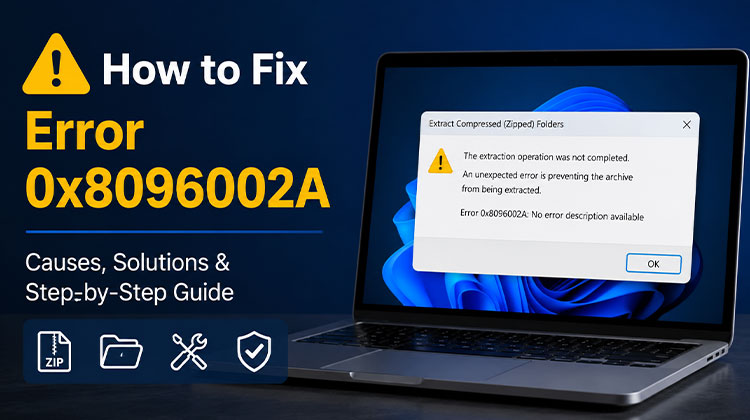
Error code 0x8096002a while extracting files from RAR can be disconcerting, particularly when presented with the error warning message “An unexpected error has prevented extraction. Error 0x8096002A: No error description available.”
This error occurs for various reasons, including file corruption or system file errors; additionally, it means that Windows cannot read the contents of a password-protected.rar file.
Below, we discuss effective solutions to resolve extraction error 0x8096002a on Windows systems.
What Causes Error 0x8096002A?
The Error 0x8096002A extraction error can occur for several reasons, including:
- Corrupted or incomplete RAR archive
- Password-protected or encrypted RAR file
- Damaged Windows system files
- Outdated Windows version
- Bad sectors on the storage drive
- File system corruption
- Windows File Explorer limitations when handling RAR archives
Identifying the cause makes it much easier to apply the correct solution.
Also read: Error 0x80010135: Path Too Long? Try These Easy Fixes
How to Fix Error 0x8096002A When Extracting RAR Files
1. Using SFC and DISM
System File Checker (SFC) can scan Windows to identify file issues and repair them as necessary, while Deployment Image Servicing and Management (DISM) uses Windows Update to procure any missing or corrupted files to repair damage caused by system crashes or corruption.
Here’s how to use these tools:
- Open “Search” and enter “Command Prompt,” and then click “Run as administrator.”
- Once the window opens, enter the command SFC /scannow and press “Enter” to execute it.
- Allow the verification process to complete 100%, then the scan results are displayed.
- After that, you can execute the command DISM.exe Online /Cleanup /Restorehealth.
2. Update Windows
Keeping your Windows OS updated can help resolve error 0x8096002A. Microsoft periodically issues updates designed to fix bugs and ensure compatibility with other applications.
To initiate updates:
- Find “Updates” within the Windows search bar and press “Enter.”
- Then, select “Check for updates.”
- Allow Windows to complete the download process to set up and install needed files.
- If there are any optional updates, install them.
- Finally, restart your computer to ensure that all updates are in effect.
3. Install the Latest Windows Insider Preview (Optional)
Consider enrolling in the Windows Insider Program, Microsoft’s testing platform for new releases and features before their official debut.
If you encounter error code 0x8096002A when trying to update Windows, switching to an Insider version might help resolve the problem.
- Navigate to “Settings” > “Windows Update” > “Windows Insider Program.”
- Click “Get started” and follow the steps to sign up for Insider mode. If this isn’t enough to fix the issue, you may return to the previous Windows version.
4. Extract the RAR File with Third-Party Software
One effective solution to fix Error 0x8096002A is to avoid Windows File Explorer altogether.
Reliable archive utilities provide better compatibility with RAR files and support advanced compression techniques.
Recommended tools:
- 7-Zip
- WinRAR
- WinZip
- PeaZip
5. Check Your Drive for Errors Using CHKDSK
Another reason the error could occur due to a a bad sector exists on the drive where the affected file is. Check Disk (CHKDSK) could prove invaluable, since it identifies and repairs files on problematic sectors of a disk drive.
Be wary when using the CHKDSK command with its optional /x parameter, as this deletes everything stored on the drive. Data loss could occur if your operating system or programs use this drive for storage purposes.
So, it’s recommended to employ this feature when the system can’t connect to the disk.
- Click the “Windows” icon located in the upper left-hand corner. Enter Command Prompt in the search bar.
- Select “Run as administrator.”
- Input the CHKDSK C: /F /R with /x command, and then hit “Enter.” Replace “C:” with the drive letter where the destination file is. This command triggers the inspection and repair process.
- Afterward, reboot your computer to check that the error persists.
Also read: DiskPart Virtual Disk Service Error? Solve It with 7 Easy Fixes
6. Verify the RAR Archive
If only one archive triggers the error, the problem may not be Windows at all.
Try these checks:
- Download the archive again.
- Verify the file size matches the original download.
- Ensure all multipart RAR files are present.
- Confirm you have the correct password.
- Ask the sender to recreate the archive if it appears corrupted.
Conclusion
In this post, we explored various solutions to solve RAR file extraction error code 0x8096002a. If this issue persists despite trying out suggestions in previous sections, this one might help.
FAQs: Error 0x8096002A
What is Error 0x8096002A?
Error 0x8096002A is a Windows extraction error that occurs when the operating system cannot extract a RAR archive. It is commonly caused by corrupted archives, password-protected files, unsupported compression methods, or damaged system files.
Can Windows File Explorer extract RAR files?
Yes, newer versions of Windows support RAR extraction. However, Windows File Explorer may not support all RAR compression methods, so tools like 7-Zip or WinRAR often provide better compatibility.
Is Error 0x8096002A caused by a virus?
Not usually. The error is generally related to archive corruption, system file issues, or compatibility problems rather than malware. However, it's still a good idea to scan downloaded files with antivirus software.
Which archive software is best for fixing Error 0x8096002A?
Applications such as 7-Zip, WinRAR, and WinZip offer better RAR compatibility than Windows File Explorer and can often extract archives that Windows cannot.









Leave a comment