






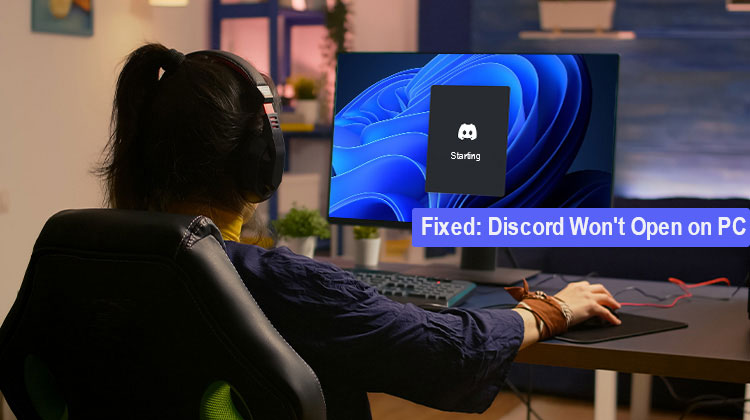
As a PC gamer, you might have experienced several Discord errors on your Windows PC. One issue that you might encounter is when you try to open Discord, but the app won’t open. For some users, it opens, but nothing shows on the screen. Just the background appears on the screen, and nothing else. In this article, we will present the best solutions to solve the Discord won’t open on PC issue.
If Discord won’t open, try the solutions listed below in order. One of them is sure to assist you:
Why Is Discord Not Opening on PC?
Discord may fail to launch for several reasons, including:
- Discord is already running in the background.
- Discord’s cache or temporary files are corrupted.
- The Discord installation has become damaged.
- Windows or Discord needs an update.
- Another application is interfering with Discord.
- Discord does not have the required permissions.
- Your internet connection or Discord’s servers are experiencing problems.
Also read: Discord Update Failed? 6 Easy Fixes to Get It Working Again
How to Solve Discord Won’t Open on PC Issue
1. Set Date/Time settings to Automatic
Although it may sound odd, some PC gamers who experienced this Discord won’t open issue said they can solve it by changing the date/time to automatic on their Windows 10/11 PC.
Do these things:
- Use the Windows key + I to open Settings.
- Click Time & Language.
- Click Sound on the left side of the screen.
- In the right pane, under the Current date and time section, switch the toggle to On to enable Automatically set the time.
- Exit Settings.
Then, open the Discord application and check whether it works normally. If not, then try the next method.
2. End the Discord Task in Task Manager
In this case, you must end Discord using Task Manager. When you’re done, relaunch the Discord app, and Discord should work as it did. If not, try the following method.
- Press Ctrl + Shift + Esc to open Task Manager.
- Under Processes, look for Discord or Discord.exe.
- Select the Discord process.
- Click End task.
- If you see more than one Discord process, end each one.
- Close Task Manager.
- Launch Discord again.
3. Log in to Discord using the web
First, you need to open the web version of Discord and log in. It will probably reset your account in the Discord application, and it will run as normal.
4. Uninstall and Delete Discord AppData
This will require you to uninstall the Discord application. Clear the Discord app data folder, then reboot your computer, then download and install the latest version of the Discord application on your Windows 10/11.
To clear or delete Discord AppData folder contents, follow these steps:
- Press the Windows key and R to launch the Run dialog.
- In the Run dialog box, type the environment variable below and press Enter.
%appdata% - In the location, find the folder (you might need to show hidden files or folders).
- Right-click on the folder and select Delete. Confirm any other prompts.
5. Disable the VPN or proxy server (if used)
This is a well-known solution – you may try to disable any VPN program or remove all proxy servers from your PC. If this doesn’t solve the Discord won’t load issue, try the next method.
6. Flush DNS
If DNS settings are corrupted, it could stop certain programs from communicating with the internet. In this instance, you can flush DNS.
- Press the Windows key.
- Type Command Prompt.
- Right-click Command Prompt.
- Select Run as administrator.
- Enter the following command:
ipconfig /flushdns - Press Enter.
- Wait for Windows to display the DNS cache confirmation message.
- Restart your computer.
- Try opening Discord again.
7. Disable Ad Blockers
If you have any ad blockers on your Windows system, you may be experiencing the Discord won’t open issue. In this case, you can disable or uninstall any Ad blocker on your system.
8. Run Discord with Administrator privileges
This option requires running the Discord application with administrator privileges. If your Discord installation is stored on your system drive, it could require admin rights to perform certain tasks within the device storage.
Also read: Discord Overlay Not Working in 2026? Here’s the Ultimate Fix Guide
9. Installing Discord PTB (Public Test Beta) version/build
If Discord won’t open at this time, you can install the Discord PTB build/version. After installation, when you launch the PTB Version, it should update, and everything else will work like normal Discord. Log in to your account, and then check whether the issue persists.
10. Run SFC scan
If Discord won’t open on PC and remains stuck on starting, try this method: run an SFC scan to look for corrupted system files.
- Press the Windows key.
- Search for Command Prompt.
- Right-click Command Prompt.
- Select Run as administrator.
- Enter:
sfc /scannow - Press Enter.
- Wait for the scan to reach 100%.
- Follow any instructions provided by Windows.
- Restart your PC.
- Try opening Discord again.
Tip: Don’t close the Command Prompt window while the scan is running.
Final Thoughts
If Discord won’t open on your computer, the methods above will help you identify and fix the issue. Start with the simplest options and move to the next option. If you are not successful, try reinstalling Discord or run the SFC scan to look for Windows problems.
FAQs: Discord Won’t Open on PC
Why won't Discord open after I restart my PC?
If Discord won't open after restarting, it may be stuck as a background process or have damaged application files. Check Task Manager and end any Discord processes before trying again.
How do I fix Discord using Command Prompt?
You can flush your DNS cache by opening Command Prompt as administrator and running ipconfig /flushdns. You can also run sfc /scannow to check for corrupted Windows system files.
What should I do if Discord won't open even after reinstalling it?
Try removing Discord's remaining AppData folders before reinstalling it. You can also run sfc /scannow in Command Prompt as administrator to check for corrupted Windows system files.
How do I force Discord to open on Windows?
End all Discord processes in Task Manager first. Then right-click Discord and select Run as administrator. If it still doesn't launch, try clearing its AppData files or reinstalling it.









Leave a comment