






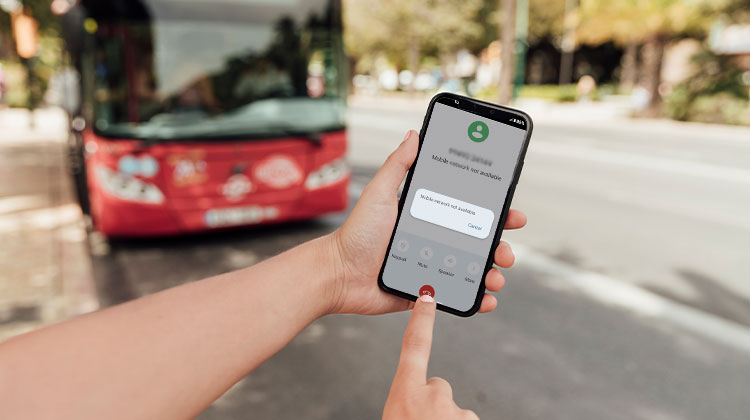
Are you seeing a “mobile network not available” message? Mobile networks are unstable at times, even today. It’s not easy to pinpoint what causes this, and it can be even harder to fix the problem without knowing the root cause.
In some instances, even if you know the reason, it’s simple to solve the mobile network not available issue.
Troubleshooting the error message takes time; however, as long as the issue doesn’t lie solely with your mobile network, you can connect in a few minutes. The solution includes several simple troubleshooting methods for Android issues and, in specific cases, enabling a few settings to fix your mobile network issue.
What Causes the Mobile Network Not Available Message?
Although the solutions above can help fix the “mobile network not available” message, it is also important to understand what causes the problem. Common reasons include:
- Weak or no network signal
- Damaged or inactive SIM card
- Airplane Mode enabled
- Incorrect network settings
- Carrier network outage
- Outdated Android software
- Incorrect APN settings
- Roaming issues
- Phone hardware problems
- SIM card not properly inserted
Also read: 7 Ways to Fix “This Network Is Blocking Encrypted DNS Traffic Warning
How to Fix the Mobile Network Not Available Issue
You can follow these steps in order: start with the simplest first, and continue until the message is gone and your network connection is stable again.
1. Restart Your Android Phone
Restarting your phone can refresh its cellular connection and remove temporary software glitches. If your device suddenly shows mobile network not available, a simple restart may allow it to reconnect to your carrier’s network automatically.
Steps:
- Press and hold the Power button.
- Tap Restart.
- Wait for the phone to turn on.
- Check your network signal.
- Try making a call.
2. Turn Airplane Mode On and Off
Turning Airplane Mode on and off can quickly refresh your phone’s wireless connections. This simple method is useful when cellular network not available appears because of a temporary connection or network-registration problem.
Steps:
- Open Quick Settings.
- Tap Airplane Mode.
- Wait for 10–15 seconds.
- Turn Airplane Mode off.
- Wait for the network signal to return.
3. Check Your SIM Card
A loose, damaged, or incorrectly inserted SIM card can cause mobile network not available errors. Removing and reinserting the SIM can help your phone recognize the card and reconnect to your carrier.
Steps:
- Turn off your phone.
- Remove the SIM card.
- Check it for damage or dirt.
- Reinsert the SIM correctly.
- Turn your phone on.
- Check the network signal.
4. Check Your Network Signal
Weak coverage can cause mobile network not available, particularly inside buildings, underground areas, or remote locations. Moving to an open area with better reception can help your phone establish a stronger connection with the cellular network.
Steps:
- Check the signal bars.
- Move outdoors or near a window.
- Try a different location.
- Wait for the signal to improve.
- Test a call or mobile data.
Also read: WiFi Booster vs WiFi Extender (2025): Which One Improves Your Signal Better?
5. Select the Network Operator Manually
Sometimes your Android phone may not automatically register with the correct carrier. Manually selecting your network operator can help resolve mobile network not available issue when automatic network selection is not working properly.
Steps:
- Open Settings.
- Go to Mobile Network or Connections.
- Tap Network Operators.
- Disable automatic selection.
- Choose your mobile carrier.
- Check the connection.
6. Check the Preferred Network Type
An incorrect network mode can affect your phone’s ability to connect. If mobile network not available continues, changing the preferred network type to an automatic or supported option may restore connectivity.
Steps:
- Open Settings.
- Tap Mobile Network.
- Select your SIM.
- Tap Preferred Network Type.
- Choose 5G/4G/3G/2G Auto or the available automatic option.
- Test the network.
7. Reset APN Settings
Incorrect APN settings can prevent mobile data from working correctly. If your phone has a signal but still shows connectivity problems, resetting the APN to its default settings can help correct configuration errors.
Steps:
- Open Settings.
- Go to Mobile Network.
- Select Access Point Names (APN).
- Tap the three-dot menu.
- Select Reset to default.
- Restart your phone.
8. Reset Mobile Network Settings
Resetting mobile network settings can remove incorrect cellular configurations and restore default network settings. This can be particularly helpful when mobile network not available remains after restarting, checking the SIM, and changing other network options.
Steps:
- Open Settings.
- Search for Reset network settings.
- Open the reset option.
- Select Reset mobile network settings.
- Confirm the reset.
- Restart your phone.
Also read: Power Saving Mode on Android: Tips to Save Battery Life
9. Check for Software Updates
An outdated Android version can sometimes cause network-related problems. Installing available system updates may fix software bugs affecting cellular connectivity and help resolve mobile network not available on supported devices.
Steps:
- Open Settings.
- Tap Software Update or System Update.
- Select Check for Updates.
- Download an available update.
- Install the update.
- Restart your phone.
10. Contact Your Mobile Carrier
If mobile network not available still appears after trying the previous solutions, the problem may be related to your carrier, SIM activation, account, or a local network outage. Your carrier can check your account and determine whether the network or SIM requires attention.
Steps:
- Contact your mobile carrier.
- Ask about network outages.
- Confirm that your SIM is active.
- Check your account and plan.
- Ask whether your device is supported.
- Request a replacement SIM if necessary.
Conclusion
These are the best solutions for the Mobile Network Not Available Error on Android phones. I’m sure these suggestions will help you resolve it.
The solutions above have helped many users, and now it’s your turn to try to remove this error.
FAQs: Mobile Network Not Available
Why is my phone showing no service even though my SIM is working?
Your phone may have weak coverage, incorrect network settings, a software problem, or compatibility issues with your carrier. Try your SIM in another phone to determine whether the problem is with the SIM or your device.
Can a bad SIM card cause Mobile Network Not Available?
Yes. A damaged, inactive, incorrectly inserted, or poorly provisioned SIM can prevent your phone from connecting to the carrier. Try removing and reinserting the SIM, or test it in another compatible phone.
Why does my phone have signal bars but I can't make calls?
Signal bars do not always guarantee that voice service is working correctly. The issue can involve network registration, carrier service, SIM provisioning, VoLTE or network-mode settings, or a temporary carrier problem.
How do I know if the problem is my phone or my carrier?
Test your SIM in another compatible phone. If the SIM works there, your phone may have a settings, compatibility, or hardware issue. If the SIM fails there too, contact your carrier to check your account, SIM, or network service.









Leave a comment