






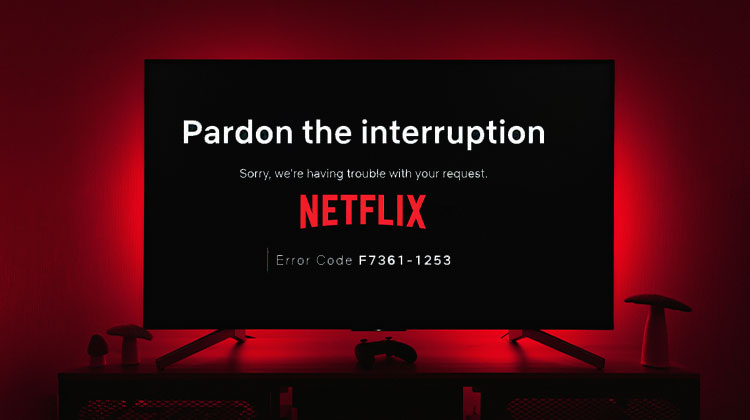
Netflix Error code M7361-1253 could prevent you from watching a movie on Netflix successfully. If you’re experiencing this issue, do you know how to fix error code M7361-1253? To help you solve this issue, we offer several effective solutions and demonstrate them in this article.
Why Does Netflix Error M7361-1253 Occur?
There are several reasons why this Netflix playback error may appear. Some common causes include:
- An outdated version of Google Chrome
- Temporary browser data or cache
- A browser playback problem
- A temporary problem with your computer
- Issues with Netflix playing videos in your browser
It may not always be easy to know exactly what is causing the problem. So, try the fixes below one by one.
Also read: How to Stream Netflix on Discord: A Easy Guide
How to Fix Netflix Error Code M7361-1253
1. Update Google Chrome
An old version of Google Chrome can sometimes cause Netflix playback issues. Updating Chrome can help fix Netflix Error Code M7361-1253 and make sure your browser works properly with Netflix.
Steps to update Google Chrome:
- Open Google Chrome on your computer.
- Click the three dots in the top-right corner.
- Select Help.
- Click About Google Chrome.
- Chrome will check for updates automatically.
- If an update is available, let Chrome install it.
- Click Relaunch if you see the option.
- Open Netflix and try playing a video again.
2. Restart Your Computer
Sometimes, a temporary problem with your computer can cause Netflix playback issues. Restarting your computer gives the system a fresh start and may fix the Netflix M7361-1253 error.
Steps to restart your computer:
- Close Netflix and Google Chrome.
- Save any work you have open.
- Close your other apps.
- Open your computer’s Power menu.
- Select Restart.
- Wait for your computer to start again.
- Open Google Chrome.
- Go to Netflix and try playing a movie or TV show.
3. Restart Google Chrome
Chrome can sometimes have a temporary problem that stops Netflix videos from playing. Closing Chrome completely and opening it again can refresh the browser and may fix Netflix Error M7361-1253.
Steps to restart Chrome:
- Close all Netflix tabs.
- Close all Google Chrome windows.
- Wait a few seconds.
- Open Google Chrome again.
- Go to the Netflix website.
- Sign in if needed.
- Choose a movie or TV show.
- Click Play and check if the video works.
4. Check Netflix on Another Browser
If you still see Netflix Error Code M7361-1253 in Chrome, try opening Netflix in another supported browser. This can help you find out whether Chrome is causing the problem.
Steps to check Netflix in another browser:
- Close Google Chrome.
- Open another supported web browser.
- Go to Netflix.
- Sign in to your Netflix account.
- Choose a movie or TV show.
- Start playing the video.
- Check if Netflix works without the error.
If Netflix works normally in another browser, the problem may be related to Chrome, its settings, or stored browser data.
5. Clear Browser Data
Old or temporary browser data can sometimes cause Netflix playback issues. Clearing Chrome’s cached data gives the browser a fresh start and may help fix Netflix Error M7361-1253.
Steps to clear Chrome’s browser data:
- Open Google Chrome.
- Click the three dots in the top-right corner.
- Select Delete browsing data.
- Choose a Time range.
- Select Cached images and files.
- Click Delete data.
- Restart Google Chrome.
- Open Netflix and try playing a video again.
Note: Clearing browsing data may sign you out of some websites.
Also read: How to Fix Netflix Not Working on Roku (6 Simple Solutions)
6. Try Playing Another Netflix Title
Sometimes, the problem may affect only one movie or TV show. Trying another title can help you find out whether the issue affects all Netflix videos or just one.
Steps to try another Netflix title:
- Open Netflix in your browser.
- Search for another movie or TV show.
- Select the title.
- Click Play.
- Check whether the video starts normally.
If another title plays without a problem, try playing the original title again later.
If several titles show Netflix Error M7361-1253, move on to the other fixes in this guide.
7. Restart Your Internet Connection
A temporary internet problem can also cause Netflix playback issues. Restarting your router can refresh your connection and may help fix the problem.
Steps to restart your internet connection:
- Close Netflix.
- Turn off your router or modem.
- Wait a few seconds.
- Turn the router back on.
- Wait for your internet connection to return.
- Open Google Chrome.
- Go to Netflix.
- Try playing a movie or TV show again.
You can also open another website to check whether your internet connection is working properly.
Bottom Line
These seven solutions listed above will help you resolve Netflix error code M7361-1253. In some cases, if the Netflix error code M7361-1253 isn’t solved, you can contact the device manufacturer, your ISP, or Netflix for help.
FAQs: Netflix Error Code M7361-1253
What is Netflix Error Code M7361-1253?
Netflix Error Code M7361-1253 is a playback error that can prevent Netflix videos from playing properly on your computer.
Will clearing Chrome's cache fix the Netflix playback error?
Clearing cached browser data can sometimes fix playback problems by giving Chrome a fresh start.
How long does it take to fix Netflix Error Code M7361-1253?
It may take only a few minutes if the problem is caused by a temporary browser, computer, or internet issue.
What is the easiest way to fix Netflix Error Code M7361-1253?
Start by restarting your computer and checking that your browser is updated. If the error continues, try the other troubleshooting steps in the guide.









Leave a comment