






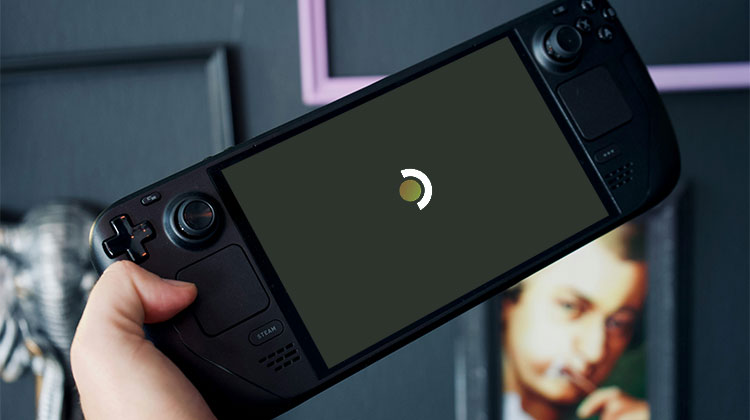
You press the power button, the Steam logo appears, and then nothing happens. Your Steam Deck is stuck on the logo screen, and your gaming session is on hold. This is one of the most common problems Steam Deck owners run into, and the good news is that it’s usually fixable at home in a few minutes.
This guide breaks down exactly why your Steam Deck stuck on logo screen, then walks you through every fix — from the simplest to the most advanced. Work through them in order, and chances are you’ll be back to gaming before long.
Why Is Your Steam Deck Stuck on Logo Screen?
Before jumping into fixes, it helps to understand what’s causing the problem. Here are the most common triggers behind a Steam Deck boot problem:
- Interrupted or failed updates: If a system update gets cut off mid-install — due to a dead battery or accidental shutdown — your Steam Deck stuck on logo after update becomes almost inevitable. Incomplete files can prevent SteamOS from loading properly.
- Low or drained battery: A near-dead battery may have just enough charge to show the logo but not enough to complete the boot sequence.
- Corrupted system files: Unexpected shutdowns, crashes, or storage errors can corrupt the files SteamOS needs to start up.
- Faulty microSD card or accessories: A bad SD card, dock, or USB device can interfere with the boot process and leave your Steam Deck stuck on boot screen.
- Third-party software or tweaks: Custom plugins, desktop mode changes, or dual-boot configurations can sometimes prevent SteamOS from loading.
- Hardware issues: In rare cases, a failing SSD or internal component is the root cause.
Also read: Fix Computer Stuck on Restarting Issue: 16 Quick & Advanced Solutions
Quick Fixes for Steam Deck Stuck on Logo Screen
1. Wait It Out
It sounds obvious, but patience matters here. After a major update, your Steam Deck stuck on logo screen could simply be finishing its installation in the background. Give it 10 to 15 minutes before doing anything else — especially if you recently ran an update. Cutting the process short can make things worse.
2. Charge Your Steam Deck First
Low battery is a surprisingly common reason for a Steam Deck not turning on. Plug your device in using the official charger or any USB-C charger rated at 45W or higher, and let it charge for at least 30 minutes. Then try booting it up while still connected to power.
If your Deck was in battery storage mode, it may not respond at all until it gets some charge — so keep it plugged in before pressing the power button.
3. Force a Shutdown and Restart
A force restart is often all it takes to clear the glitch causing your Steam Deck stuck on logo screen.
- Press and hold the Power button for 10 to 12 seconds until the screen goes completely dark.
- Wait 30 seconds.
- Press the Power button again to restart.
This clears temporary system errors and fixes a Steam Deck stuck on loading screen in many cases. It’s quick, easy, and risk-free.
4. Remove the microSD Card and Any Accessories
Disconnect your microSD card and unplug any docks, USB hubs, controllers, or cables. Then force a restart. If the Deck boots normally, one of those accessories was triggering the Steam Deck boot problem. Reconnect them one at a time to track down the culprit. A failing or incompatible SD card is a frequent offender.
Advanced Fixes for a Steam Deck Stuck on Logo Screen
If the quick fixes haven’t worked, it’s time to go a step further.
5. Boot Into a Previous SteamOS Version
This is especially useful if your Steam Deck stuck on logo after update. Your device stores older versions of SteamOS, and you can boot into one if the latest version is broken.
- Turn off your Steam Deck completely.
- Hold the “…” (Quick Access) button and press the Power button.
- Keep holding the “…” button until the boot menu appears.
- Use the D-pad to select a previous SteamOS version and press A.
If it boots successfully, stay on that version until Valve releases a patch. You can check for updates in Settings > System.
6. Update SteamOS Once You’re Back In
Valve often releases fast fixes after a problematic update. If any of the above methods gets you back into the system, go to Settings > System > Software Updates and install the latest stable release. Make sure your Steam Deck is plugged in and connected to Wi-Fi before you update — an interrupted update is what causes Steam Deck stuck on logo screen most of the time.
If you’ve been using the Beta or Preview update channel, switch to Stable to avoid unstable builds that are more prone to causing a Steam Deck boot problem.
7. Use the Boot Manager
The Boot Manager lets you manually select which drive or partition to boot from. This is helpful if a failed install or dual-boot setup is causing your Steam Deck stuck on boot screen issue.
- Power off your Steam Deck.
- Hold the Volume Down (-) button and press the Power button.
- Release the volume button when you hear the startup chime.
- Select the internal drive (SteamOS) and press A.
Also read: Fix Nintendo Switch Won’t Turn On – 7 Easy Methods to Try First
8. Boot Into Recovery Mode
If your Steam Deck is stuck on logo screen and nothing above has worked, a recovery image can repair the system. You’ll need a PC or Mac and a USB drive with at least 8GB of storage.
- Download the official Steam Deck recovery image from Valve’s support site.
- Use Rufus (Windows) or balenaEtcher (Mac/Linux) to write the image to your USB drive.
- Connect the USB drive to your Steam Deck with a USB-C hub or adapter.
- Power off the Deck, hold Volume Down (-), and press Power to open the Boot Manager.
- Select the USB drive (usually listed as EFI USB Device) and press A.
- When the recovery environment loads, select Reinstall SteamOS.
The Reinstall SteamOS option repairs your operating system while doing its best to preserve your games and saved data. Always try this before moving on to a full reset.
9. Factory Reset as a Last Resort
If reinstalling SteamOS still doesn’t fix the Steam Deck stuck on logo screen issue, a factory reset is your final option. In the recovery environment, select Re-image Steam Deck. This completely wipes the device and restores it to factory settings.
Before you do this, know that:
- All installed games, local saves, and settings will be erased.
- Games with Steam Cloud saves can be recovered once you log back in.
- You’ll need to redownload your entire library.
If your Steam Deck stuck on logo screen persists even after a full re-image, the issue is likely hardware-related. Reach out to Steam Support — especially if your device is still under warranty.
How to Prevent Your Steam Deck from Getting Stuck on Logo Screen
A few good habits can go a long way in keeping your Deck running smoothly:
- Always charge before updating. Plug in first — a dead battery mid-update is the leading cause of Steam Deck stuck on logo after update.
- Don’t interrupt updates. Let them finish, no matter how long they take.
- Stay on the Stable update channel to avoid buggy beta builds.
- Use reputable microSD cards from well-known brands.
- Shut down properly rather than letting the battery drain completely.
- Back up your data before applying any mods, plugins, or system tweaks.
- Enable Steam Cloud so your saves are always protected.
Final Thoughts
Dealing with a Steam Deck stuck on logo screen can be stressful, especially when you just want to play. But in most cases, it’s nothing serious. Start with the simplest fixes — wait, charge, and force restart. If those don’t work, try booting into an older SteamOS version or running a recovery install. Keep the factory reset as your absolute last resort.
With this guide, you have everything you need to resolve a Steam Deck stuck on logo screen issue and get back to gaming fast. Bookmark it so you’re ready the next time your Deck decides not to cooperate.
FAQs: Steam Deck Stuck on Logo Screen
How long should I wait if my Steam Deck is stuck on the loading screen?
Wait around 10–15 minutes, especially if you recently installed a SteamOS update. Some updates take longer than usual. If the screen remains unchanged, try a force restart and other troubleshooting steps.
Will I lose my games if I reinstall SteamOS?
The Reinstall SteamOS recovery option is designed to reinstall the operating system while preserving personal data where possible. However, data loss is still possible, so back up important files whenever possible. The Re-image Steam Deck option erases the device and restores it to its factory state.
Can a microSD card cause a Steam Deck boot problem?
Yes. A faulty microSD card or connected accessory may interfere with startup. Remove the microSD card, disconnect external devices, and restart the Steam Deck to check whether the problem is resolved.
How do I fix a Steam Deck stuck on logo without losing data?
Start with non-destructive fixes, such as charging the device, force restarting it, removing accessories, and trying an available previous SteamOS version. If necessary, use the recovery environment's Reinstall SteamOS option before considering a full re-image.






Leave a comment