






If you use Excel, you’ll likely encounter queries regarding its mathematical capabilities. What is the standard error? Why is the standard error calculation so important? How do you calculate the Standard error in Excel? We’ll provide the specifics in this article.
What Is Standard Error in Excel?
Standard error is a statistic that indicates the accuracy of the sample data representing the entire dataset. It helps you determine the degree of matching between the sample distribution and the whole population, calculating the standard deviation.
Low standard errors indicate that the sample is extremely close to the population mean. A high standard error means that the mean of your sample is unreliable.
Why Does Standard Error Calculation Matter?
You might want to learn the basic error calculation to solve a variety of issues. But the first step is to know why it’s crucial.
When conducting research or analysing data, we generally don’t take data from a large sample because it’s a lot of work that requires time and effort. Instead, you use samples. Standard error can be used to determine the degree of deviation between the standard error and the overall mean.
For instance, you’ll need to determine the education levels of each province. It’s impossible to interview everyone in the nation. You can collect a sample and calculate the standard error to figure out.
Standard error can be used to determine the degree of deviation between the standard error and the general mean.
Also read: How to Remove Password from Excel Workbook & Sheet (4 Easy Tricks)
How to Calculate Standard Error in Excel?
You can now begin to understand the actual work of calculating standard errors using Microsoft Excel. The following steps should be completed to ensure that the outcome is accurate.
Step 1: Prepare a data set
Before calculating your standard error, you’ll have to create a spreadsheet using Excel. Set up your data in a horizontal or vertical line so that Excel can run statistical calculations correctly in a continuous range.
Step 2: Calculate the mean of the samples
You can use the Excel formula =AVERAGE (range) to calculate the sample mean. After that, you must type the calculation range, like =AVERAGE(A2:A10).
Step 3: Calculate the standard deviation.
The standard deviation helps to determine the range of data. You can use the formula = STDEV (range) to compute the standard deviation of your sample. In addition, you can type your data range into brackets.
Step 4: Calculate the size of the sample
The number of data points in the sample is important to calculate the standard error.
Step 5: Calculate standard error
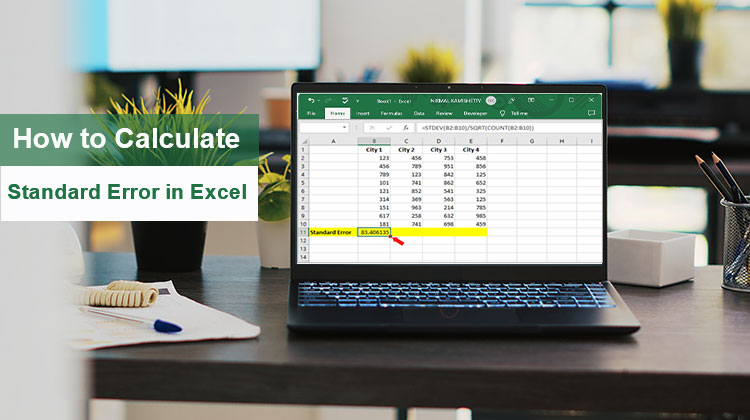
Based on the data calculated above, including the sample mean, standard deviation, and sample size, the standard error can be calculated using the formula =STDEV(range)/SQRT(COUNT(range)). Complete the calculation in the correct range as well as the actual size values.
Once the calculation is finished, you can get the standard error value, which delegates the standard error of the sample mean. The smaller your standard error is, the greater the reliability of the sample as an approximate representation of the general mean.
Also read: Top 10 Data Entry Software for Faster and Accurate Work
Quick Tips
If you are using Microsoft Excel to calculate the standard error, you can follow the following tips.
1. Reduce the Calculation
Calculating the standard deviation and count with separate formulas is simpler to understand and use, but it’s more time-consuming and prone to error. Therefore, we suggest that you only use one formula for all calculations. Replace each cell in the standard error formula with the formula you entered in that cell, such as =STDEV(range)/SQRT(COUNT(range)).”
2. Increase Your Ranges.
When you create standard deviation and count formulas, if you intend to add additional statistical data, you can extend the calculation range beyond the data point. The formula will not consider blank cells, so you can obtain the right results immediately. It will also automatically calculate any future data points without changing the formula.
Common Mistakes to Avoid
- Using STDEV instead of STDEV.S for sample data
- Confusing standard deviation with standard error
- Using very small sample sizes
- Ignoring outliers in the dataset
Final Thoughts
In the end, you can identify what the standard error is and how to calculate standard error in Excel. Armed with knowledge of Standard Error, you will be able to make the most of the Excel program to analyze data.
FAQs: Standard Error in Excel
Why is Standard Error in Excel important?
Standard Error in Excel helps measure the reliability of sample data and shows how close the sample mean is to the population mean.
What does a low Standard Error in Excel mean?
A low standard error means the sample mean is close to the population mean and the results are more reliable.
What is the difference between standard deviation and Standard Error in Excel?
Standard deviation measures data spread, while Standard Error measures how accurately the sample mean represents the population mean.
Can I calculate standard error directly in Excel?
Yes, Excel allows you to calculate standard error directly using a combination of STDEV.S, COUNT, and SQRT formulas.










Leave a comment