






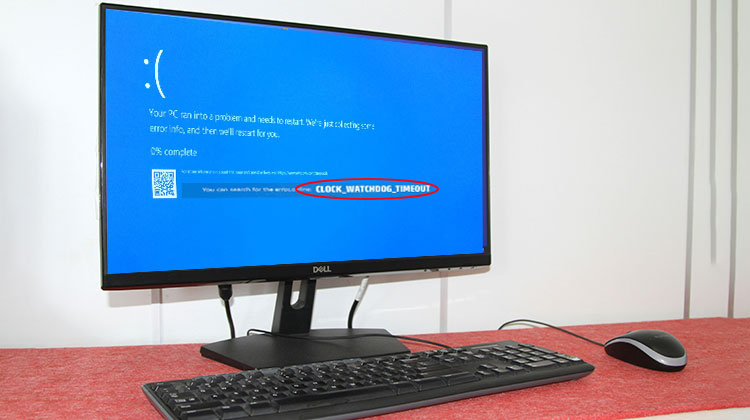
Errors in Windows 10 OS are pretty uncommon. However, some mistakes are annoying. There are a variety of issues and errors within the OS; however, it is extremely uncommon. A very irritating type of error is a blue screen, which can disrupt the workflow and occur suddenly. The clock watchdog timeout error in Windows 10 is a bit of a hassle, and we’ll provide the essential information you need to fix it fast.
Blue Screen of Death will occur at a random time, and the entire screen is blue, with an error Stop Code 0x00000101. When an error appears suddenly, the entire work you have done is lost or erased. Therefore, you will get the BSOD(blue screen of death), an extremely annoying and problematic error that occurs on Windows OS. First, you restart your computer and reboot into safe mode. Here are several methods you can use to resolve the clock watchdog timeout error.
What Causes Clock Watchdog Timeout BSOD Error?
Here are the most common reasons, categorized from most typical to the most technical.
To fix this error, you need to realize that the “CLOCK_WATCHDOG_TIMEOUT” error occurs due to an “almost-hardware” problem, and not due to the classic case where some applications cause a malfunction of your PC or laptop. This type of error is triggered after the Windows kernel discovers that the processor core is entirely dead.
Here are the most common causes:
- Outdated or corrupted drivers
- CPU overclocking
- Faulty BIOS settings
- Old SSD firmware
- Incompatible RAM
- Overheating hardware
- Corrupted Windows updates
- Hardware instability
Windows triggers this error when it detects that a processor core has stopped responding.
Also read: How to Fix Stop Code Memory Management in Windows 10/11
Common Clock_Whatchdog_Timeout Errors
So, in this specific blue death screen that displays a clock watchdog timeout, there are various mistakes. They all mean different things, and you need to correct them accordingly.
Clock_Whatchdog_Timeout Overclock:
This error can occur when you exceed the clock speed of the hardware components. Overclocking is an excellent option for power users, but some computers cannot support it and can crash if it is not done correctly or if the limit is exceeded.
Clock_Whatchdog_Timeout Ryzen:
This error is seen in users with AMD Ryzen CPUs. The problem is a result of updates. After removing the update from the system, the problem is resolved.
Clock_Whatchdog_Timeout Windows 8.1 and 7:
The name says that the problem is caused by Windows 7 and 8.1 machines; however, the BSOD issue is not limited only to Windows 10. The solution is similar, and you can fix the issue when you notice it on your system.
Clock_Whatchdog_Timeout RAM, GPU:
An overclocked GPU or RAM could be the reason for the error. The solution is to disable overclocking on any hardware device. This issue could also result from the RAM you have installed on your computer not being compatible with the Motherboard.
Clock_Whatchdog_Timeout HP, Intel, AMD:
The problem is due to users who use HP notebooks and laptops. Intel and AMD processors.
These kinds of errors must be corrected without delay. If the error only occurs once, there is no need to be concerned. If the issue persists, you need to repair it so that you can use your computer without issues.
To fix the Clock Watchdog Timeout error, follow these steps.
How to Fix Clock Watchdog Timeout Error
Well, here are simple fixes that you can use to fix the Clock Watchdog Timeout error on your computer. Some methods may not work for you, but you may try a few of these techniques and resolve your issue.
1. Update your Drivers
Old drivers may be the issue, and sometimes corrupt driver files could be the cause, so updating the driver can help to fix the issue.
Steps to Update Drivers:
- Press Windows + S
- Search for Device Manager
- Open Device Manager
- Right-click your hardware device
- Select Update Driver
- Choose Search automatically for drivers
2. Update the BIOS
The BIOS update is one of the most important aspects of maintaining your device. Sometimes, the BIOS can be the cause; updating it can help to fix the problem.
Updating the BIOS isn’t an easy task. Therefore, be sure to do your research thoroughly and update the BIOS with the motherboard manufacturer’s instructions. If you attempt to update the BIOS without being vigilant, you may end up damaging your computer.
3. Disable the C1-6 BIOS
Altering a BIOS is not advised unless you have a solid background in computer science. The BIOS’ C1-6 setting has been reported to cause the problem on your computer, and disabling it can help fix the issue. However, before working on this, you should consult the Motherboard manual and understand the proper process. So ensure you don’t damage your computer.
4. Reset BIOS Settings
As we mentioned previously, certain BIOS settings cause the Clock Watchdog Timeout error; the most efficient way to resolve this issue is to reset your BIOS Id.
Resetting the BIOS will reset all settings to default values, thus fixing the issue.
Steps:
- Enter BIOS during startup
- Locate:
- Load Setup Defaults
- Reset to Default
- Save changes
- Restart your PC
5. Update SSD Firmware and Disable LPM
Clock Watchdog Timeout error can be caused by outdated SSD firmware. If you’re using an SSD, we recommend updating your firmware.
Updating the firmware on your SSD could be dangerous, so be extra careful and back up your files.
In addition to upgrading your firmware, several users are suggesting disabling LPM, so you may consider doing that too.
Steps:
- Visit your SSD manufacturer’s website
- Download firmware utility tools
- Update SSD firmware carefully
Also read: SSD Not Showing Up? 7 Proven Fixes for Windows Users
6. Remove the Overclocking
As mentioned earlier, overclocking the components often causes issues, and you need to remove the overclock to correct the problem. Then, switch to the settings you used to increase the speed and return them to normal. If you remove the overclocking, you’ll notice some performance lag, but when the overclocking has caused that blue death screen, it is necessary to take out the overclock.
7. Install Windows Updates
The latest software updates installed on your PC will fix the problem.
- To download the latest updates, visit the settings app.
- Find updates and security.
- Click on the ” Check for updates button under the tab for system updates.
- Install the updates and then restart your computer.
8. Uninstall Problematic Updates
Sometimes, updating your computer can cause issues, and you must uninstall the latest updates from your PC.
To delete the latest updates,
- Go to the Windows Update and Select View Update History
- Click Uninstall Updates
- Select the problem update(or the most recent upgrade) and then remove it.
How to Prevent Clock Watchdog Timeout
Here are the best prevention tips:
- Keep Windows updated
- Avoid unstable overclocking
- Use quality thermal paste
- Update BIOS regularly
- Monitor CPU temperatures
- Install official drivers only
Wrap Up
It’s frustrating to encounter the Clock Watchdog Timeout error on a Windows computer. Find out what can be causing the issue, whether it’s processor or RAM problems, BIOS issues, or software/hardware conflicts. Try the right methods to correct the issue.
FAQs: Clock Watchdog Timeout Error
What is the Clock Watchdog Timeout error?
The Clock Watchdog Timeout error is a Blue Screen of Death (BSOD) issue in Windows that occurs when the processor stops responding correctly. It is usually related to CPU, BIOS, RAM, or driver problems.
Can RAM cause Clock Watchdog Timeout?
Yes. Faulty or incompatible RAM can trigger the Clock Watchdog Timeout BSOD error in Windows 10 and Windows 11.
Is Clock Watchdog Timeout a hardware problem?
In many cases, yes. The error is often linked to CPU, motherboard, RAM, or SSD hardware instability.
Will resetting BIOS fix Clock Watchdog Timeout?
Resetting BIOS to default settings often fixes incorrect configurations that trigger the error.










Leave a comment