






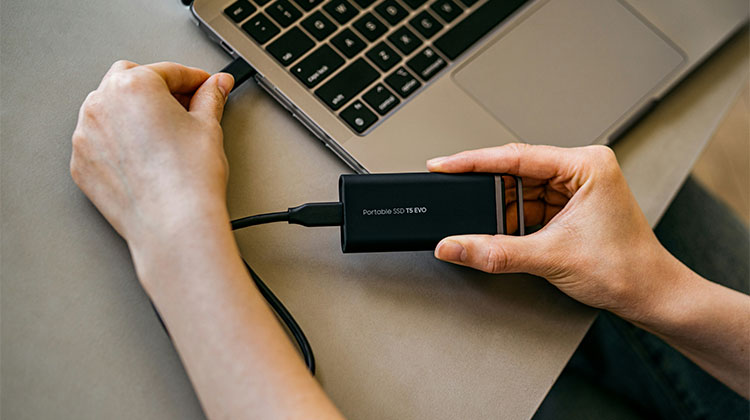
SSDs are just as vulnerable to corruption logically as traditional hard drives. This means that occasionally you might encounter problems such as “SSD not showing up. ” This problem isn’t limited to older drives—even newly purchased SSDs can experience it.
In this blog, we’ll discuss proven methods to fix an SSD drive not showing up on Windows.
Why Is My SSD Not Showing Up?
Even though SSDs are more reliable than traditional hard drives, they can still face logical and hardware-related issues such as:
- SSD not initialized
- Unallocated disk space
- Missing or conflicting drive letter
- Outdated or corrupted drivers
- Unsupported file system
- Disabled SSD in BIOS
- Faulty connection or hardware failure
How to Fix SSD Not Showing Up
1. SSD Not Initialized
If you notice that your new SSD not showing up in Windows Explorer, it might not be being initialized. To allow Logical Disk Manager to access an SSD, you have to start the initialize SSD.
You could try connecting the SSD data to another functional PC to see if it solves the problem. If it does not, Windows 10 will require you to create an initial SSD.
- Start your PC’s Disk Management software.
- Find the SSD you want to create, right-click it, and select “Initialize Disk”.
- Select which disk(s) to initialize using the Initialize Disk dialog box. You can select between either the GUID partition table (GPT) or the master boot record (MBR) partition type.
Your new SSD should be running without hiccups.
Also read: USB Drive Not Showing Up On Computer? 3 Easy Fixes For Windows
2. SSD Showing as Unallocated Space
There is also the possibility that, even if the SSD appears to be online, the entire drive remains “unallocated” .
Disk Management will only display free space in this scenario; however, it will not show all the SSD’s partitions. How can an unallocated SSD within Windows 10/8/7 be repaired? Recovering lost partitions and data is the first step to allocate space to the SSD.
The unallocated SSD is then assigned an appropriate volume.
Steps:
- Right-click on the free space on your SSD, then select New Simple Volume, select Next.
- Enter the desired volume’s dimensions in Megabytes or choose the standard. Then, click Next.
- Choose the SSD drive’s letter and then select Next.
- Format the volume using default settings, then Next> Finish.
Your allotted drive letter should fix the SSD not showing up in Disk Management right now.
3. Missing Drive Letter
Your SSD may disappear from time to time because the Windows OS cannot identify it as the SSD’s drive letter is missing or conflicts with another disk. The issue can be solved by manually assigning a new drive number to the SSD using Windows Disk Management.
Follow these steps to assign the SSD a new drive letter. :
- Right-click on the PC and click “Manage”. Start “Disk Management” in the Storage section.
- Right-click on the SSD partition and then click “Change Drive Paths and Letters…
- Click the “Change” button, then select a drive letter in the drop-down menu. To confirm, click “OK”.
After the drive letter is in place and your new SSD is expected to work flawlessly.
4. Driver Issues
Another situation is when the SSD is discovered, but it is not visible under “My Computer”. This can be the result of an error during the drive installation. If this does not resolve the SSD not detected issue, you can try reinstalling your SSD driver. To resolve the issues with your file system:
- Click right-click “This PC” and choose “Manage”. Select “Device Manager” in the System Tools section. You can visit Hard Disk Sentinel to easily access the Device Manager in a single click.
- Click Disk drives. The storage devices connected to your PC will be listed on the screen.
- Click the SSD and then select “Uninstall device” from the context menu.
- Disconnect the SSD and then reboot your computer. To determine if Windows 10 sees the SSD in the same way, try connecting it again.
Another reason for disk driver issues is the outdated SSD driver software version.
An outdated driver can cause devices to malfunction, and could be a reason SSD not appearing in PC. The storage controller driver needs to be upgraded.
- Open Device Manager via the menu bar at the top. Find the Storage controllers and then expand the group.
- Open the Update Driver context menu on the Storage Controller.
- Select Search automatically for the most recent driver software, then click “OK”.
Naturally, Windows searches don’t always (or oftentimes) identify the correct driver. It’s best to do either of the following:
- Use the updated driver software to find the right driver.
- Visit the official website to search for an updated driver.
As soon as updates are released, Windows will install them automatically. After restarting your PC, you can check whether Windows 10 has now recognized your SSD through File Explorer or the Disk Management tool.
5. Unsupported or Corrupted File System
It is imperative to issue as quickly as possible if the relevant file system errors are displayed “RAW”, “Free space”, or “Unallocated space”. Reformatting the disk is enough to resolve the file system problems.
Note: Formatting a disc completely erases all information on it.
- Right-click the SSD’s name in Disk Management.
- Select a filesystem, like NTFS or exFAT.
- Make sure to check the ‘Perform a quick format’ box before clicking “OK”.
Also read: 5 Free Disk Cloning Software for 2025
6. SSD Disabled in BIOS
To open your BIOS settings, you must restart your computer and simultaneously press one of the BIOS keys.
Set the switch to enable the SATA port on your SSD if it’s disabled by BIOS Setup.
- Restart your computer.
- The BIOS keys are the ones that manufacturers have pre-programmed into the BIOS Setup
To resolve the issue of SSD not showing up in BIOS, try these steps:
- Restart your PC, press the key indicated, click “Enter” to enter “Config.”
- Choose “Serial ATA” and hit “Enter.” The “SATA Controller Mode Option” will be displayed. Next, select “IDE Compatibility Mode.” Depending on the actual configuration, AHCI or RAID mode could be necessary.
- Save your changes, and then reboot your computer to start BIOS. There, your SSD should be visible.
7. Hardware or Connection Issues
If your new SSD not showing up in BIOS, it could not be connected to your system correctly, or it may already be damaged. Remove/disconnect and then re-connect the SSD.
To conduct a thorough inspection, check your interface to the SSD.
External SSD:
- Attach the external SSD to a USB 3.0 port. Most external SSDs require more power for maximum performance. They might not get enough energy through USB 2.0 ports.
- If your external SSD is not recognized, then try using a different USB port to see for a malfunctioning port.
Internal SSD:
- Find out the type of SSD, especially if it is an M.2 SSD.
- Verify that your motherboard supports M.2 SSDs and includes the required M.2 slot for your particular SSD.
- Use the USB 3.0 port to connect external SSDs to avoid potential power-related issues that could lead to failures or improper functioning.
Important Tips to Avoid SSD Issues
- Keep your SSD firmware updated
- Avoid sudden power loss
- Maintain proper system cooling
- Always back up important data
- Use reliable SSD brands
Conclusion
When you encounter an issue with a new SSD not showing up in PC, it is essential to pinpoint the root cause to address the problem effectively.
Focusing on the important issues and taking the necessary steps for addressing them, like optimizing the operating temperature, ensuring adequate power, and keeping up-to-date by implementing firmware changes, you will be able to increase the efficiency of your new SSD and avoid potential SSD not showing up issues by ensuring that it is successfully recognized in Disk Management.
FAQs: SSD Not Showing Up
Why is my external SSD not showing up?
It could be due to a faulty USB port, cable issue, insufficient power, or driver problems. Try a different port or system to troubleshoot.
Does fixing an SSD not showing up delete data?
Some fixes, like formatting or initializing, can erase data. If your SSD is not showing up but contains important files, consider recovery options before making changes.
Can driver issues cause an SSD not showing up?Can driver issues cause an SSD not showing up?
Yes, outdated or corrupted drivers are a common reason an SSD is not showing up. Updating or reinstalling drivers can often fix the issue.
How do I fix a new SSD not showing up?
Initialize the SSD in Disk Management, create a new volume, assign a drive letter, and format it. This makes the drive visible and usable in Windows.










Leave a comment