






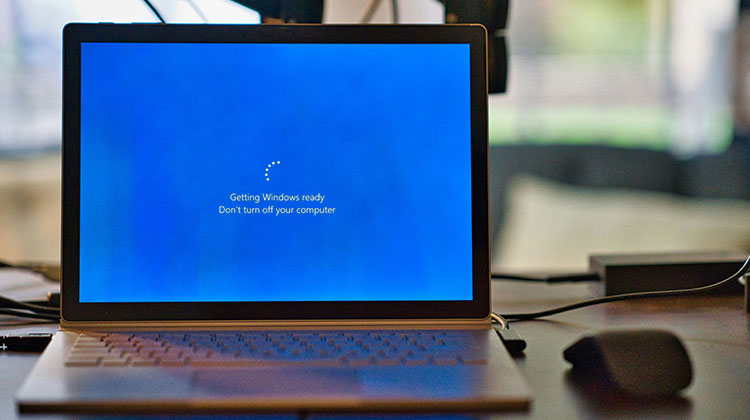
Sometimes, you might find yourself stuck on your “getting Windows ready, don’t turn off your computer” screen for an extended period of time. This article explains why you might encounter the Getting Windows ready stuck and provides solutions to fix it.
Computer Stuck on Getting Windows Ready
Many people have reported that they’ve been stuck on getting Windows ready for a lengthy period of time (usually for a long time). This problem usually happens when PCs are restarted to upgrade Windows or to start Windows after canceling a factory reset.
Common Causes of Getting Windows Ready Stuck Issue
Is your computer stuck on getting Windows ready? Several reasons could be the cause:
- Slow or unstable internet connection
- An older or slower computer that takes longer to process updates
- Windows not updated for a long time (large updates required)
- Corrupted or missing system files
- Failing or damaged hard drive
How to Fix the Getting Windows Ready Stuck Issue
To solve this “Windows stuck on getting ready” error, test the following solutions.
1. Just Wait
If you get an error message “Getting Windows ready, don’t turn off your computer,” It could be that your computer is working on certain tasks that run within the background, for example, installing and downloading files, beginning a Windows 10 update, or altering the settings of software and modules, etc.
It may take some time to finish these tasks, depending on the amount of software installed on your computer. Also, if you haven’t updated your PC in some time, many update files must be installed and downloaded. If your computer is old, the installation will be extremely slow.
So, it is suggested to wait patiently for 2 to 3 hours. After waiting some time, if getting Windows ready stuck does not fix, then stop waiting and move to the next solution.
Also read: Activate Windows Watermark? 7 Easy Ways to Remove It in Windows 10
2. Check the Internet Connection
A reliable network is required for downloading Windows updates. When your Internet connection is slow, the downloading process will take a long time, and the problem of getting Windows ready stuck will be encountered.
So, it is important to verify the status of your Internet connection. The router can be restarted, or connect your device directly to the router via Ethernet cable. After that, verify whether the problem has been solved.
3. Shut Down Your Computer and Power Reset It
If these methods don’t work, I would suggest trying this approach. Be aware that if your Windows is updating and shutting down abruptly could cause the loss of important system files. If you’re aware of this and would like to try it, then follow the instructions:
- Switch off the computer.
- Connect all peripheral devices, such as USB flash drives, external hard drives, keyboards, headphones, mice, printers, webcams, and SD cards, etc.
- Take out your power cord. Certain laptops have an internal battery that can be removed, which means you must remove the battery.
- Press and hold the Power button down for 15 to 20 seconds to draw out any remaining power.
- Insert the battery and then plug in the power cable.
- Restart your computer to determine if the Getting Windows Ready Stuck has been resolved.
4. Repair Windows in WinRE
Sometimes, the root of the “Windows stuck on getting ready problem is due to corrupted system files, particularly when you’ve performed incorrect procedures. Like, for instance, you cancelled the factory reset process when the process had completed more than 50 percent, or abruptly shut down your PC when updating Windows.
In short, the Windows System files have become corrupted, and you must repair Windows. You can then explore the following three ways.
- Run Startup Repair or SFC Commands. This will attempt to repair Windows. However, if you have Windows updates, you’ll need to install them again later.
- Perform a System Restore. This function will restore your computer’s settings to their previous state in time. The idea is that the system security feature does not stop, and restore points for the system are created.
- Factory Reset the PC. This resets the PC back to factory settings.
For the 3 methods, follow the guide below.
Step 1. Enter WinRE. Try turning your computer off and then shutting it off. Repeat this process twice, and you can enter WinRE. Click troubleshooting and then Advanced Options.
Step 2. First, try clicking the Startup Repair button and check whether this method is working. If it doesn’t, then open the Command Prompt and execute this command: ” sfc /scannow”. If this does not work, choose the System Restore button and follow the on-screen instructions to restore Windows to its proper state.
5. Upgrade or Reinstall Windows
Many people prefer to use this method to solve the Getting Windows ready stuck issue because they are unable to enter WinRE. If your Windows system is corrupted, the method will repair it immediately and also upgrade Windows to the most recent version. Here is the step-by-step guide:
Step 1. If you have a regular operating PC, visit the Windows 10 or Windows 11 download page (this is dependent on the system you are running). Then, start downloading Microsoft’s Windows Media Creation tool.
Step 2. Insert a USB drive with at least 8GB into your PC. Then, launch the Windows Media Creation tool. Follow the on-screen instructions to create an installation media (USB flash drive, DVD, or ISO file) for a different PC. Ensure that, whenever it prompts you to select which media to use, you select a USB flash drive.
Step 3. After you have created the media, place it in your computer, which is stuck on getting Windows ready. Switch on the computer. After that, you need to use the BIOS key (F2 and Del Esc) when you see the PC logo displayed. Then, in the firmware, switch your boot drive to a USB drive. In this manner, you can boot your PC from USB installation media.
Step 4. When your PC starts up, you’ll see the Windows Setup interface. Follow the on-screen directions for installing Windows. Be aware that when the screen asks what kind of installation you’d like to install, select the upgrade option first. It will preserve your settings, files, and applications. If this doesn’t work, you can choose Custom to Reinstall Windows.
Also read: 10 Best Windows Update Blocker Software for Windows 11
6. Replace the Hard Drive
One user who encountered the problem of getting Windows ready stuck can resolve it, which was due to the system’s hard drive failure.
If you’ve tried the methods above but the problem persists, it is time to examine the hard drive for any problems. The PC manufacturer may provide similar tools for checking the drive. Replacing a new hard drive can be a solved issue
Ending Notes
This article explains why the issue of Getting Windows ready stuck occurs and provides 6 solutions. If you have other views about this subject, you are welcome to leave a comment in the area below.
FAQs: Getting Windows Ready Stuck
How long should 'Getting Windows Ready Stuck ' take?
Normally, Getting Windows Ready stuck takes 20 minutes to 1 hour. For major updates, it may take up to 2–3 hours, especially on older PCs or systems with HDDs. If it lasts more than 3 hours without progress, the system may be stuck.
Will resetting my PC fix Getting Windows Ready stuck?
Yes, resetting your PC can fix the issue if system files are severely corrupted. You can choose “Keep my files” to avoid losing personal data while reinstalling Windows.
Is it safe to turn off the computer when it says “Getting Windows Ready”?
No. Turning off the PC during updates can damage system files and cause boot problems. Only force shutdown if the screen has been frozen for several hours.
Can Safe Mode fix Getting Windows Ready stuck?
Yes. Booting into Safe Mode allows you to uninstall recent updates, remove problematic drivers, or run repair commands without loading unnecessary programs.










Leave a comment