






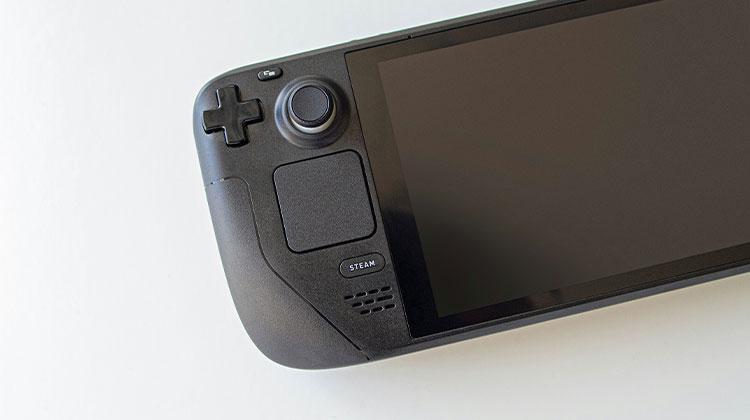
Created by Valve, the Steam Deck is a gaming product that has a lot of time, research, and effort invested in it. However, like all sophisticated electronic gadgets, there are times when it is possible go wrong. What do you do if the Steam Deck not turning on?
We’ve encountered similar issues on numerous devices in the past, so the Steam Deck is not alone in this particular battle. The truth is, most of the time, it indicates that your device needs repair or replacement. However, there are many harmless reasons why your Steam Deck not powering on.
Why Is My Steam Deck Not Turning On?
When your Steam Deck won’t turn on, there are a few possible reasons behind it:
- Battery completely drained
- Faulty charger or cable
- System crash or firmware glitch
- Overheating shutdown
- Corrupted BIOS or software issue
- Hardware failure (rare but possible)
Let’s go through each fix step by step.
How to Fix Steam Deck Not Turning On
1. Charge It for at Least 30–60 Minutes
One of the most common causes of a Steam Deck not turning on is a fully drained battery.
If the battery hits 0% and stays that way for an extended period, it may enter a deep discharge state. In this state:
- Steam Deck black screen
- Steam Deck doesn’t vibrate
- The charging LED may not light up immediately
What To Do:
- Plug in the original 45W charger.
- Leave the device charging for at least 30–60 minutes.
- Do not repeatedly press the power button.
- After waiting, hold the power button for 10–15 seconds.
Also read: PS5 Not Turning On? 8 Easy Fixes to Get It Working
2. Force Restart Your Steam Deck
There’s a chance that the Steam Deck is actually on, but it’s got an empty screen and is unresponsive. In this situation, it’s logical to initiate a restart. All you need to do is hold your power switch. Make sure to hold it for at least 4 seconds on the Deck standard, while seven seconds is required to activate an OLED Steam Deck.
3. Enter BIOS or Recovery Mode
If the Steam Deck’s LCD is on and charging but you’ve attempted to force restart, your next task is to restore using the BIOS.
Press the volume button while turning your Deck on, and if it’s working, you’ll enter the BIOS. Simply select continue, and you’ll be booting from the BIOS options screen.
4. Check the Charger and Power Outlet
The Deck can be charged with any charger that can provide at least 45W of power. However, sometimes the charger is the cause of the Steam Deck not turning on issue. Check that the charger functions properly by testing it with a second charger.
Also, make sure that the outlet is operating properly by plugging in something else to it. Don’t forget to test the cable and switch it out, or try it using something else.
Keep an eye out for any signs of damage, loose components, faulty cables, or other signs that the charging equipment has been damaged. If you find any damage, it could be the reason why your Steam Deck not working
properly. If another charger is working, it means the charger is at fault. However, we recognize that the majority of people don’t have many chargers with 45W+ that are lying around.
5. Check Your Charging Port
First, connect your USB-C cable, and then check whether it has excessive wiggle room. A little wiggle is normal; however, if it’s notably loose, then it’s likely that the port is damaged on the inside.
The second thing to test is to determine if the USB-C port does not seem to reach enough. Although USB-C is generally considered to be a good design, it can present a problem with debris getting pushed into the port each time you make a plug insertion.
In reality, the port you consider to be the “loose” port might actually be a port that is stuffed with gunk and lint. The positive is that it’s quite simple to clean the USB-C port safely and efficiently.
6. Check the Device For Signs of External Damage
We aren’t looking to be the one to bring negative news. However, an item like a Steam Deck is probably tougher than many people imagine. An unfortunate bump or drop could cause damage to the deck, the Steam Deck not turning on, or appear as if the Steam Deck not booting. If you not dropped or bumped recently, it’s a great idea to take an examination to determine whether you were not the only one to have caused the damage.
7. Connect It to an External Monitor
We’ve mentioned before that the Deck may appear not to be working, but it’s actually turning on. One possibility for this could be a defective screen.
The positive side is that the Deck can be used with external monitors. You’ll need a USB-C dock that supports HDMI or DisplayPort, or a USB-C adapter to HDMI or DP adapter. If you own one, you can borrow it or buy one; you can connect a monitor to your TV and attempt to power on your deck.
If your screen is a problem, you’ll need to check the Deck’s output from the outside monitor. If this is the case, you’ll need to have the screen examined by a certified professional.
Also read: Fix Nintendo Switch Won’t Turn On – 7 Easy Methods to Try First
8. Attempt to Re-Image Your Deck
Your Steam Deck likely comes with a factory “image” on its disk drive that is specifically designed for the hardware and Deck. This is not “firmware” but regular software that could be corrupted, which may be the reason the Steam Deck not turning on.
If your Deck does manage to go into BIOS mode, you’ll probably have the option to “re-imagine” the device and install the latest, clean image onto the primary drive. Just note that this will delete your data; your saved games are likely being synced in the cloud.
General Re-Imaging Process:
- Download the latest recovery image from the official Steam website.
- Use a tool like Rufus to flash it onto an 8GB+ USB drive.
- Connect the USB drive using a USB-C hub.
- Boot into BIOS.
- Select EFI USB Device.
- Choose Re-image Steam Deck.
⚠ Note: This process erases local data. However, most saved games sync to the cloud.
Re-imaging is highly effective for fixing severe software corruption.
9. Send It Back to Valve
If the Steam Deck is still under warranty and you’ve tried the above suggestions but the Steam Deck not turning on, then it’s time to send for an exchange. Contact Valve support at customer service and inform them that you’re facing the Steam Deck not turning on and want to send the device back.
If you didn’t purchase directly from Valve, then you contact the seller. If you purchased a Steam Deck in a region not officially supported by Valve, you’re unlikely to have the right to warranty repair or replacement. However, the third-party seller might have their solution.
Final Thoughts
Experiencing a Steam Deck not turning on issue can be frustrating, especially when you’re ready to game. However, most cases are caused by simple problems like battery drain, charger issues, or software glitches—not permanent hardware damage.
FAQS: Steam Deck Not Turning On
Why is my Steam Deck not turning on even when it’s fully charged?
If your Steam Deck not turning on even after charging, the issue may be a system freeze, corrupted SteamOS, or a faulty charger. Try holding the Power button for 15 seconds to force restart the device. If that doesn’t work, boot into BIOS using Volume Up + Power.
Why is my Steam Deck stuck on a black screen?
It may be frozen, experiencing a failed update, or have a display issue. Try a force restart or connect to an external monitor.
Is Steam Deck not turning on a common issue?
While not extremely common, power issues are among the most reported problems, usually caused by battery discharge or charger compatibility.
How do I fix Steam Deck not turning on after a battery drain?
When your Steam Deck not turning on after reaching 0%, it may be in deep discharge mode. Leave it connected to a 45W USB-C Power Delivery charger for at least 30–60 minutes before attempting to power it on again.










Leave a comment