






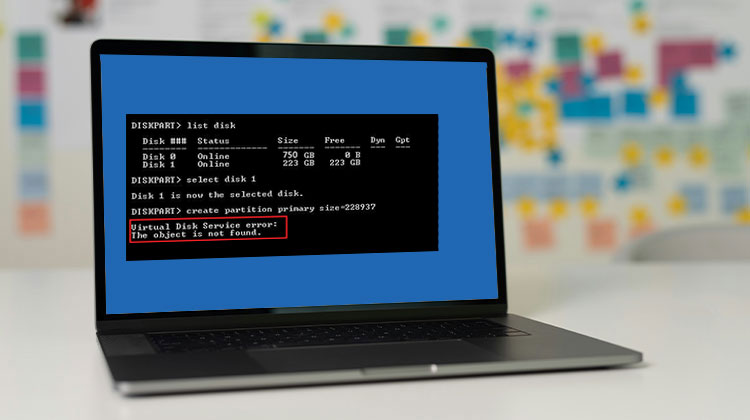
Windows users have encountered different types of virtual disk service errors that hinder their storage usage on the computer.
We’ll talk about the virtual disk service and the causes you might encounter errors. We’ll also provide the best solutions to resolve the Diskpart Virtual Disk Service error without trouble. Let’s begin with the basics.
What is Virtual Disk Service?
According to Microsoft, the term “virtual disk service” (VDS) is an array of APIs that provide an interface for managing disks. It provides a complete solution for managing disks and storage hardware, and also creates partitions on the storage devices.
What Is the Virtual Disk Service Error?
Despite its usefulness, VDS can sometimes fail—especially when running DiskPart commands. When this happens, you may see a “Virtual Disk Service Error”, and the requested operation will not complete.
These errors commonly occur when performing actions such as:
- Formatting a disk (e.g., FAT32)
- Cleaning a disk
- Creating or deleting partitions
- Converting disk formats (GPT/MBR)
Below are the most common VDS errors, along with their causes and solutions.
Also read: External Hard Drive Not Showing Up in Windows 11? Here’s How to Fix It
How to Fix Virtual Disk Service Error
1. Error: “The Volume Size Is Too Big”
Symptoms
You may see: Virtual Disk Service error: The volume size is too big
This usually happens when trying to format a large partition or USB drive to FAT32 using DiskPart. Windows limits FAT32 formatting for large volumes.
Solution
Here, we suggest using DiskGenius to create a new drive. DiskGenius is a free disk partition software that allows users to bypass the 32 GB limit for Windows. The free edition can be used to complete formatting tasks and format the partition in FAT32, NTFS, EXT4, EXT3, and EXT2. The following section will explain the formatting process.
Steps:
- Install and launch DiskGenius
- Select the partition you want to format
- Right-click → Format Current Partition
- Choose FAT32 (or another file system)
- Click Format and confirm
DiskGenius does fast formatting by default. You may choose “Surface Scan” to determine errors on the drive. After formatting is completed, the NTFS partition will be changed to FAT32 regardless of the partition size.
2. Error: “The Object Is Not Found”
Symptoms
DiskPart fails when creating a partition, showing: Virtual Disk Service Error: The object is not found
Solution
DiskGenius lets you create a partition from unallocated disk space or an existing partition, allowing you to create a partition in a few steps.
Steps:
- Open DiskGenius
- Select unallocated space
- Click Create Partition
- Set partition size, type, and file system
- Click OK, then Save All
3. Error: “Clean Is Not Allowed on the Disk”
Symptoms
Virtual Disk Service error: Clean is not allowed on the disk containing the current boot/system/pagefile…
Solution
If you own a Windows Installation disc, you can insert it into your computer to boot from the disc. Select Repair your computer > Troubleshoot advanced options > Command Prompt. You can then type diskpart commands to clean your system disk.
However, if you do not have the Windows Installation disc or if your PC does not have a CD-ROM drive, then follow the instructions here to clean your hard drive.
Option 1: Use Windows Installation Media
- Boot from installation USB/DVD
- Go to Repair your computer → Troubleshoot → Command Prompt
- Run DiskPart commands
Option 2: Use WinPE Tools (e.g., DiskGenius)
- Launch DiskGenius
- Select Reboot to WinPE version
- Boot into WinPE
- Delete partitions or clean the disk safely
4. Error: “The Media Is Write-Protected”
Symptoms
Virtual Disk Service error: The media is write protected
Solution 1: Remove Write Protection via Registry
- Press Win + R, type regedit
- Navigate to:
HKEY_LOCAL_MACHINE\SYSTEM\CurrentControlSet\Control\StorageDevicePolicies - Set WriteProtect = 0
- Restart your PC
(Create the key if it doesn’t exist.)
Solution 2: Check for Bad Sectors
- Open DiskGenius
- Select the disk
- Click Verify or Repair Bad Sectors
- Start scanning
Bad sectors can prevent formatting and writing.
5. Error: “Disk Management Could Not Start VDS”
Symptoms
Disk Management fails with: Unable to connect to Virtual Disk Service
Solution: Run SFC and DISM
- Command Prompt as administrator. Enter SFC/scannow and press Enter. The command begins by scanning system files, and the process of scanning may take a while.
- Write the commands below and hit the Enter key following each command.
Dism /Online /Cleanup-Image /CheckHealth
Dism /Online /Cleanup-Image /ScanHealth
Dism /Online /Cleanup-Image /RestoreHealth
Reboot your computer once all the commands have been executed.
Also read: 5 Free Disk Cloning Software for 2025
6. Error: “The Specified Disk Is Not Convertible”
Symptoms
Virtual Disk Service error: The specified disk is not convertible
Solution: Convert disks into GPT/MBR format using disk management tools
The conversion of GPT and MBR performed by disk management tools does not erase any files on the drive. Use these instructions to convert the disks to GPT.
- Launch DiskGenius Free edition on your computer and select the drive that you wish to alter its partition table format. Click “Disk” -> “Convert To GUID Partition Table”.
- Click “OK” to continue the conversion.
- Click the “Save All” button to save any changes made to the partition table.
Conclusion
In the end, we discussed the definition of a virtual disk service error and offered solutions for fixing all types of diskpart virtual disk service errors.
FAQs: Virtual Disk Service Error
Why does Virtual Disk Service Error occur in Windows?
This error can happen due to several reasons, including: Lack of administrator permissions Corrupted or uninitialized disk Write protection enabled Unsupported file system or disk format Hardware issues or bad sectors
Can I fix Virtual Disk Service Error without losing data?
Yes, in many cases you can fix it without data loss by: Avoiding the “clean” command Using repair tools like CHKDSK Fixing permissions or write protection However, some operations like disk cleaning will erase all data.
Is Virtual Disk Service Error a hardware problem?
Not always. It can be caused by software issues like permissions or system errors. However, in some cases, it may indicate failing hardware or bad sectors.
Can third-party tools fix Virtual Disk Service Error?
Yes, tools like DiskGenius or other partition managers can bypass Windows limitations and fix many VDS-related errors more easily.








Leave a comment