





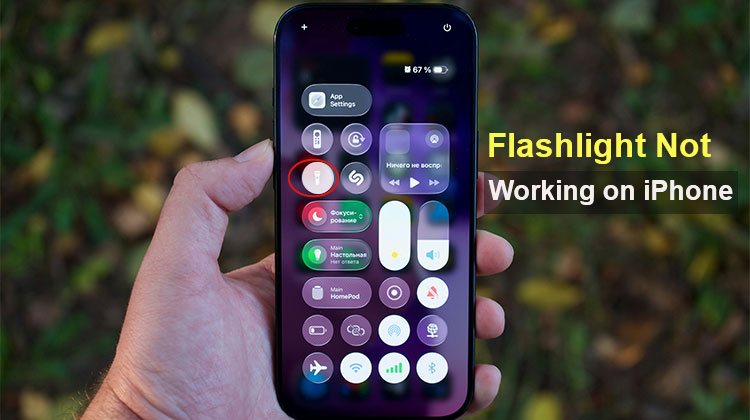
As bizarre as it may be, many users complain that the iPhone flashlight not working without any warning. From software to hardware problems, there could be a variety of reasons. While it’s difficult to resolve hardware issues in your home environment, you can fix most firmware-related issues yourself. To fix the iPhone flashlight not working, we’ve discussed six smart solutions that are sure to help.
Why is My Flashlight Not Working on My iPhone?
Before jumping into solutions, it helps to understand the common causes behind the flashlight not working on iPhone:
- Camera app is active or frozen (flash is shared with camera)
- Low Power Mode restricting background functions
- iOS software bugs after an update
- Overheating or low battery
- Flashlight brightness set too low
- Temporary system glitch
- Hardware damage (rare but possible)
According to troubleshooting reports, most flashlight issues are linked to software conflicts or system bugs rather than hardware failure.
Also read: iPhone Touch Screen Not working? Try These 11 Quick Fixes
How to Fix iPhone Flashlight Not Working Issue
1. Turn Off Low Power Mode
Perhaps you are wondering why my flashlight not working on my iPhone? However, most apps work perfectly. Certain features or apps do not affect your iPhone flashlight. Turning on the Low Power mode or overheating, and then using the Camera App are the main problems.
How to fix it:
- Go to Settings
- Tap Battery
- Turn off Low Power Mode
2. Force Restart Your iPhone
If you have a minor issue with your iPhone, you can fixed by force restarting. In this case, we’ll force the device to restart and end the current power cycle. So, if your device was not properly restarted before being restarted, this will help fix the iPhone flashlight not working properly.
Steps (iPhone with Face ID):
- Press and quickly release Volume Up
- Press and quickly release Volume Down
- Press and hold the Power button
- Release when the Apple logo appears
Steps (iPhone with Home Button):
- Press and hold Power + Home button together
- Keep holding until Apple logo appears
3. Reset All Settings
If there are problems with the phone’s settings or if the device is corrupted, you must conduct an initial reset. This will reset your phone’s settings and free up the storage. Since your data will be deleted during the process, it is recommended to take a backup before trying this. After that, you can resolve the iPhone flashlight not working issue with this easy drill.
Steps:
- Go to Settings → General
- Tap Transfer or Reset iPhone
- Select Reset → Reset All Settings
4. Use Recovery Mode
The great feature of iOS smartphones is that they offer a variety of native solutions to resolve any unwanted issues. For this, use the correct key combinations to boot your device into recovery mode. This lets you upgrade your phone to the latest firmware version or return it to factory settings.
Steps:
- Connect iPhone to a computer (Mac or PC)
- Open Finder (Mac) or iTunes (Windows)
- Put iPhone into Recovery Mode:
- Press Volume Up → Volume Down → Hold Power until the recovery screen appears
- When prompted, select Update or Restore
Release the respective keys to the connect-to-iTunes icon, and the program will determine the device’s recovery state. It will show a similar prompt to this one and request that you reset your iPhone. If you agree, reset your iPhone as you fix iPhone flashlight issue. Be aware that doing this will delete all saved data on your phone.
5. Try DFU Mode
If the problem is serious, recovery mode may not resolve the iPhone flashlight not working issue. In this instance, you could restart your phone by Device Firmware Update mode instead. This can even bypass the bootloading procedure, allowing you to restore and update your phone. However, when you do this, it will erase any current settings and data.
Steps:
- Connect iPhone to computer
- Open iTunes or Finder
- Enter DFU Mode:
- Press Volume Up → Volume Down → Hold Power (until screen goes black)
- Then hold Volume Down + Power together for 5 seconds
- Release Power but keep holding Volume Down for 10 seconds
- Screen should stay black (no logo)
- iTunes/Finder will detect iPhone → click Restore
If your phone displays iTunes and the Apple logo at the end, you must restart the procedure. In the ideal scenario, it will only show a black screen when iTunes detects the iPhone is in DFU mode. It will provide you with an option to restore the device to factory settings right now, by displaying a prompt like this.
Also read: Why Is Face ID Not Working on iPhone? Quick Fixes
6. Check for Hardware Damage
Not least, there is a chance that there is a hardware issue on your iPhone, too. If you have expertise, you could disassemble the device and test for any hardware damage by yourself. However, it is recommended to visit an Apple repair center and have your device checked by a certified technician. It will confirm that the flashlight is working and all other components are working on the phone.
7. Contact Apple Support
The solutions above will help you resolve any conflicting issues with the settings and software. However, if the iPhone flash not turning on or is not working, it may be a hardware issue!
To test the flash, launch the Camera app. Then take a picture and check whether the LED lights up or not. If your iPhone camera or flashlight is not working after a fall or similar event. Take your iPhone into the Apple Store for inspection and repair.
Final Word
These are five effective solutions to resolve iPhone flashlight not working issues. We hope you find this article helpful, and now your iPhone flashlight has returned to normal. We’d love to hear about the method that solved your iPhone flashlight. If you have another method that works to fix this issue, please inform us of that, as well.
FAQs: iPhone Flashlight Not Working
Why is my iPhone flashlight not working suddenly?
Your iPhone flashlight may stop working due to software glitches, Low Power Mode, overheating, or the Camera app being active. In rare cases, it could be a hardware issue with the LED flash.
Does Low Power Mode affect the iPhone flashlight?
Yes, Low Power Mode can limit certain functions, including the flashlight. Turning it off often resolves the issue.
Can using the camera frequently cause iPhone Flashlight Not Working?
Frequent use of the camera or flash can sometimes lead to temporary conflicts, which may result in the iPhone Flashlight Not Working until the system resets.
How do I prevent the iPhone Flashlight Not Working issue in the future?
To avoid the iPhone torch not working problem, keep your iOS updated, avoid overheating, and regularly restart your device to maintain smooth performance.





Leave a comment