






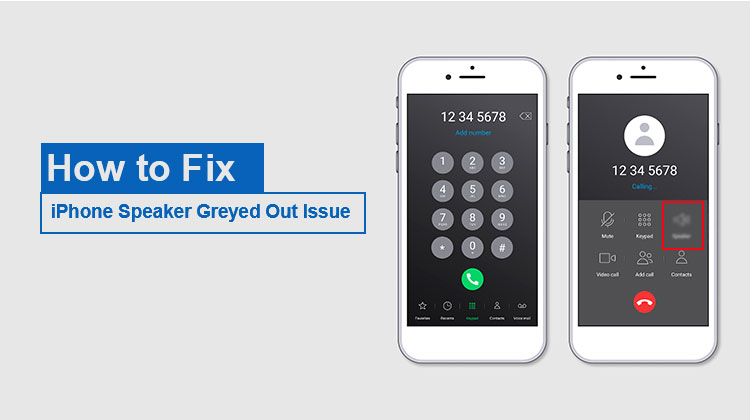
Many users report that Apple’s new iOS has caused the iPhone 7 speaker icon greyed out during calls. This is happening on the iPhone 7, making it impossible to call your friend or use certain applications. Furthermore, it prevents some users from creating or receiving any messages from social media apps, such as texts or Facebook messages, while conversing with another person. Follow the steps in this article to fix the iPhone speaker grayed out issue.
Why Is My iPhone Speaker Button Grayed Out?
The iPhone speaker not working on calls is usually caused by a loose chip in the circuit board. The Audio IC Chip can be located inside your phone’s speakers and microphone. Additionally, if you’ve had any issues making calls, you may have experienced features not functioning properly or getting hot during normal use.
This could be due to it becoming slightly disengaged from its socket over time, as soldered wires are weaker than before, leading to greater movement between them, creating unwanted friction or instability where the components should remain firmly fixed.
There’s a possibility that the iPhone calling speaker not working issue may require software fixing instead of hardware repair. For software-related solutions, look into the following section of this article.
Also read: Why Is My iPhone Not Ringing? Troubleshooting Guide 2025
How to Fix iPhone Speaker Grayed Out Issue?
The iPhone will not be able to hear when you make outgoing calls. This is due to the iPhone speaker not working properly. The most obvious signs are that the speaker is not working properly, and creates an iPhone audio problem during call. This is usually the case if you accidentally drop the phone or in other unavoidable circumstances. But there are ways to fix the iPhone speaker grayed out issue, and we’ll go over these in this article!
1. Unpair And Re-Pair Your Device
For those experiencing the iPhone speaker grayed out issue, connecting your Bluetooth devices and then resetting them could resolve it.
- Open Settings and then go to the Bluetooth menu.
- Search for your Bluetooth device and then tap the “i” icon.
- Then, press the Forget Device button to unpair with your iPhone.
- Finally, go to the Bluetooth menu and connect to the headset.
2. Check Your Volume And Silent Mode
There’s a possibility that you’ve accidentally turned on Silent Mode or reduced the volume of your iPhone. We suggest checking this before jumping to more technological solutions.
3. Disable Do Not Disturb
No matter if you’ve accidentally activated “Do Not Disturb” by mistake, it’s important to understand how this feature can affect your iPhone. When it is an active feature to protect your privacy (i.e., Mute), “DND” functions similarly but is not exactly like the Mute switch.
Follow the directions here to disable DND.
- Go to Settings and tap on Do Not Disturb.
- Turn it off
4. Adjust Call Audio Routing
Another solution for the iPhone speaker issue is to set audio routing on your phone. It’s found in accessibility settings. After this, all calls pass directly through the speakers instead of relying on the sound coming from the phone or computer microphone.
You can learn about this method using the steps below.
- In the Settings, go to Accessibility.
- Next, tap Touch, and then select Call Audio Routing to Automatic.
5. Soft Reset Your iPhone
Soft resetting the iPhone could work for you if you encounter the iPhone speaker button greyed out issue. To do that, you must hold the Home and sleep button at the same time. After that, you can slide it to turn off. That’s it!
6. Update to The Latest iOS
If you’re running an outdated iOS on your iPhone, the iPhone speaker grayed out issue may be caused by this. To prevent this issue from occurring, we suggest upgrading your iOS to the latest version(Currently, iOS 17). Follow the steps below to upgrade iOS on your iPhone.
- Click Settings, then choose General from the menu.
- Then, click Software Update, and the device will begin installing the latest version.
- Install the most up-to-date version of iOS.
Also read: Cannot Verify Server Identity on iPhone: 8 Ways to Fix It Fast
7. Factory Reset
If none of these solutions work, this is the software-related solution to fix the iPhone speaker grayed out issue. While it may result in data loss, you can access the information via backup.
How to reset the device.
- Click Settings and then select the General tab.
- After that, press Reset. Select the Erase all content and Settings option.
8. Replace Your Hardware
To avoid this frustration and to achieve success, we recommend that you bring your iPhone to an Apple store or service centre. They’ll look into further options for technical issues or even replace your iPhone hardware with new parts.
Bottom Line
The iPhone speaker grayed out issue is often caused by software glitches, Bluetooth conflicts, or incorrect settings. In most cases, it can be fixed by simple troubleshooting steps like restarting the device, updating iOS, or adjusting audio settings.
FAQs: iPhone Speaker Grayed Out
Is the iPhone speaker grayed out issue a hardware problem?
In some cases, yes. If software fixes do not work, the issue may be related to the Audio IC chip, speaker components, or internal hardware damage.
Can dropping my iPhone cause the speaker button to stop working?
Yes, accidental drops can damage internal audio components or loosen connections, leading to speaker and microphone problems.
Which iPhone models commonly face the speaker grayed out issue?
The issue is most commonly reported on older models like the iPhone 7 and iPhone 7 Plus, though it can happen on other models as well.
How do I fix the iPhone speaker grayed out issue?
You can try restarting your iPhone, turning off Bluetooth, updating iOS, checking Call Audio Routing settings, or resetting your device settings.








Leave a comment