






Google Chrome is a popular web browser that offers many features you can depend on. Once you’re familiar with browsers, such as Safari and Google Chrome, it’s hard to switch to another. But sometimes, you’ll encounter issues with the browser, which force you to move to a different one. In this scenario, we’ll look at how to enable or disable Chrome hardware acceleration.
It is the most popular web browser, and Google’s platform is used by millions of users each day. It should not come as any surprise that issues pop up. In this instance, we’ll discuss Chrome hardware acceleration. First, we need to identify this option and the way it could be used as a solution.
What Is Hardware Acceleration?
In Google Chrome, hardware acceleration is when the browser performs certain graphically demanding tasks on your graphics card, ensuring your hardware can handle most of the load. This tends to be the graphics card was designed to do the heavy lifting. Additionally, by transferring the task to the GPU, your CPU is free to perform other tasks.
But it’s not a complete solution. There are an endless number of software configurations, and each computer’s configuration is different. There are times when users notice that hardware acceleration makes their devices slower than normal. It could be due to a graphics driver or card issue; however, regardless of the reason, this indicates that they will be better off with the option off.
Disabling Chrome hardware acceleration can bring many benefits to your Chrome browser, such as increasing the battery life and improving Chrome’s performance. Sometimes, your cursor will be slow to move across the screen, or may not open the links as quickly as you’d prefer. If you can get it off, it could solve the issue for you, too.
Also read: Google Chrome Freezing on Android? Fix It in 10 Simple Steps
Why Should You Use Hardware Acceleration?
Google Chrome is known for being memory-hogging and using CPU power. There have been significant performance improvements, reflected in the overall system.
Google Chrome has a Memory Saver feature that can help restore system memory by closing background tabs and other activities. It is also compatible with Efficiency Mode on Windows PC, similar to the memory saver.
But Chrome uses the hardware system to transfer tasks when it is running with low memory. One option could be Hardware Acceleration, which generally uses a Graphics Processing Unit (GPU) to perform complex graphics tasks, such as rendering 3D web elements.
Hardware acceleration is a way to improve Chrome’s performance, but other browser issues, such as unresponsiveness and slow-loading webpages. In these cases, you can turn off hardware acceleration to see and resolve the issue.
Common Problems Caused by Hardware Acceleration
Although the feature improves performance in many situations, some users may experience:
- Browser crashes
- Black screens
- Screen flickering
- Lag or stuttering videos
- High GPU usage
- Compatibility issues with outdated graphics drivers
If you encounter any of these issues, disabling hardware acceleration may help.
How to Enable Hardware Acceleration Chrome?
To enable the Chrome GPU acceleration feature in the Google Chrome Web browser, use the steps below:
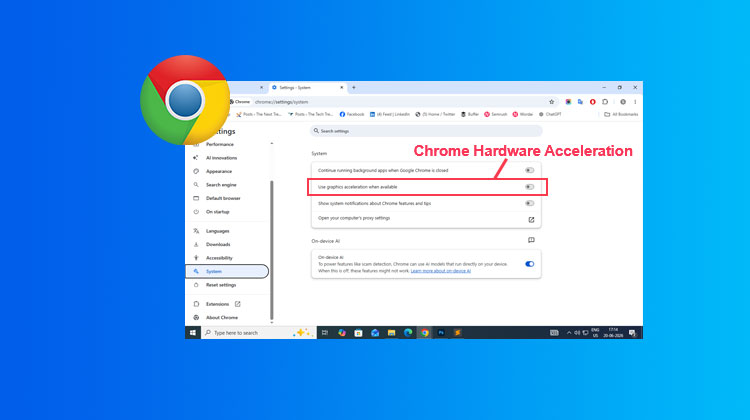
Open Google Chrome and click the three-dot menu in the top-right corner. Select Settings, then click System. Scroll down to find Use hardware acceleration when available, and toggle the switch Off to disable hardware acceleration.
Also read: ERR_CONNECTION_TIMED_OUT Error: 6 Proven Ways to Fix It Quickly
How to Disable Hardware Acceleration in Google Chrome
If you suspect that hardware acceleration is responsible for your performance issues within Google Chrome, follow these steps to fix the issue.
Open Google Chrome and click the three-dot menu in the top-right corner. Select Settings, then click System from the left-hand menu. Locate Use hardware acceleration when available and make sure the toggle is turned off.
There’s a note next to it in parentheses, you’ll see (requires the restart of Chrome). Be sure to have nothing important open in your browser while performing this procedure, as you’ll need to restart Chrome for the change to begin to take effect.
After you’ve turned off Google Chrome hardware acceleration, hopefully, your performance will improve. It’s difficult to determine exactly what might be causing the issue. If you do notice an increase in performance with this option left unchecked, at the very least, you know that it was a success.
Ending Notes
After reading this article, you will be aware of the basics of what Chrome hardware acceleration does and how to enable or disable it in Google Chrome. If you different opinion on Google Chrome hardware acceleration, you can share it in the comments section.
FAQs about Chrome Hardware Acceleration
Why Is Chrome Slow With Hardware Acceleration Enabled?
Chrome may become slow when Hardware Acceleration conflicts with outdated graphics drivers, incompatible hardware, or certain browser extensions. Disabling the feature can help determine whether it is causing the problem.
How Can I Check If Chrome Hardware Acceleration Is Working?
Type chrome://gpu into Chrome's address bar and press Enter. This page displays information about GPU acceleration and graphics features currently being used by the browser.
Does Chrome Hardware Acceleration Use More RAM?
Hardware Acceleration primarily uses the GPU for graphics processing. While it may slightly affect memory usage, its main purpose is to reduce CPU workload and improve browser performance.
Is Chrome Hardware Acceleration Worth Using?
For most users, yes. Hardware Acceleration can improve browser performance, reduce CPU usage, and provide smoother video playback. However, if it causes stability or compatibility issues, disabling it may be the better option.










Leave a comment