






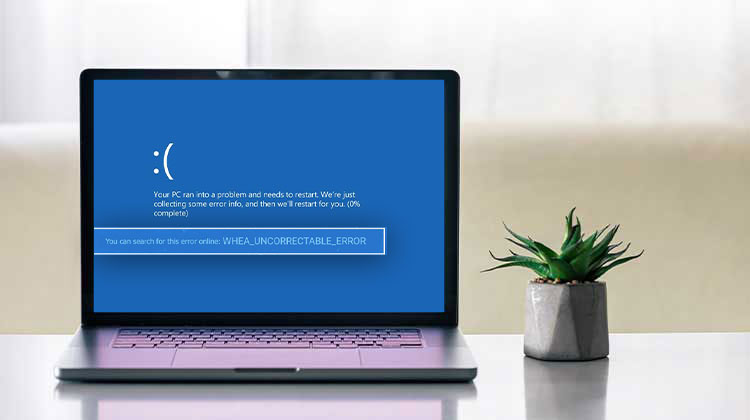
A blue screen error can result from many reasons on a computer, ranging from hardware to software. What they do is render your computer unusable.
When PC users display a BSOD error message like WHEA Uncorrectable error, they are prompted to perform the most common solution: a Windows factory reset. It’s a bit drastic, and, in some cases, unnecessary since there are alternative, more straightforward methods for troubleshooting.
What is WHEA UNCORRECTABLE ERROR?
WHEA Uncorrectable error is a blue screen error caused by a hardware problem. It will shut down your computer to prevent data loss. However, you can fix the WHEA_UNCORRECTABLE_ERROR stop code on Windows.
This Blue Screen of Death message may be accompanied by stop code 0xc0000124. Because it indicates underlying hardware issues, you must look for HDD, SDD corruption, CPU and RAM issues, damaged computer files, overclocking, and other factors.
Common Causes of WHEA Uncorrectable Error
The most common causes include:
- Faulty CPU, RAM, SSD, HDD, or motherboard
- Corrupted Windows system files
- Outdated or incompatible device drivers
- Overclocking instability
- Overheating hardware components
- BIOS or firmware issues
- Disk errors and bad sectors
- Malware infections
- Power supply problems
Also read: Your Device Ran Into a Problem and Needs to Restart – Fix in 8 Steps
How to Fix WHEA Uncorrectable Error
It’s a good idea to create a complete backup of your computer to protect important data. If that’s not feasible, you must at a minimum create a system restore point that lets you reverse changes in the future, should it be required.
1. Install the Latest Windows Updates
If a device driver is not installed on your PC, particularly for CPU, RAM, or GPU, you must use Windows Update to download and install the latest versions.
Steps:
- Open Settings.
- Go to Windows Update.
- Click Check for Updates.
- Install all available updates.
- Restart your computer.
2. Roll back Windows
If the WHEA_UNCORRECTABLE_ERROR stop code was triggered by a software issue, like an incompatible program you recently installed on your computer, you should be able to seamlessly repair it by rolling back Windows to a previous checkpoint in Recovery mode.
Steps:
- Press Win key + R, type control panel, and hit Enter
- Select Recovery.
- Click Open System Restore.
- Choose a restore point created before the issue occurred.
- Follow the on-screen instructions.
3. Uninstall untrusted and recent apps
There are a few software programs that are completely compatible with Microsoft’s latest operating system. This could cause a WHEA Uncorrectable error. Other programs are malicious, meaning you need to remove them.
Steps:
- Open Settings > Apps.
- Sort applications by installation date.
- Remove recently installed or suspicious software.
- Restart your PC.
4. Repair Disk Errors and Corrupted System Files
Hardware errors can cause a BSOD, such as the WHEA Uncorrectable error stop code, which can be solved using CHKDSK (Check Disk), a built-in Windows tool.
If you are concerned about corrupted system files, depend on the SFC (System File Checker). In addition, DISM (Deployment Image Servicing and Management) is a tool that takes the check for system files one step further and verifies the authenticity of Windows image component stores.
The three tools can all be run from the command line with administrator rights. Do not worry about it, as you do not require any specific skills so long as you follow the directions below. Be sure to run all three utilities in the following order.
Run CHKDSK
- Type Command Prompt in Windows Search.
- Right-click Command Prompt and select Run as Administrator.
- Type chkdsk C: /f /r
- Enter “y” to program the disk integrity checkup when the system reboots.
- Restart your PC and look for BSOD issues
Run SFC:
- Type sfc /scannow and press Enter
- Be patient till SFC can scan and repair your system’s files
- Reboot your computer
Run DISM:
- Type: DISM /Online /Cleanup-Image /ScanHealth and press Enter
- If DISM detects any issues with the system image, Type: DISM /Online /Cleanup-Image /RestoreHealth
- Once complete, run SFC again and restart your PC.
5. Check Your Drivers
In the first option in our list of suggestions, use Windows Update to download any pending updates, particularly the drivers for your device. But it does not always function as you would expect it to.
For instance, if there are no drivers installed on your computer, uninstall any associated devices and allow Windows 10 to automatically reinstall the latest version.
Steps:
- Right-click the Start button.
- Select Device Manager.
- Expand the hardware category you want to update.
- Right-click the device and select Update Driver.
- Click Search Automatically for Drivers.
- Install available updates and restart your PC.
6. Run a Malware Scan
A corrupted hard drive may be the result of a major malware infection in your system. If it also triggered the WHEA_UNCORRECTABLE_ERROR stop code, then you have to find and remove the malware agent from your computer.
Steps:
- Open Windows Security.
- Click Virus & Threat Protection.
- Select Scan Options.
- Choose Full Scan.
- Click Scan Now.
- Remove any threats found.
- Restart your computer.
7. Disable Overclocking
A few PC users use overclocking software to modify their RAM, CPU, and GPU to enhance the gaming experience. If you’re among them, then you need to be aware that overclocking can cause hardware issues such as overheating.
In turn, this can lead to BSOD errors such as WHEA Uncorrectable error, since Windows will do whatever it can to safeguard your drive against catastrophic harm, even if that requires shutting down everything.
Steps:
- Restart your computer.
- Enter the BIOS/UEFI menu by pressing the designated key (F2, F10, Del, or Esc).
- Navigate to the Advanced or Overclocking section.
- Set CPU, GPU, and RAM frequencies back to default values.
- Save changes and exit BIOS.
- Restart your computer.
8. Check the System Memory
Any RAM problems you might have could affect the hard disk, processes, services, drivers, and the entire operating system, ultimately resulting in BSOD stop codes like WHEA Uncorrectable Error, which are often tied to memory corruption or faulty hardware. If you’re experiencing other blue screen problems, like this Power State Failure, you may also be interested in the BSOD issue threads for more troubleshooting tips.
Steps:
- Press Windows + R.
- Type mdsched.exe and press Enter.
- Select Restart now and check for problems.
- Allow Windows Memory Diagnostic to run.
- Wait for the scan to complete.
- Review the results after Windows restarts.
Also read: Windows 11 Memory Integrity Is Off? 6 Proven Ways to Fix It
9. Reset BIOS to Default Settings
If you’ve made any modifications to your BIOS other than overclocking (we discussed in our previous solution), you mistakenly messed up your hard drive settings and caused the WHEA Uncorrectable Error.
Steps:
- Restart your PC and enter BIOS.
- Locate the option to reset the BIOS to the default
- Select the option and confirm.
- Save the changes.
- Exit BIOS and restart Windows.
10. Perform a Clean Boot
If you’re unable to begin troubleshooting the blue screen error, then start with a clean Windows reboot. This means that you start your operating system and load only the essential processes, services, and drivers. All other services are disabled.
Steps:
- Press Windows + R.
- Type msconfig and press Enter.
- Open the Services tab.
- Check Hide all Microsoft services.
- Click Disable All.
- Go to the Startup tab and click Open Task Manager.
- Disable all startup programs.
- Close Task Manager and click OK.
How to Prevent WHEA Uncorrectable Error
To reduce the chances of encountering this error:
- Keep Windows updated.
- Install the latest drivers.
- Avoid unstable overclocking.
- Monitor system temperatures regularly.
- Use quality power supplies.
- Perform regular hardware maintenance.
- Back up important data frequently.
Summing Up
To sum up, you can fix the WHEA UNCORRECTABLE ERROR stop code by downloading the latest Windows updates, restoring the OS to a previous restore point, and uninstalling recent applications.
You can also fix HDD errors and corrupt system files by using the built-in tool, check for incompatible and outdated drivers, run an antivirus scan, and disable overclocking mode.
FAQs: WHEA Uncorrectable Error
Is WHEA Uncorrectable Error a hardware or software problem?
WHEA Uncorrectable Error is usually a hardware-related issue. However, corrupted system files, outdated drivers, BIOS misconfigurations, and software conflicts can also trigger the error.
How do I know if my RAM is causing WHEA Uncorrectable Error?
You can run the Windows Memory Diagnostic tool or use third-party memory testing software to check for RAM errors. Frequent crashes during memory-intensive tasks may indicate faulty RAM.
Why does WHEA Uncorrectable Error happen while gaming?
Gaming places heavy loads on the CPU, GPU, RAM, and power supply. If any component is overheating, failing, or unstable, the WHEA Uncorrectable Error may occur.
What should I do if none of the fixes work?
If the error persists after trying all troubleshooting methods, test individual hardware components or seek professional diagnostics to identify and replace the failing part.






Leave a comment