






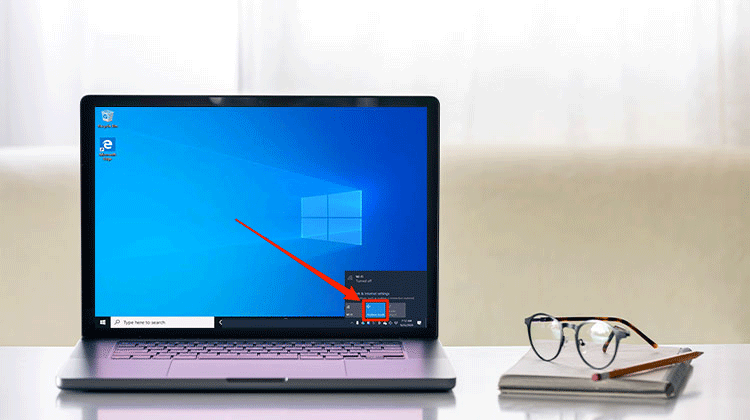
The “Windows can’t connect to this network” error can be frustrating, especially when you try to connect to the internet or access a WiFi network. This error is typically caused by problems with the network settings, drivers, or Wi-Fi settings.
Fortunately, there are many options to help solve this problem. In this article, we’ll explore the most effective methods to solve your “Windows can’t connect to this network” error and restore your network connectivity.
Common Causes of the Windows Can’t Connect to This Network Errors
WiFi can’t connect to this Network is the most common issue on Windows 10 and 11. Before you try to fix this issue, let’s look at why this error happens. Below are some possible reasons behind this problem.
- Temporary Wi-Fi or Windows network glitches
- Incorrect Wi-Fi passwords
- Outdated or corrupted network drivers
- Router or modem issues
- Windows network configuration errors
- Weak or unstable Wi-Fi signals
Also read: 6 Best Fixes for the WiFi Doesn’t Have a Valid IP Configuration Error
How to Fix Can’t Connect To This Network on Windows 10/11
These are the most common causes of Network Connection Errors. There are multiple ways to fix these problems. Let’s discuss each method one by one.
1. Restart Your Computer
Restarting your computer is one of the easiest ways to resolve a temporary wireless issue. Windows may occasionally experience a network or adapter glitch that prevents Wi-Fi from connecting. If you are facing a computer wifi won’t connect issue, restart the system and try connecting again.
Steps:
- Click Start > Power.
- Select Restart.
- Wait for Windows to restart.
- Select your Wi-Fi network.
- Enter the password and connect.
2. Forget and Reconnect to Wi-Fi
Forgetting the saved wireless network can resolve incorrect or outdated connection information. This method is useful when a network error occurs even though your Wi-Fi network appears in the available networks list. Remove the saved network and reconnect using the correct password.
Steps:
- Open Settings.
- Select Network & Internet > Wi-Fi.
- Open Manage known networks.
- Select your Wi-Fi network and click Forget.
- Choose the network again and enter the password.
3. Turn Airplane Mode On and Off
Turning Airplane Mode on and off can refresh your computer’s wireless connections. It is a quick solution when Windows temporarily fails to communicate with the Wi-Fi adapter. If a Wi-Fi connection problem windows can’t connect to this network message appears, this simple method may restore the connection.
Steps:
- Open Quick Settings.
- Turn Airplane Mode on.
- Wait a few seconds.
- Turn Airplane Mode off.
- Enable Wi-Fi and reconnect.
4. Run Windows Network Troubleshooter
Windows includes built-in troubleshooting tools that can identify common wireless connection problems. Running the troubleshooter can help detect configuration issues, adapter problems, or other causes of the Can’t Connect To This Network message and may automatically recommend a solution.
Steps:
- Open Settings.
- Go to System > Troubleshoot.
- Select Other troubleshooters.
- Find the network troubleshooter.
- Run it and follow the instructions.
5. Reset Network Settings
Network Reset restores Windows networking components and settings to their default state. This can help when incorrect configurations are responsible for the connection problem. Before using this option, remember that saved network information may be removed, so you may need to reconnect afterward.
Steps:
- Open Settings.
- Select Network & Internet.
- Open Advanced network settings.
- Select Network reset.
- Click Reset now.
- Restart Windows and reconnect to Wi-Fi.
6. Update the Network Driver
An outdated or corrupted wireless driver can prevent Windows from establishing a Wi-Fi connection. Updating the network adapter driver may fix compatibility and communication problems. This method is especially useful when the computer wifi won’t connect after a Windows update or driver change.
Steps:
- Press Windows + X.
- Select Device Manager.
- Expand Network adapters.
- Right-click your wireless adapter.
- Select Update driver.
- Follow the on-screen instructions.
7. Restart the Router
The issue may originate from the wireless router rather than the computer. Restarting the router can clear temporary connection problems and refresh its network services. If you continue experiencing a network error, restarting the router is a simple step to try before making advanced Windows changes.
Steps:
- Turn off the router.
- Disconnect its power cable.
- Wait about 30 seconds.
- Reconnect the power.
- Wait for the router to start completely.
- Try connecting your computer to Wi-Fi.
Also read: WiFi Connected But No Internet? 10 Ultimate Fixes Guide
8. Contact Your Internet Service Provider
If Windows still shows Can’t Connect to This Network and other devices cannot access the same Wi-Fi network, the issue may be related to the router or internet service. Contact your Internet Service Provider to check for an outage or connection problem.
Conclusion
This article explores how to fix the “Can’t connect to this network” error, explains the most common causes for it, and provides solutions to address the problem. This guide is an official Microsoft document and includes hands-on tests on Windows 10 and 11, and real-world troubleshooting methods to make sure the solutions work.
FAQs: Can’t Connect to This Network Errors
Why won't my computer connect to Wi-Fi?
A computer wifi won't connect issue can happen because of driver problems, incorrect network settings, weak Wi-Fi signals, or router connectivity issues.
Can restarting the router fix a network error?
Yes. Restarting the router can clear temporary connection problems and refresh the wireless network.
Why does Windows connect to some Wi-Fi networks but not others?
The problem may be related to the specific router, saved network profile, security settings, or compatibility between the wireless adapter and that network.
How do I fix Can’t Connect To This Network?
Try restarting your computer and router, forgetting and reconnecting to Wi-Fi, running the network troubleshooter, or updating the Wi-Fi driver.









Leave a comment