






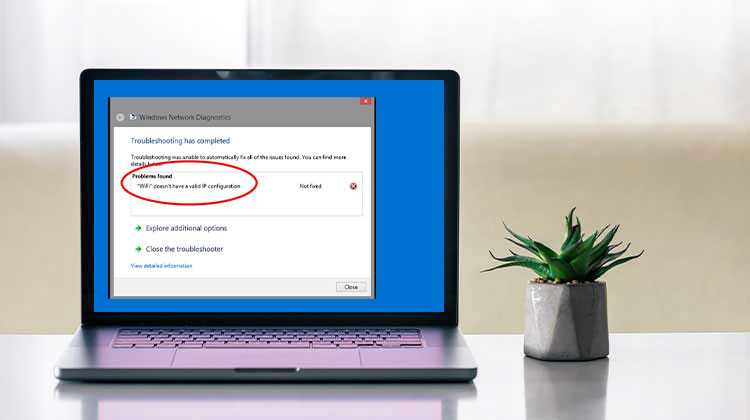
In most cases, Windows Troubleshooting may detect issues, but it won’t provide solutions. The issue “WiFi doesn’t have a valid IP configuration” is a typical scenario. After completing the troubleshooting, you must resolve the issue manually. Here you’ll learn how to resolve this issue in Windows 10.
What Causes the “WiFi Doesn’t Have a Valid IP Configuration” Error?
The “WiFi Doesn’t Have a Valid IP Configuration” error occurs when your computer is unable to obtain a valid IP address from the router. As a result, your device cannot communicate properly with the network, preventing internet access.
Several factors can trigger this issue, including:
- Corrupted network settings
- Outdated or faulty network drivers
- Problems with DHCP configuration
- Incorrect TCP/IP settings
- Router or modem issues
- Malware or software conflicts
- Recent Windows updates are causing network changes
Also read: Why Is My Wi-Fi So Slow? 8 Easy Fixes to Boost Your Internet
How to Fix WiFi Doesn’t Have a Valid IP Configuration
IP configuration is a broad term that covers a variety of different configurations. We’ll investigate each of them to fix the WiFi doesn’t have a valid IP configuration error.
1. Restart Your Computer and Router
Wi-Fi networks are relatively simple to set up. If there are any changes to network settings, a simple router and system reboot will allow Windows 10 to detect and apply them.
- Shut down the Windows 10 system.
- Find the physical power button on the router (do not try to disconnect your router).
- Press and hold the power button for 10 seconds, and then release it.
- Wait for 30 seconds.
- Press the power button on your router to turn it on.
- Boot up your Windows 10 system and connect to the network. Verify that you have internet access.
2. Run the Windows Network Troubleshooter
The network settings may have changed, and Windows 10 is unable to identify or update them after a restart. If that’s the scenario, the network troubleshooter can complete the task.
- Open your settings app.
- Go to the Update and Security.
- Choose the Troubleshoot tab.
- Scroll down and click Additional Troubleshooters.
- Run the Internet Connection troubleshooter, and then the Network Adapter troubleshooter.
- Apply any fixes it recommends, and then restart the system.
3. Update Your Network Adapter Driver
Network Adapters require driver software for proper operation. Drivers are upgraded from time to time to solve security and reliability issues. Windows could upgrade the driver you are using to become a standard network adapter. This could also be a cause of problems with networking.
- Press Windows + X.
- Select Device Manager.
- Expand Network Adapters.
- Right-click your WiFi adapter.
- Select Update Driver.
- Choose Search automatically for drivers.
4. Renew Your IP Address
In certain situations, it is possible to use this method if problems with the internet. Many users have reported that it has helped with their WiFi doesn’t have valid IP configuration problem. Follow the steps listed below.
- Open the Command Prompt with admin rights.
- Run the command below.
Ipconfig/release - Then, run the following command.
ipconfig /renew - The system must be restarted.
5. Reset TCP/IP Settings
Corrupted TCP/IP settings can prevent Windows from communicating correctly with your network.
- Open the Command Prompt with administrator rights.
- Run the command below.
netsh Winsock reset catalog
Then, run this second command.
netsh int ipv4 reset reset.log
Next command to execute;
netsh int ipv6 reset reset.log - Start your computer.
6. Manually Configure Your IP Address
Although your system will automatically set up everything needed to connect to the internet, you have the option to manually configure the IP. The settings can differ; however, we’ll give you a list of settings that can fix the WiFi doesn’t have a valid IP configuration error
- Open Command Prompt.
- Enter the command: Ipconfig
- Noted the numbers under Wireless LAN adapter Wi-Fi.
- Open Control Panel.
- Go to Network and Internet>Network and Sharing Center.
- Click your WiFi network.
- Click “Properties” under the section ‘Activity.
- Choose Internet Protocol Version 4 and click on ‘Properties’.
- Choose the option ‘Use the following IP address Select the ‘Use the following IP address’ option.
- Copy the credentials using the command prompt. Change the final value for the IP address to another. It will be hit & miss.
- Next, select the ‘Use the following DNS server addresses.
- Input the following information in the preferred DNS server and the Alternate DNS server, respectively.
8.8.8.8
8.8.4.4 - Click Ok.
- The system must be restarted.
Also read: How to Fix Kernel Security Check Failure Error in Windows 11 & 10
How to Prevent IP Configuration Errors in the Future
To reduce the chances of encountering this issue again:
- Keep Windows updated.
- Regularly update network drivers.
- Restart your router periodically.
- Use reliable antivirus software.
- Avoid manually changing TCP/IP settings unless necessary.
- Replace aging networking equipment when needed.
Bottom Line
The “WiFi Doesn’t Have a Valid IP Configuration” error can prevent your computer from connecting to the internet, but it is usually easy to resolve.
By following the troubleshooting methods outlined above, you should be able to restore your WiFi connection and get back online quickly.
FAQs: WiFi Doesn’t Have a Valid IP Configuration
What causes the WiFi Doesn’t Have a Valid IP Configuration error?
It usually occurs when Windows cannot obtain a valid IP address from the router due to network setting issues, driver problems, or DHCP failures.
Is the error related to Windows only?
The exact message is specific to Windows, but similar IP configuration issues can occur on other operating systems.
Will resetting TCP/IP delete my files?
No. Resetting TCP/IP only restores your network configuration to default settings. It does not affect your personal files, applications, or documents.
What is the fastest way to fix WiFi Doesn't Have a Valid IP Configuration?
The fastest solution is to restart your router and computer, then renew your IP address using the ipconfig /release and ipconfig /renew commands in Command Prompt. This resolves many IP configuration issues within minutes.










Leave a comment