





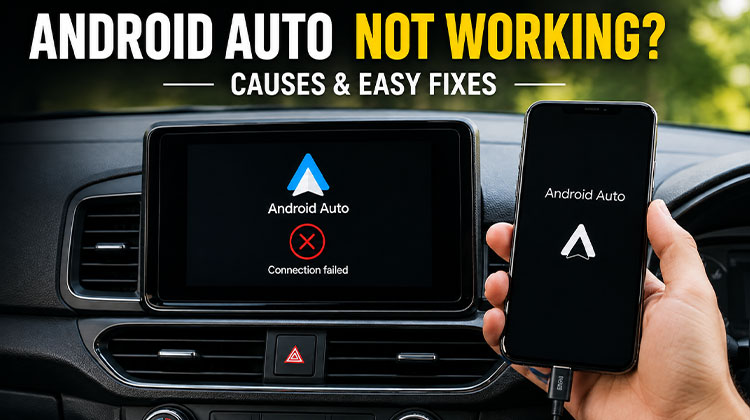
When Android Auto not working becomes a problem, even a short drive can become annoying. You may connect your phone but see nothing on the car screen, or the connection may stop after a few minutes.
Most problems are not difficult to fix. A faulty cable, connection issue, old software, or a wrong setting can stop Android Auto from working properly.
Why Is Android Auto Not Working?
If you’re wondering why is my Android Auto not working, there could be a few simple reasons:
- Bad or loose USB cable
- Bluetooth or Wi-Fi connection problem
- Old phone software
- Android Auto permissions are turned off
- Android Auto is disabled in the car
- A temporary phone or car problem
- Problem with the car’s USB port
Start with the easy fixes below before trying anything complicated.
Also read: Why Is My Apple CarPlay Not Working? Try These Easy Fixes Now
How to Fix Android Auto Not Working
1. Restart Your Phone and Car
A simple restart can sometimes solve the problem. Turn your phone off and turn it back on. If your car’s infotainment system can be restarted, restart it as well.
Once both are ready, reconnect your phone again. This can remove a temporary problem that is stopping the connection.
2. Check Your USB Cable
If you use Android Auto with a cable, check the USB cable first. Some cables can charge your phone but cannot transfer data properly.
Try another good-quality cable and a different USB port in your car.
Try these steps:
- Unplug the current cable.
- Connect another cable.
- Try another USB port.
- Unlock your phone and connect it again.
3. Turn Bluetooth and Wi-Fi Off and On
If Android Auto not connecting is the problem, check your wireless connection.
Turn Bluetooth and Wi-Fi off, wait a few seconds, and turn them back on. Start your car and try connecting your phone again.
This simple step can refresh the connection and get things working again.
4. Reconnect Your Car
If Android Auto was working before but suddenly stopped, try removing your car from the saved connections.
Open your phone’s connected-device settings and remove the car. Then pair your phone with the car again.
A fresh connection can solve problems caused by an old connection.
5. Check Android Auto Permissions
Android Auto needs certain permissions to work correctly. If one of them was turned off, it may not connect properly.
Go to Settings > Apps > Android Auto and check the available permissions. Allow the required permissions and then restart your phone.
Try connecting to your car again after doing this.
6. Update Your Phone
Old software can sometimes cause connection problems. Check your phone for a system update.
Go to Settings > System > Software Update and install any available update. Restart your phone after the update and try Android Auto again.
You can also check whether your car’s infotainment system has an available update.
7. Clear Android Auto Cache
If fixing Android Auto not working is still difficult after trying the basic steps, clearing the app cache may help.
Go to:
Settings > Apps > Android Auto > Storage > Clear Cache
Then restart your phone and connect it to your car again.
Start with clearing the cache instead of deleting all app data.
8. Check Your Car’s Settings
Sometimes the problem is with the car rather than the phone. Check your car’s infotainment settings and make sure Android Auto is enabled.
Look for settings related to Android Auto, phone connection, or smartphone connection.
If your car has more than one USB port, try another one. Some ports are only meant for charging.
9. Try a Wired Connection
If wireless Android Auto is not working, try connecting your phone with a USB cable if your car supports a wired connection.
If it works with the cable, the problem may be with the wireless connection. You can then check Bluetooth, Wi-Fi, and the saved connection.
This is a useful way to find out where the problem is.
10. Connect Another Android Phone
If Android Auto not working continues after all these fixes, try connecting another Android phone to your car.
If the second phone works, the problem is probably with your original phone or its settings.
If another phone also fails to connect, the problem may be with the car’s USB port or infotainment system.
Also read: 5 Best Bluetooth Car Adapters to Upgrade Your Vehicle
Android Auto Stopped Working After Update
If Android Auto stopped working after update, don’t panic. Start by restarting your phone and car.
Then check whether another phone or system update is available. You can also clear the Android Auto cache and reconnect your car.
If another phone works normally, the problem may be related to the update on your phone.
Final Thoughts
Most Android Auto Not Working problems don’t need complicated repairs. Start with the USB cable and connection, then check permissions, updates, cache, and car settings.
If nothing works, try another Android phone. This can help you find out whether the problem is with your phone or your car.
FAQs: Android Auto Not Working
Why is Android Auto not working with my USB cable?
The cable may be damaged or designed only for charging. Use a reliable USB data cable, connect it directly to the car, and try another USB port if available.
Can outdated phone software cause Android Auto problems?
Yes. An outdated Android version or related software can cause compatibility and connection issues. Check your phone for available system updates and install them if necessary.
How do I know if my car supports Android Auto?
Check your vehicle manual, infotainment settings, or the manufacturer's compatibility information. Some vehicles support Android Auto only through USB, while others support wireless connections.
What is the quickest way to fix Android Auto not working?
Start with the simplest checks: restart your phone and car, reconnect the cable, try another USB port, check Bluetooth and Wi-Fi, and reconnect the vehicle.







Leave a comment