






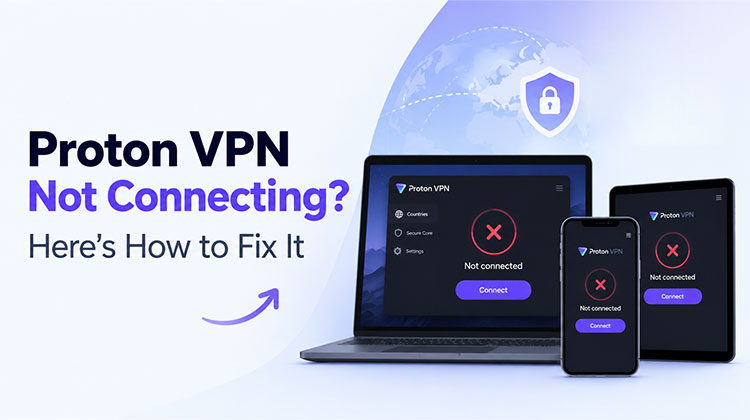
We’ve all been there — you open Proton VPN, hit Connect, and nothing happens. Maybe the app just sits there spinning, or you get a frustrating error message out of nowhere. Whatever the case, dealing with Proton VPN not connecting is annoying, especially when you just want to browse privately or access something important.
The good news? Most of the time, a Proton VPN not connecting fix is simpler than you’d think. Let’s walk through exactly why this happens and how to get things working again.
Why Is Proton VPN Not Connecting?
Before you start, it helps to understand what’s actually going wrong. Here are the most common reasons behind Proton VPN issues:
- Network restrictions: Coffee shops, hotels, schools, and corporate offices often block VPN traffic. If you’re on one of these networks, that might be your problem right there.
- Protocol conflicts: The protocol your app is using might not play well with your current network.
- Firewall or antivirus interference: Your security software might be treating Proton like a threat and quietly blocking it.
- An outdated app: Running an old version of Proton VPN not working is more common than people realize — bugs pile up, and older builds miss important patches.
- Server issues: Sometimes the server you’re trying to connect to is overloaded or temporarily down.
- Damaged network adapters: On Windows especially, corrupted VPN adapters often trigger a Proton VPN connection failed error.
- Login or authentication problems: Issues like Proton VPN Error 86101 can stop your connection before it even gets started.
Also read: Are Cracked VPNs Safe? 5 Alternatives for Secure Browsing
Start Here — Quick Checks First
Don’t dive into complex fixes yet. Try these basic Proton VPN not connecting fixes, because they solve the problem more often than you’d expect.
- Is your internet actually working? Kill the VPN and try loading a site. If that doesn’t work, the issue is your network — not Proton.
- Close the app and reopen it. Simple, but it works.
- Reboot your device. A fresh restart clears out all kinds of weird glitches.
- Switch networks. Jump from Wi-Fi to mobile data (or vice versa). If Proton VPN not connecting only happens on one network, that network is almost certainly the problem.
How to Fix Proton VPN Not Connecting — Step by Step
If the quick fixes didn’t do it, here’s how to fix the Proton VPN not connecting issue.
1. Try a Different Server
This one’s easy and often overlooked. If a server is overloaded or offline, you’ll get stuck — Proton VPN stuck on connecting is a classic sign of this. Press Quick Connect to let the app find the best available server, or manually pick one that’s geographically close to you.
2. Switch Up Your Protocol
Your VPN protocol is basically the “language” your connection uses. Some networks block certain protocols, so switching can make a big difference.
- Open Settings in the app.
- Find the Protocol option (usually under Connection).
- Start with Smart — it automatically picks what works best.
- If that doesn’t help, try WireGuard, then OpenVPN (TCP), then Stealth.
Stealth is specifically designed to sneak past networks that block VPNs, so if you’re on a restricted connection, that’s your best bet.
3. Enable Alternative Routing
If your network is blocking Proton’s servers entirely, Alternative Routing routes your connection through different infrastructure to get around it. Go to Settings, turn it on, and try again. This is one of the most underused fixes for Proton VPN not connecting on restricted networks.
4. Check Your Firewall and Antivirus
Sometimes the thing that’s supposed to protect you ends up causing problems. Your antivirus or firewall might be blocking Proton without telling you.
- Temporarily turn it off and try to connect.
- If that works, add Proton VPN to the exceptions or allow list.
- Turn your security software back on immediately after.
5. Update or Reinstall the App
If you’ve been ignoring those update prompts, now’s the time to stop. Proton VPN not connecting is often just a matter of running an outdated version. Check your app store or grab the latest build from Proton’s official website.
- If updating doesn’t cut it, do a full reinstall:
- Uninstall Proton VPN completely.
- Restart your device.
- Download a fresh copy from the official site or your app store.
- Install and log back in.
On Windows, a clean reinstall also fixes broken VPN network adapters — one of the main reasons you’d see a Proton VPN connection failed message.
6. Remove Conflicting VPNs or Proxies
Running two VPNs can work together if deliberately configured as a VPN chain (double VPN). Make sure all other VPN apps are closed. Also check that no proxy is active — on Windows, go to Settings > Network & Internet > Proxy and make sure everything is turned off.
7. Reset Your Network Settings
If nothing fixes Proton VPN not connecting, your network settings themselves might be corrupted. On Windows, open Command Prompt as an admin and run:
- ipconfig /flusdns
- netsh winsock reset
Restart after that. On iPhone or Android, look for Reset Network Settings in your system settings — but heads up, this will wipe your saved Wi-Fi passwords.
Dealing with Proton VPN Error 86101
Proton VPN Error 86101 is a login or authentication error — it usually means the app can’t reach Proton’s servers to verify your account. Here’s how to tackle it:
- Check if Proton is having an outage. Head to their official status page or social media.
- Log out, then log back in. This refreshes your session and often clears the error.
- Turn on Alternative Routing to work around any server access issues.
- Update the app if you haven’t already.
- Clear the app cache on Android, or reinstall on other devices.
Reach out to Proton Support if it keeps happening — share your device info, app version, and the full error message.
How to Stop This From Happening Again
Once you’ve got things working, a little prevention goes a long way:
- Keep auto-updates on so you’re always running the latest version.
- Use the Smart protocol so the app can adapt on its own.
- Leave Alternative Routing enabled if you travel or use public Wi-Fi a lot.
- Add Proton to your firewall’s allow list so future security updates don’t accidentally block it.
- Don’t run multiple proxies or VPNs at the same time.
- Pick less busy servers, especially during peak evening hours.
- Keep your OS up to date to avoid compatibility headaches.
Wrapping Up
Proton VPN not connecting is frustrating, but it’s almost always fixable. Start simple — check your internet, restart the app, switch servers. If that doesn’t work, change your protocol, look at your firewall settings, or do a clean reinstall. For login errors like Proton VPN Error 86101, logging out and turning on Alternative Routing usually does the trick.
Go through these steps one by one to fix Proton VPN not connecting, and you’ll most likely be back online within a few minutes. And if you’ve tried everything and still can’t get it working, Proton’s support team is genuinely helpful — don’t hesitate to reach out.
FAQs: Proton VPN Not Connecting
Why is Proton VPN not connecting to any server?
If Proton VPN cannot connect to any server, the problem may be related to your internet connection, firewall settings, or VPN protocol. Restart the app, check for updates, and try another supported protocol.
Why does Proton VPN keep disconnecting?
Frequent disconnections can happen because of unstable Wi-Fi, switching between networks, or VPN configuration issues. Try a more stable network, update the app, and review its connection settings.
How do I reset Proton VPN settings?
The available reset options depend on your device and app version. Check Proton VPN's settings for relevant configuration options. If necessary, reinstall the application, keeping in mind that this may reset your preferences.
How do I fix Proton VPN connection failed errors?
Check your internet connection, restart the application, select another server, and update Proton VPN. If the error continues, try another supported protocol or consult the official Proton VPN support documentation.








Leave a comment