






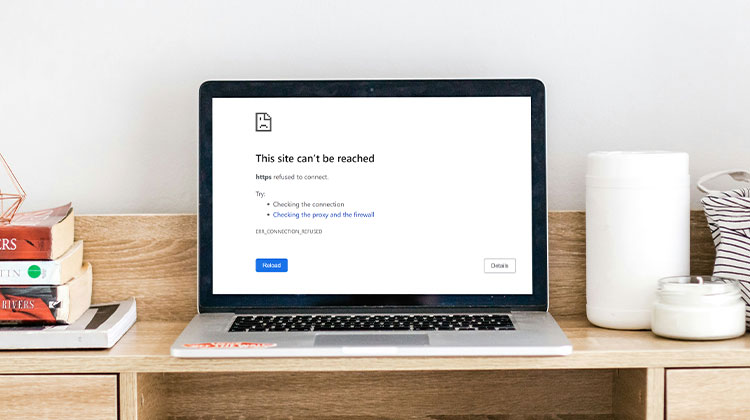
This guide will help you fix the “this site can’t be reached” error. It provides solutions, such as checking internet connectivity, clearing the cache in your browser, changing DNS servers, deactivating firewalls, and antivirus software and more. Check them out right now!
What Does “This Site Can’t Be Reached” Mean?
“The ‘this site can’t be reached” error message in browsers such as Chrome is a broad term that covers a range of problems. The error message that appears under it typically identifies the reason for the issue by various error codes. For example,
ERR_CONNECTION_REFUSED
ERR_CONNECTION_RESET
DNS_PROBE_FINISHED_NXDOMAIN
ERR_CONNECTION_TIMED_OUT
Main Causes of the Error
Here are some possible causes for the error code.
- Unstable or No Internet Connection
- Device, Router, or Modem Malfunctions
- Corrupted or Outdated Browser Cache and Cookies
- Firewall or Windows Security Restrictions
- DNS Server or Domain Resolution Issues
- Website Blocked by Your Internet Service Provider (ISP)
- Incorrect or Mistyped URL
Also read: How to Fix ‘Not Enough Memory to Open This Page’ in 6 Easy Steps
How to Fix “This Site Can’t Be Reached”
1. Restart Your Router and Modem
One of the primary reasons for a “this site can’t be reached” error is a problem with your router setup. To resolve the issue, disconnect your router or modem and reconnect it after 30 seconds or more.
Your internet connection will restart, and you will be able to connect to the site again.
2. Clear Browser Cache and Cookies
A slow-loading cache or old cookies could cause problems when browsing. How to clear the cache on browsers:
- Go to Settings
- Click “Privacy and Security”
- Select “Clear browsing data”
- Choose “Cached images and files” and “Cookies”
- Click “Clear data”
3. Switch to Public DNS Servers
Sometimes servers aren’t properly resolving the website name. This can cause your web browser to display a message warning that the site is not accessible. If this happens, you can resolve this issue by changing the DNS server on your computer.
You can also add the free DNS servers provided by Google and Cloudflare. The server addresses of their servers are:
- Google DNS servers 8.8.8.8 or 8.8.4.4
- Cloudflare DNS servers – 1.1.1.1 or 1.0.0.1
Steps to change DNS (Windows):
- Open Control Panel
- Go to Network and Sharing Center
- Click your active network
- Select Properties
- Double-click Internet Protocol Version 4 (TCP/IPv4)
- Enter DNS addresses and save
4. Disable Firewall and Antivirus Temporarily
A firewall or antivirus program could also be the source of the issue. When a website security concern is discovered, it will block the user from visiting it.
Also, check the firewall settings and your antivirus program to make sure they’re not blocking the websites you would like to access. If they’re the reason you are blocked, you can turn off these temporary security features.
Steps using Microsoft Defender:
- Open Windows Security
- Go to Virus & Threat Protection
- Click Manage Settings
- Temporarily turn off protection
- Disable Firewall under Network Protection
When you’ve completed the check, make sure to return them to protect your device.
5. Reset Your Browser Settings
Resetting the browser’s settings will remove any unwanted extensions and toolbars, and make changes that are not working, such as changing the homepage or search service.
This procedure may resolve the “this site can’t be reached” on Chrome or any other browser.
6. Scan for Malware
Malware can disrupt your network connection, causing websites to stop loading. To ensure your system is free of viruses, perform a system-wide scan using an antivirus program.
Run a full system scan using:
- Microsoft Defender
- Or any trusted antivirus tool
Also read: Top 10 Anti-Malware Software
Additional Fixes You Should Try
1. Use a Different Browser. If you are unable to access websites using the same browser, an easy option is to use an unblocked browser.
2. Disable TLS 1.3 Hybridized Kyber (Chrome Fix). Some Chrome users were able to resolve the issue with their site in this manner.
Try it to type the chrome://flagsor into the address bar of Chrome. Enter Kyber into the search bar, then disable it, then click on Relaunch.
3. Flush DNS Cache: There is a possibility that your computer stored an out-of-date DNS record or saved corrupted caches, leading to a website being unable to be accessed.
Flushing DNS could replace these corrupted or outdated files, creating room for new files. However, it noted that it can reset your network connection.
4. Use a VPN. Sometimes sites are blocked by ISPs because they are banned by authorities. There are methods to get around this hurdle by using proxies and VPNs. Download and install the VPN to test whether the issue is resolved.
Ending Notes
Although the “This site can’t be reached” error may seem daunting, tackling it shouldn’t be as difficult as it may seem. The reason for this is usually problems with your internet connection, DNS, or caching. The steps below provide comprehensive guidelines to solve the problems.
FAQs: This Site Can’t Be Reached
Why does “This Site Can’t Be Reached” keep appearing again and again?
If the error keeps showing up, it usually means there’s an ongoing issue with your internet connection, DNS settings, or browser configuration that hasn’t been fully resolved.
Is “This Site Can’t Be Reached” a problem with my device or the website?
It can be either. Sometimes the issue is on your device or network, while other times the website server itself may be down or unreachable.
Can resetting network settings fix “This Site Can’t Be Reached”?
Yes, resetting network settings can clear misconfigurations and often resolves persistent connectivity issues.
Can low RAM cause “This Site Can’t Be Reached” errors?
Low RAM doesn’t directly cause the error, but it can slow down your browser and system, making websites fail to load properly.










Leave a comment