






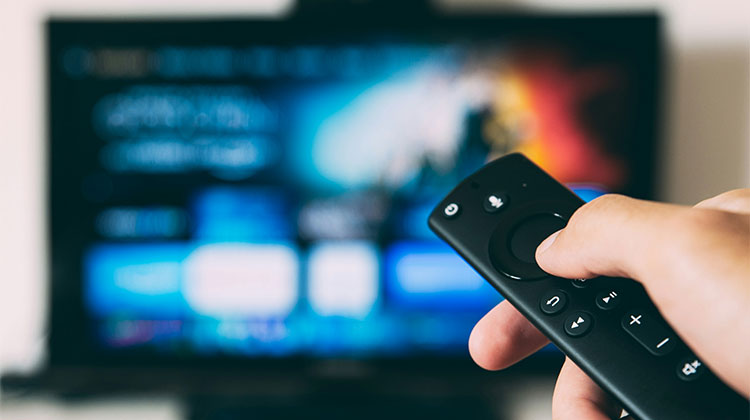
Amazon Fire Stick is the most popular streaming device. It’s a compact and portable device connected to a television’s HDMI port. It allows users to play a variety of TV shows, movies, songs, images, sports, and games.
However, certain Amazon Fire Stick users also have an annoying issue like “Fire Stick not working”. A variety of errors could trigger an Amazon Fire Stick malfunction. This “Amazon Fire Stick not working” problem can be seen in the following scenarios:
Common Fire Stick Problems
The “Fire Stick not working” issue can appear in several ways, including:
- Blank or black screen on TV
- Apps keep crashing or not opening
- Device stuck on Amazon logo or loading screen
- Fire Stick turning on and off automatically
- No internet or network connection
- Remote not responding
So, how do you solve this problem? I’ll provide some helpful methods to fix FireStick not working issue in the next paragraphs.
Why Is My Fire Stick Not Working?
Before jumping into fixes, it’s important to understand the most common reasons behind Fire Stick issues:
- Poor or unstable internet connection
- HDMI connection problems
- Power supply issues
- Software glitches or outdated firmware
- Remote control malfunction
- Overheating of the device
- App crashes or corrupted cache
Once you identify the cause, you can solve Fire TV Stick problems.
Also read: 5 Free VPN for Firestick to Bypass Geo-Restrictions
How to Fix Fire Stick Not Working:
These steps are among the most efficient methods to get the Fire Stick up and running again.
1. Make Sure Your TV Is Turned On
If you are confronted with a “Fire Stick is not working” problem, the first thing to do is make sure you’ve already turned the TV on.
Certain TV models will stop immediately if they don’t receive any signals for a few minutes. This means that your TV will shut off on its own, and you’ll see a blank screen.
2. Wait for System Updates
Sometimes, the Fire Stick needs some time to download or install the most recent updates. If you try to open an Amazon Fire Stick and get stuck on the loading screen, you need to wait 10 minutes to see if the issue solves itself.
3. Restart the Fire Stick
Restarting can be a great way to correct several issues with your PC, TV, or other devices. Therefore, you should try restarting the Amazon Fire Stick to solve the “Amazon Fire Stick not working” problem:
Restart by unplugging the Fire Stick:
- Unplug your Fire Stick from the TV or the wall outlet.
- Take a moment to wait. After that, plug your Fire Stick back in.
Restart using the remote:
- Hold the middle button and then press the buttons on the remote for 10 minutes.
- After that, the Fire Stick will start to reboot, without any confirmation prompts on the screen.
Restart using the Settings menu:
- Make sure that your Fire Stick is connected to your TV and on.
- Pressing the Home button on your remote will get you to the home screen.
- Using the remote, go to Settings.
- Scroll down to find the “My Fire TV” option.
- After that, you can open it.
- After that, scroll down until you Select Restart.
- Then, when you have finished, the Amazon Fire Stick will restart.
4. Check the HDMI Port Connection on Your TV
HDMI plugs are sometimes loose. Unplugging your Fire Stick and making sure you plug the connector in completely and not at an angle will make a difference. Beware of the temptation to do this in a blind spot. Get a flashlight to see the connection. Additionally, ensure that your TV isn’t set to the wrong HDMI input. Go to the television’s input settings and check that the right HDMI input is selected.
5. Update Your Amazon Fire Stick
Software updates can correct a variety of problems and errors. You can therefore upgrade to the latest version of your Fire Stick to solve the “Fire Stick not working” problem. By default, your Firestick should be checking for updates regularly. However, you can also make updates manually.
- Open the Fire TV Stick and navigate to the Home screen.
- Select the gear icon to enter the settings menu.
- Select My Fire TV.
- After that, you’ll be presented with three options: ABOUT Network or Check for updates.
- Select Check for Updates. If the Install Update option is displayed, this means there’s an update for you. If you aren’t seeing any Install Update selection, it means that your Fire TV is up to date.
Also read: Amazon Fire TV Remote Not Working? How to Fix It Quickly
6. Clear Fire Stick Cache
The cache on Fire Stick can be over-bloated in time and make your device slow down or fail. So, the Fire Stick cache is also a reason for “Fire Stick not working”. The following steps will clear your cache and solve the problem:
- Go to Settings.
- Choose Applications.
- Scroll down to choose Manage Installed Applications.
- Choose the app you would like to clear the cache.
- In the following window, click Clear cache.
- Once you have done that, you can delete the cache in this app successfully.
7. Factory Reset the Fire TV Stick
If none of the options above are working to solve your “Fire Stick not working” issue, follow the steps below to reset your factory settings on the Fire TV Stick to solve this issue.
- Click the home button of your remote.
- Go through Settings. Settings menu.
- Select My Fire TV.
- Select Reset back to Factory Default.
- Choose Reset from the confirmation page.
The Fire Stick will then begin a factory reset. Make sure you don’t disconnect your Fire Stick from the power source or your television until it’s finished. If you do, the Fire Stick could be damaged.
Final Thoughts
The Fire Stick not working issue is very common but usually easy to fix. By following these steps, you can quickly restore your Fire Stick and enjoy smooth streaming again. If the issue continues after a reset, you may need to contact Amazon support or consider a replacement.
FAQs: Fire Stick Not Working
Is Fire Stick not working a common issue?
Yes, it is a common issue caused mostly by internet, HDMI, power, or software-related problems. Most issues can be fixed easily at home.
Why is my Fire Stick not connecting to Wi-Fi?
This can happen due to incorrect password, router issues, or network glitches. Restarting the router and re-entering Wi-Fi details usually solves it.
Why do apps keep crashing on my Fire Stick?
Apps may crash due to corrupted cache, low storage, outdated software, or poor internet connection. Clearing cache or updating the system usually fixes the issue.
How do I fix a Fire Stick that is stuck on the loading screen?
If your Fire Stick is stuck on the logo, wait 5–10 minutes for updates. If it still doesn’t work, restart the device or unplug it and plug it back in.
When should I replace my Fire Stick?
You should consider replacing your device only if your Fire Stick not working issue still continues even after trying all troubleshooting steps such as restart, software update, and factory reset.










Leave a comment