






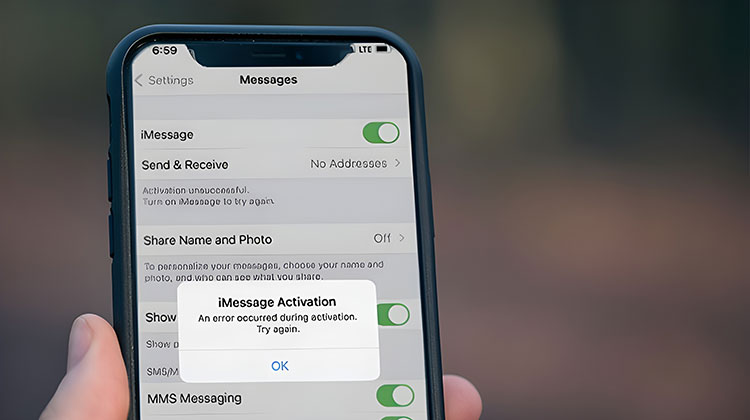
I consider iMessage an ideal platform to share your thoughts via text. When your messages aren’t sending, and iMessage says “Waiting for activation,” it’s a huge problem, especially if you’ve got important things to say and share.
Instead of putting down iMessage entirely, I’ll discuss the meaning behind the iMessage waiting for activation error and how to quickly return to staying connected and exchanging funny GIFs within a minute.
What Does “iMessage Waiting for Activation” Mean?
However, why does iMessage waiting for activation problem in the first place? Based on the specific error, it could mean different things. Based on Apple’s official website, it could mean five possible interpretations:
- Waiting for activation
- iMessage activation unsuccessful
- A problem occurred during the activation
- Could not sign in, please check your network connection
- Unable to contact the iMessage server. Try again.
If you fall into any of the above situations, you will be unable to send iMessages.
What can cause iMessage Waiting for Activation Problems?
When you face an iMessage waiting for activation problem, it could be due to:
- iMessage is just glitchy. It can be from refreshing the app or restarting your device.
- No SIM card in your phone. Newly installed phones may initially experience difficulties making connections to servers or activating cellular data.
- It’s unreliable WiFi. If you’re trying to connect to iMessage using Wi-Fi, and the signal isn’t strong, your phone isn’t reliable for sending messages on time.
- Your plan is not activated. Just recently bought a new plan? Your provider may not have fully activated the plan.
You may be awed by the numerous possible causes. But, on the bright side, it means that an equal number of solutions are also available to fix iMessage activation problem.
Also read: Cannot Verify Server Identity on iPhone: 8 Ways to Fix It Fast
How to Fix iMessage Waiting for Activation Error Message
iMessage is a message app for iPhone users. If you’re one of the users who prefer it over other messaging applications because of its complete encryption or its numerous exciting features, these iMessage waiting for activation solutions can bring things back online in the future.
1. Check Your Internet Connection
If you’ve ever been on the subway (one without internet connectivity or signal) and tried sending an iMessage, you’ve probably noticed that iMessages aren’t sent, and the blue send indicator bar typically stops after a certain point. This is because the messages depend strongly on connectivity, and the first fix is solely dependent on the connection to the internet.
If you’re not in the subway, and the Wi-Fi icon on your device is empty without bars, go to settings and see an exclamation point that reads “No Internet Connection” under the Wi-Fi connection. There’s a problem with your internet connection. To resolve the issue, follow the steps:
Try the following:
- Switch between Wi-Fi and mobile data
- Turn Wi-Fi off and on again
- Restart your router
- Restart your iPhone
If needed, forget and reconnect to your Wi-Fi network:
- Go to Settings → Wi-Fi
- Tap the ⓘ icon next to your network
- Select Forget This Network
- Reconnect and try again
2. Toggle Airplane Mode Off and On
Did you just take a flight or turn off Airplane Mode to charge your phone quicker? Maybe your iMessage issues are a result of switching Airplane Mode on and off again. To check your Airplane Mode setting:
- Go to Settings
- Turn Airplane Mode ON
- Wait 10–15 seconds
- Turn it OFF
3. Verify Date and Time Settings
It may sound like a strange idea, but using the wrong date and time on your iPhone could cause the server connection fail. Particularly, if you move between time zones often, it is helpful to switch on automatic settings to ensure you’re always on the correct time and date. Here’s how:
- Start your Settings app.
- Scroll down, then tap General.
- Select Date & Time.
- Switch Set Automatically on.
4. Turn iMessage Off and On
Another option is to get right to the point and then restart iMessage. Because FaceTime is a different built-in communication tool for Apple devices, it might be helpful to reset it, as iMessage waiting for activation errors could be a possibility. To restart these applications:
- Go to Settings → Messages
- Turn iMessage OFF
- Wait a few seconds, then turn it ON
Go to your main Settings page, and follow the same steps for FaceTime, waiting for activation.
5. Restart Your iPhone
“Have you tried turning it on and off?” This is the most dated and possibly irritating question in troubleshooting tech, but restarting your iPhone could be the easiest and most effective solution. Simply hold the power button and the volume button simultaneously for a few seconds before you slide the power off button.
Alternatively, you can do a hard reboot to fix the issue if your phone has stopped working or is malfunctioning.
- Press and release the volume up button.
- Press and release the volume down button.
- Hold the power button till the Apple logo appears.
Also read: iPhone Error 4013: Why It Happens and How to Solve It
6. Reset Your iPhone
Are you having trouble restarting your phone? One more drastic option might be to reset your iPhone to default settings. Follow the steps on how do it without losing your data
- Connect your iPhone to a PC and utilize Backup Manager to back up your device.
- Navigate to Settings> General on the iPhone.
- Scroll down to transfer or reset your iPhone.
- Select Erase All Content and Settings, and follow the instructions to reset your phone.
7. Check Carrier Settings
There are times to check your carrier settings are updated. To determine if one is present:
- Open the Settings app.
- Tap General > About.
- Go to Carrier, and you’ll be able check if there’s an option to upgrade or not.
- If you don’t find one, then you’ll need to check other options on this list. If there is one, ensure you do the update ASAP.
8. Make Sure SMS Is Working
If it states that your iMessage is waiting for activation, and you are unsure if your SMS is functioning properly, a good way to determine if there are more serious issues that need to be addressed. To determine:
- Go to Settings → Messages
- Turn iMessage OFF
- Send a regular SMS text to someone
Since iMessage activation requires an SMS being delivered to Apple’s servers, it’s obvious that the reason why things aren’t operating according to plan is that the iMessage isn’t working.
9. Check VPN Settings
I regularly use a VPN on my iPhone and my MacBook. It secures my personal data and hides my IP address whenever I’m using the internet, particularly when I’m connecting to public WiFi. However, VPNs are sometimes unable to work with specific actions and apps because they constantly change the routes the traffic takes, which could impact iMessage and create a problem, such as iMessage waiting for activation. If you use a VPN:
- Go to the Settings app.
- Tap General.
- Scroll down to click VPN & Device Management.
- Turn off the VPN temporarily
- Try activating iMessage again
Summing Up: Solved iMessage waiting for activation error
Dealing with iMessage activation error – especially when it affects communication. From server connectivity to troubleshooting various settings in the Settings, there are several solutions to fix the iMessage waiting for activation problem.
FAQs: iMessage Waiting for Activation
Why is my iMessage stuck on waiting for activation?
iMessage may be stuck because of poor internet connectivity, an inactive SIM card, carrier delays, incorrect date and time settings, or temporary Apple server issues. VPNs and outdated iOS versions can also interfere with activation.
Does FaceTime affect iMessage activation?
Yes. iMessage and FaceTime share activation services. Restarting both apps or signing out and back into your Apple ID can help resolve iMessage waiting for activation errors.
Can I activate iMessage without mobile data?
Yes. iMessage can activate using Wi-Fi alone, but phone number activation still requires SMS support from your carrier.
Why does iMessage say activation unsuccessful?
This error appears when your iPhone cannot communicate with Apple’s servers. Common causes include network problems, inactive carrier plans, blocked SMS services, or Apple ID sign-in issues.







Leave a comment