






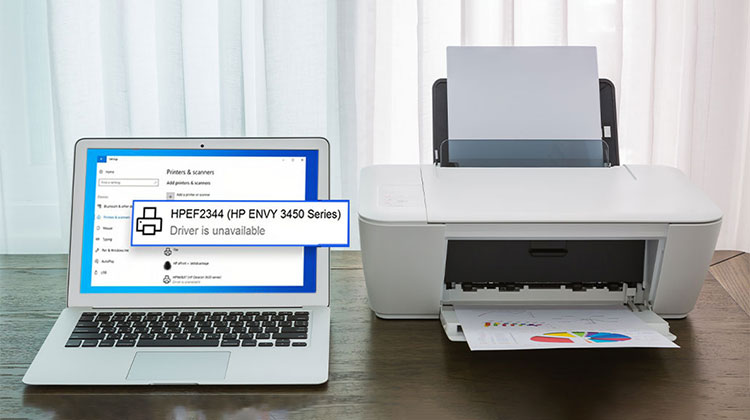
Printers are among the most basic and essential components for daily activities. However, if you discover that the printer isn’t working and you see the “Printer driver is unavailable –error in the Control panel, you need to fix it. This post will help you discover the root of the issue and suggest solutions for it.
Why Am I Getting the “Printer Driver Is Unavailable” Error?
If you’re thinking about what to do when the driver is not available for a printer, this is the answer:
- The printer driver is missing or was not installed correctly
- The printer driver files are corrupted
- The installed driver is incompatible with your Windows version
- The driver is outdated and requires updates
- Windows updates may have affected the printer software
The many reasons behind the Printer driver is unavailable” problem can be confusing for users. But simple solutions can help you resolve the issue within a few minutes.
If you’re trying to make the driver accessible, read this article until the end. But before that, let’s know more about the Printer Driver.
Also read: Best Printer for Mac: You Can Buy In 2025
How to Fix Printer Driver Is Unavailable on Windows
You’re in the right place for solutions to the Printer is unavailable error in Windows. Here are a few solutions to the issues you are having with the printer driver on your Windows PC.
Follow the guide below to fix the printer driver is unavailable ” error on Windows.
1. Reconnect Printer
The simplest solution to the printer driver is unavailable error is to use the standard method to troubleshoot your computer peripherals. All you have to do is unplug the printer’s connection from your computer and reconnect. Once you have detected the printer on a different connection, the computer may recognize the printer driver.
2. Run Printer Troubleshooter
You will find the built-in troubleshooting capabilities of the Windows operating system an essential tool to handle frequent errors and issues. If your printer shows the driver is unavailable error even after reconnecting your printer, use the Printer Troubleshooter by following the steps below.
- You can open the Settings Window after you have pressed”Enter” on Windows, and I key together.
- Click the System option on the left side and select the Troubleshoot option on the right side of your screen.
- Look for the option Other troubleshooting options and click it.
- Select the Printer in the list of Other troubleshooters, and then click the Run button in the Printer tab. This will launch the troubleshooter.
- When the wizard is finished, make sure the error no longer appears.
3. Reinstall Your Printer
You can reinstall your printer by removing it from the control panel. Here is the procedure to reinstall your printer from the control panel.
- Open your Control Panel and choose the Devices and Printers option.
- You have to choose the printer you want to reinstall before clicking the Printer Server Properties on the toolbar at the top.
- Once you’ve logged into the Print Server Properties window, select the driver tab, then select the Change Driver Settings options at the bottom.
- After you have granted administrator rights, you can select one or more drivers you want to remove and then click”Remove.
- Select whether you wish to remove the driver or the package and driver, and then click OK.
- Confirm each subsequent step. Then, you can select the “Close” button in the print Server Properties window when you are finished.
- Disconnect your printer from the Windows PC and then restart the system. When your system is up and running, your printer will be up and running again.
The printer driver will be installed automatically once you reconnect it to your computer. Verify whether the printer driver is unavailable error is still there.
4. Update Windows
It is necessary to search under the Optional Updates to see whether a printer driver is available. A printer driver that is not working is not a reason to stop printing, since you can use the following steps to download the latest updates for your printer driver.
- Open Windows Settings (Win + I)
- Go to the Update and Security tab and find the Windows Update option in the sidebar.
- Select View all possible updates in the right-hand menu.
- Select which Windows updates and drivers you wish to install by checking the boxes before selecting the Download and Install option.
Restart your computer when you’re done with the installation process to allow the effects of the additional updates.
Also read: How to Fix Windows Update Errors: 12 Quick Fixes to Try
5. Install the Printer Driver Manually
Another option when the printer driver is unavailable is to use the manual method to install it. The best the driver to manually install is through the official OEM site.
You can find the latest driver for the printer on the manufacturer’s website, which helps you confirm the new driver and install it.
Furthermore, you can use third-party driver aggregators to find the latest drivers for your printing device. But, you should use this only if your printer is not up to date and you are unable to download the driver.
6. Install the Generic Printer Driver (From Microsoft)
Regarding the latest printer drivers, certain manufacturers are very slow in releasing new drivers. This could cause a huge problem for you. If you’re experiencing a printer driver unavailable on Windows, it is recommended to select a generic printer driver from Microsoft. Follow the steps to complete the entire process.
- Open the Device Manager by using the Windows search bar. Locate and right-click on it, then right-click on the Printer and select Update Printer Driver.
- Then, in the next screen, click My computer to browse for drivers.
- The next step is to choose “Let me choose” from a list of available drivers for my computer.
- Select the Generic software device, and then select Next. After that, Windows will install the generic driver for your printer. After that, you can continue using your printer.
Also read: How to Fix Driver Power State Failure in Windows 10 (BSOD Error)
Additional Tips to Prevent Printer Driver Issues
To avoid similar printer problems in the future:
- Keep Windows updated regularly
- Download drivers only from official manufacturer websites
- Avoid installing outdated or incompatible drivers
- Remove unused printers from your system
- Restart the Print Spooler service occasionally
Conclusion
The “Printer Driver Is Unavailable” error is a common issue on Windows 10/11 can be fixed with simple troubleshooting steps. In most cases, updating or reinstalling the printer driver resolves the problem quickly.
FAQs: Printer Driver is Unavailable
1. What does “Printer Driver Is Unavailable” mean?
The error means that Windows cannot communicate properly with your printer because the installed driver is missing, corrupted, outdated, or incompatible.
Why does my printer stop working after a Windows update?
Sometimes Windows updates replace existing printer drivers with incompatible versions, causing the “Printer Driver Is Unavailable” error.
Is the “Printer Driver Is Unavailable” error common?
Yes, it is a very common printer issue faced by users of HP, Canon, Epson, Brother, and other printer brands on Windows PCs.
Will reinstalling the printer fix the driver unavailable error?
In many cases, reinstalling the printer removes damaged files and installs a fresh driver, which fixes the issue.










Leave a comment