






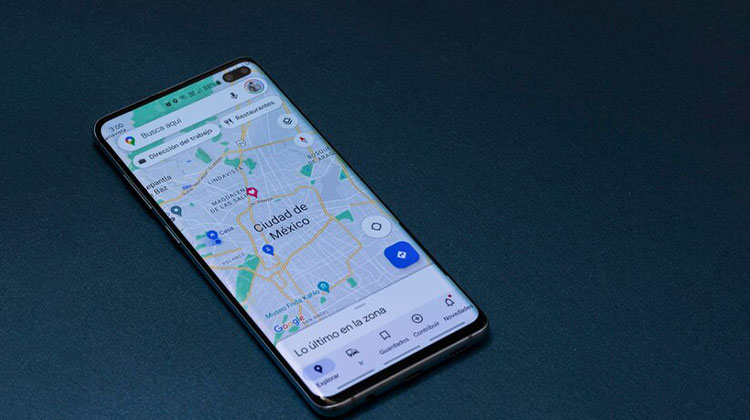
With amazing options and features, Google Maps is easily the most reliable navigation app available. I, for one, depend heavily on it to get around on my day commute. Therefore, I fully comprehend how frustrating it can be when services don’t function as expected or, worse still, shut off suddenly while on your journey. If this sounds familiar, don’t panic, you’re in the right place. We have provided all the options to fix Google Maps not working in this article.
Why Is My Google Maps Not Working?
Google Maps not working on your device for various reasons. Let’s examine some possible causes: an unstable or slow internet connection could be to blame, while considering any localized downtime issues could also play a part. Google Maps relies heavily on real-time data, meaning any server issues could impede service. If this still has not helped and there have been issues, consider whether or not your device, memory cache, or Google Maps application itself might be at fault.
Knowing the causes of the Google Maps error can help you determine the best solution. We will then provide you with options for solving this Google Maps problem.
Also read: Top 10 Mobile Tracker Apps (Free & Paid)
How to Fix Google Maps Not Working
1. Check the Google Maps Server Status
Sometimes, the Google Maps servers can experience interruptions. In such cases, Google Maps does not work properly. To verify whether Google Maps servers are running properly, Google offers a dedicated Google Maps Status Dashboard. It is possible to visit it to check that the servers are running and functioning.
If servers appear to be functioning in the way they are supposed to, they’ll be shown as the green tick. In contrast, the service interruptions will be indicated by the red cross within a red circle. If you experience an outage, there is no way to do anything other than wait until the situation is solved by Google’s end.
Restart the Google Maps App
You’ll be surprised at how many issues can be resolved through closing and restarting the application. This will complete all its tasks and relaunch its operations. After restarting Google Maps, it should fix the issues you encountered previously. To close it, swipe up from the menu with the most recent version on both Android and iOS.
Clear Cached Data on Android & iOS
The apps you install on your smartphone save temporary data to load faster whenever you relaunch. This is known as cached data. However, its integrity could become compromised for various reasons. Cache errors could cause your application to behave improperly or cease functioning entirely for extended periods, so clearing its cache data might help fix the problem.
Update Google Maps
If an application and the operating system haven’t been upgraded the compatibility issues can occur, leading to low performance or missing features. Simply updating your Google Maps app can fix.
Uninstall and Install Google Maps
If the above solutions are not working for you, uninstall and reinstall the application completely from your computer and try installing again. By removing all associated data for an application, any damaged files or information can be quickly erased during this process.
Also read: Screen Mirroring Not Working? How to Fix It in 5 Minutes
Check the Network Connection
Google Maps not working properly due to slow or intermittent network connectivity issues on mobile phones or Wi-Fi networks, meaning its functions may no longer operate correctly and limit what it should do for users.
Try switching off Airplane Mode for at least 60 seconds before turning it back on and rebooting the WiFi device to see if that helps with connectivity issues. If using VPN services, turn them off before trying Google Maps again to see if that solves the issues.
Use the Google Maps web version
It is also possible to test the Google Maps web version on the internet. Go directly to maps.google.com with your mobile web browser on a smartphone to experience all the essential attributes available through Google Maps – real-time GPS navigation, local suggestions, real-time traffic updates, and automatic routing are just a few. This is also available for iOS. You give access to your location in your browser.
Enable Background Data Consumption
In the Google Maps application, enabling background data consumption is vital because it allows the app to update with the most current data and information in accordance with your GPS and real-time location.
Wrap Up
I’m sure the above tips will help you solve Google Maps errors and Google Maps not working. What fix worked for you? Did we miss other solutions? Let us know by leaving a comment below!
FAQs: Google Maps not working
Why is my Google Maps not updating location in real time?
Location tracking may be off. Go to Settings → Location → Enable “High Accuracy” mode to fix real-time tracking errors.
Why does Google Maps show the wrong location?
This can happen due to weak GPS signal, outdated app data, or interference from metal objects or thick walls. Calibrate your compass for accuracy.
Can reinstalling Google Maps solve app issues?
Yes. Reinstalling removes corrupted files and installs a fresh version, often resolving app crashes or loading errors.









Leave a comment