






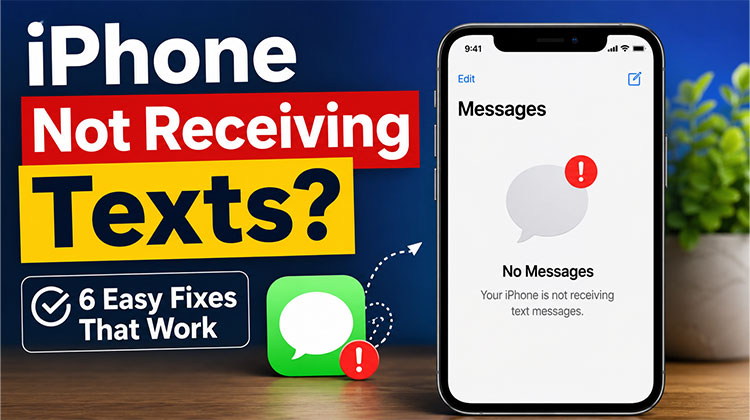
Receiving SMS or text messages from your iPhone is vital. In this way, you can stay in touch or call your loved ones even if you’re not around. Some users report that they are not receiving text messages on iPhone. But why? Let this article answer that in depth! Explore the article below to find out the 6 methods to fix iPhone messages not receiving texts.
Why Is My iPhone Not Receiving Texts?
Several issues can prevent your iPhone from receiving SMS or iMessages:
- Poor cellular signal or network problems
- iMessage activation issues
- Incorrect Message settings
- Airplane Mode enabled accidentally
- Outdated iOS version
- Carrier-related problems
- Blocked contacts
- Storage space running low
- SIM card issues
- Network configuration problems
Also read: iPhone Contacts Missing? 7 Easy Fixes to Recover Lost Contacts
How to Fix iPhone Not Receiving Texts
We have identified the best ways to fix iPhone not receiving texts. If you experience this problem, you can apply the suggestions below one by one to remove it and receive messages normally.
1. Restart Your Device
Restarting the iPhone after a lengthy operation provides a lot of benefits. It can fix temporary glitches in the system that can cause various problems on your iPhone, such as the inability to send messages. You can also enhance the efficiency of iPhone applications and features. Follow the steps below to reboot your iPhone.
Use the Volume Down or power buttons to access the most recent versions. Press the top and side buttons, then press the button, then hold the button until a Power off slider is displayed for earlier iPhone models. Then you can move it.
2. Check and Reset Network
The network settings on your iPhone also play a role in sending and receiving messages. This is because the network settings are crucial for Wi-Fi or cellular connections. Unsympathetic network settings can cause your iPhone not receiving texts. Reset the network settings on the iPhone by following the steps listed below.
Go to the Settings on your iPhone. After that, click the General option from the list. Then, press the Reset or Transfer iPhone button that is located at the lower right of the interface’s main screen. After that, you can tap the Reset button to display an additional list of options within the small window. Click Reset Network Settings. Tap the Reset Network Settings button in the list and confirm your action.
3. Check Send & Receive Settings
This send & receive feature on your iPhone is responsible for controlling how or where you can send and receive messages. By adding the correct contacts, you can fix the iPhone not getting texts issue. Follow the steps.
Open Settings on iPhone, go to the Apps section by pressing the button. After that, tap the message apps in the app list to access the settings. Choose the Send and Receive button from the menu. Select the number or email address that you want to use for messages.
4. Update Carrier Settings
Updates to the carrier settings will enhance the network performance. By default settings, iOS should get the task automatically. If not, you’ll have to do it manually to fix the iPhone not receiving texts.
Go to General in the Settings app, scroll down to Choose About, and then tap Update if there are carrier settings updates.
5. Turn iMessage Off and Back On
The iPhone not receiving texts may be due to the iMessage feature being disabled. It is possible to turn it off and fix the problem. The procedure is fast and simple. It only takes a few minutes. You can turn off iMessage using the instructions below.
Open the iPhone Settings. It can be opened by pressing its button on the home screen. After that, you need to press the Applications button. Find the messages app, and then tap it to view the settings available. Turn off the message feature at the top of the page afterward.
Also read: iMessage Not Working? 8 Easy Ways to Fix It
6. Update Your iPhone
Updating to the latest iPhone iOS version can be another way to resolve bugs that could cause problems, such as the iPhone not receiving texts or SMS. Apart from that, it will help improve your iPhone security and protect your personal information, such as files and documents. It also improves the performance and stability. Update the iOS version of your iPhone using the step-by-step instructions.
Make sure your iPhone connects to the Internet. After that, go to Settings. After that, click the General button in the menu and click on the Software Update button. Then, you’ll need to wait for the latest version to be displayed. Press on the ” Update Now ” button to upgrade to the latest iOS version. You can also turn off your Automated Updates slider at the top.
iPhone Not Receiving Texts From Android Users
If you’re only missing messages from Android phones, try these additional fixes:
- Disable and re-enable iMessage.
- Remove old iMessage registrations if you recently switched from another iPhone.
- Ask the sender to resend the message as an SMS.
- Update carrier settings on your device.
iPhone Not Receiving Verification Codes
Many users notice this issue only with OTPs and verification texts.
Try these steps:
- Ensure your number is entered correctly.
- Disable spam filtering apps temporarily.
- Verify your carrier supports shortcode messages.
- Restart your device and request a new code.
Say Goodbye to the iPhone Not Receiving Texts Issue
If your iPhone not receiving texts, the issue could be related to network settings, iMessage configuration issues, software bugs, or carrier issues.
Start with easy fixes such as restarting and checking Send/Receive settings before taking more in-depth measures like resetting network settings or upgrading iOS.
FAQs: iPhone Not Receiving Texts
Why is my iPhone not receiving texts from Android users?
This commonly happens because iMessage is interfering with SMS delivery or your number is still registered with Apple's iMessage service after switching devices.
Can resetting network settings fix text message problems?
Yes. Resetting network settings often resolves issues with SMS delivery, mobile data, and carrier connectivity that prevent text messages from arriving.
Can a blocked contact send me text messages?
No. If a phone number is blocked on your iPhone, messages from that contact will not be delivered to your device.
Why are my text messages delayed on iPhone?
Delayed messages are usually caused by weak network signals, carrier congestion, or temporary server issues with iMessage.
Can Do Not Disturb block text messages?
Do Not Disturb does not block messages, but it can silence notifications and make it appear as if messages are missing.
Can eSIM issues cause text messaging problems?
Yes. Problems with eSIM activation or carrier provisioning can prevent your iPhone from sending or receiving messages.







Leave a comment