



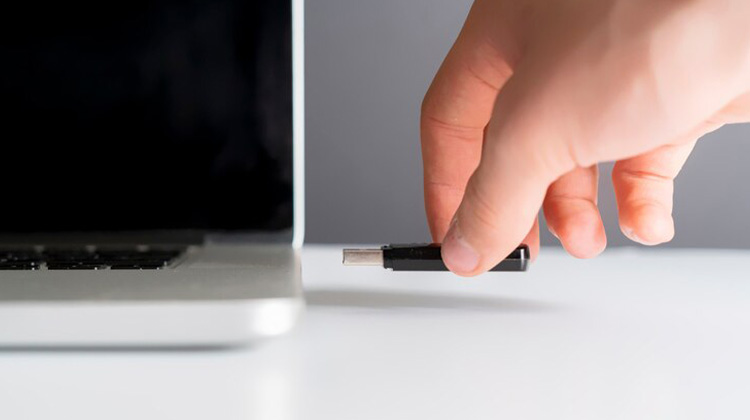
Despite the proliferation of the latest storage devices, the significance of storing important information on USB isn’t waning. Many people prefer to store important data on USB flash drives because they are one of the most secure ways to store.
The problem can arise when you face issues such as a USB device not recognized. This means that the computer does not recognize your USB flash drive. Multiple factors can be behind the problem. It’s a good thing that we’ll provide amazing methods to resolve the “USB device not recognized ” issue that is constantly popping up.
What Does “USB Device Not Recognized” Mean?
This error appears when your computer detects that something is connected, but cannot identify or communicate with the USB device. The problem may lie with the USB port, cable, drivers, power supply, or the device itself.
Common Causes of a USB Device Not Recognized
Here are the most frequent reasons behind this error:
- Faulty USB port or loose connection
- Outdated or corrupted USB drivers
- Insufficient power supply to the USB device
- Incompatible or damaged USB cable
- Corrupted USB device or file system
- Operating system bugs or pending updates
Also read: File Explorer Not Responding? Try These 8 Fixes
How to Fix USB Device Not Recognized?
After you have learned about the possible reasons behind this “Windows USB device not recognized” problem, you can explore the solutions below to fix the irritating problem.
1. Change Your Root Hub Settings
If you have enabled the computer’s permissions that do not recognize the external drives when the laptop battery is low, this could be the root cause of the problem. You’ll need to modify your USB Root Hub settings to eliminate the permission.
- Start your Device Manager icon and then hit the Universal Serial Bus” controllers.
- If you see the drop-down menu, you double-click the ”USB Root Hub (USB 3.0)” to open a new window.
- After you’ve clicked the ”Power Management””, you’ll have to disable the ”Allow the computer to turn off the device to save power icon. You can save your modifications by clicking the OK icon.
2. Try a Different USB Port
If you’re using a broken USB port, the Windows USB device not recognized issue” is obvious. Therefore, you’ll have to switch the USB port before attaching the USB flash drive to your computer. However, if the problem persists, it is possible to investigate the next method.
3. Restart Your Computer
Sometimes, software bugs can cause the ” USB device not recognized” problem. The first thing you’ll need to fix the issue and then restart your system. This will help the computer run all features from scratch. This could also help you resolve issues with the “Windows USB device not recognized” problem.
- To turn on the computer, press the Start button before pressing the Power Off button.
- When you click on the Restart icon, you can restart your PC.
4. Update Your Drive
However, despite trying a variety of options If you’re unable to figure out how to fix USB device not recognized, updating the USB driver can help solve the problem. A damaged or outdated USB flash drive could cause problems for the system to identify it. Therefore, installing or updating USB drivers can help the USB flash work correctly.
- Go to settings on your computer, then go through the menu. Enter the Device Manager and click the Enter button.
- Open the Device Manager Window and locate the Universal Serial Bus Controllers.
- Then, you will find a range of choices, and all you have to do is right-click on the USB root Hub (USB 3.0). Once you have seen the drop-down menu, click the Properties button.
- If you notice the window appear, then you’ll have to press the Driver button. Then, select the Update Driver option from the menus that pop up. Then, you can finish updating USB drivers by clicking OK.
Also read: Top 6 USB WiFi Adapters in 2025: Boost Your Internet Speed
5. Update Windows
Another reason that may trigger the “USB device not recognized” problem is an outdated Windows update. So, installing the latest version of Windows on your computer can fix the issue with USB flash drives not being recognized.
Final Thoughts
If you are trying to access crucial and exciting data stored on the USB flash drive, encountering this “USB device not recognized” issue can prevent you from accessing important data on your computer. The good news is that we’ve listed incredible ways to remove the USB device that’s not recognized, which keeps popping up. All the solutions we’ve developed in this post are worthy of trying.
FAQs – USB Device Not Recognized
Why is my USB device not recognized on Windows?
Common causes include outdated USB drivers, disabled USB ports, power management settings, faulty cables, or a corrupted USB file system.
How do I update USB drivers to fix this issue?
Open Device Manager, expand Universal Serial Bus controllers, right-click each USB Root Hub, and select Update driver or uninstall and restart.
Why is my USB device not showing up in File Explorer?
The drive may be unassigned, corrupted, or missing a drive letter. Check Disk Management to make it visible.
How do I fix USB device not recognized on a laptop?
Try another port, disable USB power saving, update chipset drivers, and ensure your laptop battery isn’t limiting USB power.






Leave a comment