






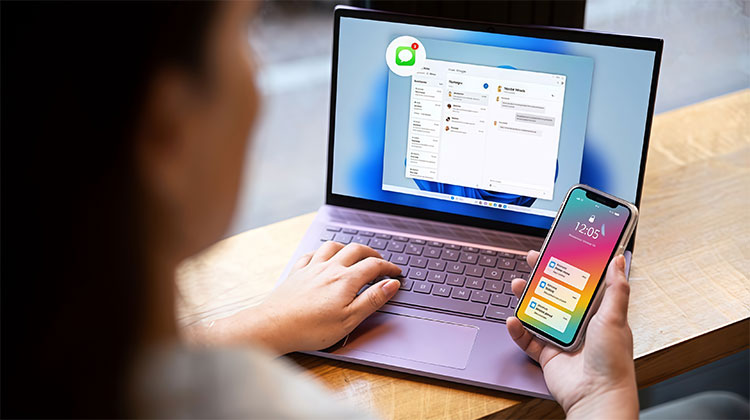
iMessage is the primary messaging application on iPhones and iPads, offering features such as multimedia sharing, text messaging, and group chat within the Apple ecosystem. It’s an Apple iMessage service, and we’ve discovered a few tricks you can use iMessage on Windows. Here’s how to achieve it.
How to Get iMessage on Windows
1. Microsoft Phone Link
If you’re an iPhone user or running iOS 14 and the latest version of Windows 11, you can consider this option. Microsoft has added iPhone compatibility to its Phone Link app, providing an interface to your iPhone devices on Windows PCs. Alongside messaging, you can now see the phone’s notifications and make calls with ease from your Windows PC.
How can I get iMessage on Windows using Phone Link?
Step 1. Check if the Phone Link is in your Windows 11 PC. If not, you can manually install it from the Microsoft Store.
Step 2. Start it, and choose “iPhone” as your device. It will then create the QR code. Then, scan it with your Camera application. After that, connect it to your computer.
Step 3. Click on the Phone Link Settings > Features > Messages, and activate “Allow this app”.
Step 4. Back to iPhone Settings and then enable Bluetooth. Click the ‘i’ next to the name of your computer and grant the required permissions.
Also read: iMessage Waiting for Activation? 9 Proven Fixes
2. Use Google Extension
If you own a Windows PC and a Mac PC, you can get iMessage for PC by using the Chrome Remote Desktop. It’s a method for accessing and managing your iPhone using a computer. This approach is more complicated and requires setting up iOS devices and a Mac or Windows PC. This is why it’s not a good idea.
Step 1. Go to your Apple ID account > iCloud and ensure that you use iCloud to synchronize.
Step 2. Launch the Messages app on your MacBook and sign in using your Apple ID. Navigate to Messages > Preferences, enable your account, and enable Messages in iCloud. After that, you can activate the desired number and email address to use iMessage.
Step 3. Install the Chrome browser on your MacBook. Sign in using the details of your Google account.
Step 4. Install Chrome Remote Desktop. Chrome Remote Desktop extension.
Step 5. Start Chrome Remote Desktop for both of your devices. Connect your MacBook screen to generate a code, then enter that code on your Windows PC to connect.
After that, you can launch the iMessage App through your streamed MacBook on your Windows PC.
3. Use Screen Mirroring Software
In comparison to Phone Link, Wootechy MirrorDisp allows you to access complete iMessage features by mirroring. MirrorDisp is a screen mirroring software that lets you mirror and manage your iOS and Android devices from your PC or Mac.
It’s very easy. When you are connected to MirrorDisp, it can communicate and get messages, exchange rich media, and collaborate with other projects in iMessage threads that run on Windows. MirrorDisp also features a keyboard and controls the mouse that allows you type text messages directly to respond to messages.
Step 1. Select the “Try it Free” button to download and then run Wootechy MirrorDisp on your Windows.
Step 2. Link the iOS devices to Windows. There are two ways to do this.
Step 3. On your iPhone, you will see a pop-up that will ask users to “Trust This Computer.” Click “Trust” and enter your password. After that, the iPhone screen will appear mirrored on your PC. You will see messages displayed on your Windows screen.
Step 4. MirrorDisp allows you manage the functionality of your iPhone and iMessage application from your desktop with your keyboard and mouse. The feature requires a Bluetooth connection between the iPhone and your computer. Just enable it and follow the screen instructions. You can then simply select iMessage on Windows.
4. Use Emulator
Use a Windows emulator access Apple iMessage for Windows 11. Emulators can create a virtual iOS environment for Windows, enabling iMessage compatibility. By using a virtual phone or tablet, you can use the iMessage application on Windows.
How to run iMessage on Windows using the iPadian Emulator.
Step 1. Go to the iPadian site and install the app for Windows. Then, run the file and complete the installation.
Step 2. In an iPad emulator, type in and find the iMessage application. Download iMessage on Windows. Make sure it is installed in your iPadian environment.
Step 3. Log in using an Apple ID and start to use iMessage’s features.
Also read: iMessage Not Working? 8 Easy Ways to Fix It
5. Third Party Tool [Jailbroken Needed]
We do not recommend jailbreaking your iPad to use iMessage on Windows. However, if you do have an unjailbroken phone, you may try this technique.
If you are interested in exploring the Jailbreaking option of using iMessage on Windows, follow these steps.
Step 1. Visit CydiaFree.com to download the Cydia application. Install the Cydia application on an iOS device.
Step 2. Open the iPhone’s General settings and then allow for a new profile. After that, you can create a brand new profile by entering the username and password.
Step 3. Click on Windows, enable tab. Input the IP address. Select Enter and fill in the password and username to complete the setup process.
After that, you can access iMessage on a Windows PC.
Conclusion
In the end, iMessage is designed specifically for the Apple ecosystem. There are a few methods you can use iMessage on Windows, including screen mirroring, computer control, Google extension, or Jailbreaking.
FAQs: iMessage on Windows
Can I use iMessage on Windows without a Mac?
Yes, you can use iMessage on Windows without a Mac by using Phone Link or screen mirroring software.
Is it safe to use third-party tools for iMessage on Windows?
Yes, if you use trusted and official software. Avoid unknown tools that require jailbreaking or accessing your Apple ID insecurely.
Do I need an Apple ID to use iMessage on Windows?
Yes, you need an active Apple ID and iMessage enabled on your iPhone or Mac.
What is the easiest way to get iMessage on Windows?
The easiest method is using Microsoft Phone Link on Windows 11, which allows you to view and send messages from your PC.








Leave a comment