





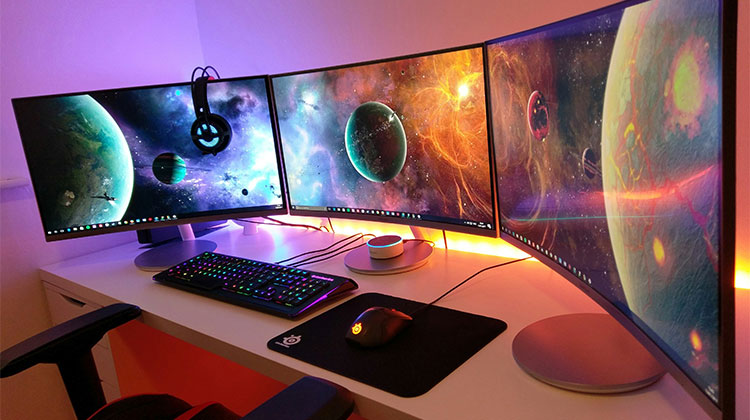
Do you want to create a triple monitor setup? The answer is “Yes”. A triple monitor setup can help you handle multiple tasks effectively. So, how do you set up three monitors in one computer? We explore the best guide on how to set up 3 monitors.
It is standard to use a dual-monitor setup on your PC because multiple tasks on one screen are not feasible. You might ask how many monitors Windows 10 supports. There are multiple monitors that you can use, such as three, four, five, or even six. This is incredible.
In this article, we’ll show you the triple monitor setup. When you need to view data simultaneously, play games, write articles and research, and code, while looking through documents, it’s beneficial to steup triple monitors.
Also read: Best Curved Monitor 2025 – Top 8 Picks for Gaming, Work & Creativity
How to Connect 3 Monitors to a PC
1. Check Video Ports
The first thing do is to determine if your computer can handle graphics capabilities. How many video ports does your system have? DVI, DisplayPort, HDMI, and VGA?
On the desktop, you’ll go to the PC’s back panel. If the computer doesn’t have a discrete graphics card, it could have two video ports. Most motherboards canrun a dual-monitor setup because they are equipped with integrated graphics. If the PC has an integrated graphics card, there’ll be at least three ports.
If you can see more than 2 ports, that does not mean you’re capable of using all of them simultaneously, because some older Nvidia cards were unable to operate more than two monitors with a single card.
To verify this, visit Device Manager to display adapters to locate your card’s model and then look up the model of your card and the monitor setup, like Nvidia Quadro K1200 with three monitors.
If your graphics card doesn’t support a triple monitor setup, it is recommended to purchase a second graphics card. Be sure to have enough slots and space on your device, and you have a power supply device to handle the extra load.
Using DisplayPort cables to link other monitors together is a great idea, provided that DisplayPort multi-streaming is enabled on your display.
On laptops, you could only have a single video port located on the left or right. If you want to have a triple monitor setup on a laptop, the ports aren’t enough; however, you can purchase an audio splitter or a compatible docking station to gain additional ports.
2. Connect Your Monitors to Your PC
When purchasing a monitor, be sure they compatible with the video ports on your computer. While you can use an adapter like DVI-toHDMI, it’s an issue. After that, connect the monitors to your computer to complete the three monitor setups.
Also read: Second Monitor Not Detected? 10 Quick Troubleshooting Tips
3. Configure Display Settings
Before you can use three monitors, you’ll need to configure your computer.
In Windows 7 or 8:
- Right-click the desktop and select Screen Resolution
- The pop-up windows will appear you can change the appearance of your screens. By dropping and dragging each one, you can arrange them in a new way. You can also select one of them and change the orientation and the view mode.
- After you have completed the setting select Apply to save the changes.
In Windows 10:
- Go to Settings > System > Display.
- You can then choose a display and change its settings. Simply drag and drop displays to arrange them and change the display orientation.
| Problem | Possible Cause | Fix |
|---|---|---|
| One monitor not detected | Loose cable, unsupported GPU, or outdated drivers | Check connections, update graphics drivers, and verify GPU supports three monitors |
| Different resolutions or blurry display | Incorrect display settings or mixed monitor models | Set each monitor to its native resolution in Display Settings |
| Displays are mirrored instead of extended | Wrong display mode selected | Go to Settings > System > Display and choose Extend these displays |
| Screen flickering or black screen | Faulty cable, refresh rate mismatch, or port issue | Replace the cable, change port, and set the correct refresh rate |
| System lag or poor performance | Graphics card not powerful enough for multiple displays | Lower resolution/refresh rate or upgrade the graphics card |
Conclusion
Setup three monitors on Windows is not difficult, as long as you follow these steps to make triple monitor setup easy. Enjoy a great experience as a user.
FAQs: Triple Monitor Setup
Can my PC support three monitors?
Most modern PCs with a dedicated graphics card can support three monitors. Check your GPU specifications and available video ports (HDMI, DisplayPort, DVI, or VGA).
Do I need a special graphics card for a triple monitor setup?
Yes, your graphics card must support three displays simultaneously. Some older GPUs only support two monitors.
Can I use different monitor brands in a triple monitor setup?
Yes, you can use different brands. However, using identical monitors ensures better color consistency and matching resolution.
Do all three monitors need the same resolution?
No, but it is recommended. Mixing resolutions can cause scaling issues and uneven display alignment.






Leave a comment