






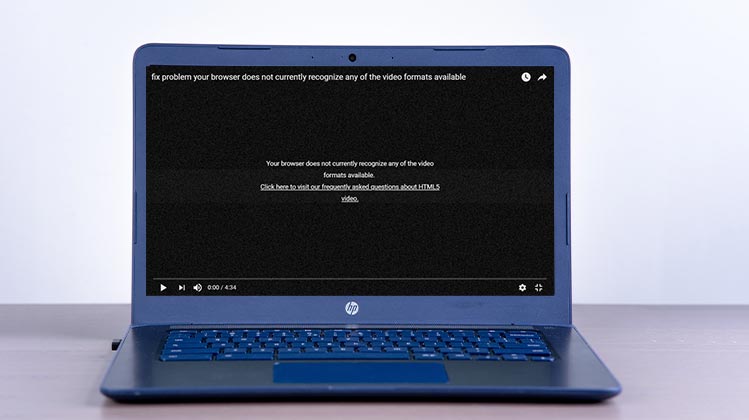
It’s a bit difficult to see an “HTML5 video not found’ message on your screen. What is supposed to be a good moment to view something important turns into frustration and confusion. You tried to determine why the video is not loading on your device; however, even if you discover the cause, you can only find some options. This article will help you explore the most feasible and efficient ways to fix the HTML5 video not found ” issues.
What Causes the ” HTML5 Video Not Found ” Error?
Most of the time, videos can be corrupted due to errors from different sources. However, there are many reasons HTML5 video not found since it’s an open video format using a web browser. When you think about this, you must look at the reasons before tackling the issues. This article will discuss the potential causes and provide the best methods for fixing the ” HTML5 video not found.
- A problem with the website is worth consideration. The embedded videos on the page are prone to backend issues that are not fixed by the website’s developers.
- The issues with browsers include unsupported codecs, incompatible files, and overloaded caches and cookies.
- In some cases, the browser’s settings can be restricted to prevent it from playing back HTML5 videos.
If you are facing these issues, you can resolve these issues by following the steps in the following:
Best Solutions to Fix HTML5 Video Not Found
1. Update the Browser
It has been reported that the latest version of a browser often resolves issues. Google Chrome, Firefox, Opera, Safari, and Internet Explorer can play video using the updated browser. If the HTML5 video is not playing, you can follow the steps below for updates to the browser:
Step 1. In the browser, click the Ellipsis icon in the top right corner. This is also referred to as Customize and Control Google Chrome. Choose Help.
Step 2. Select the About Google Chrome option from the menu. The settings will check for the most recent updates. If there is an Update button on the screen, click it to download the software. Similar steps can be applied for the other browsers.
Also read: What Is Bit Browser? Features, Benefits & How to Download
2. Erase Caches and Cookies
Cookies and Caches are temporary storage that store some data about the user’s preferences to help the browser work faster. They accumulate storage over time and may cause slow-speed browsing issues or errors when trying to play videos. Also, clear cookies and caches if you encounter the HTML5 video not found error. After that, you can try viewing the video again.
Step 1. Access the settings in your browser. In the left pane, look for an Advanced tab. Click it.
Step 2. Select the Privacy and Security option. Open the Clear Browsing Data window, select the files you wish to erase. After that, click the Clear Data button to confirm the deletion.
3. Turn off Hardware Acceleration
When you browse, the hardware accelerator helps play graphics-intensive media, which includes games and videos. If you switch off hardware acceleration, the entire load of loading graphically intensive media will be done by the computer’s Graphics Processing Unit (GPU). That’s the reason why loading videos in the browser is slow and browser video playback issue.
To switch off Hardware acceleration, follow the steps below:
Step 1. Launch the Settings app in your browser by clicking on the Ellipsis icon located on the right side of your screen.
Step 2. Go to the Advanced section and then open the System tab. Remove the option for Use Hardware Acceleration When Available. Try to play the HTML5 video again.
4. Use Safe Mode to Start Browser
Opening your browser in “Safe Mode” can often be a quick fix for browser-related issues, but when you encounter problems with the “HTML5 video file not found” error, a deeper look is needed. Safe Mode can be used as a diagnostic tool to pinpoint issues with your browser (recognizing the issue is the first step to resolution), providing effective troubleshooting. If videos run in Safe Mode, this indicates that the problem is in the extensions and plugins you have installed in your browser or perhaps your browser settings.
- Safe Mode automatically turned off the Hardware acceleration option.
- Safe Mode resets some settings.
- Safe Mode removed all add-ons and plugins.
5. Use HTML5-Supported Codecs
What can you do to resolve the ” HTML5 video not found error without changing your settings? It is possible to use codecs that can support this video format. You will have to contact the browser developers and ask them to install an appropriate codec that supports OGG, WebM and MP4. It is an alternative option; however, it’s not easy to add codecs to the browser, and it may take longer to receive a response from the programmers.
Also read: 10 Fixes for YouTube TV Playback Error (Updated 2025 Guide)
6. Check Your Internet Connection
Slow or unstable internet connections can also trigger HTML5 video playback errors.
To improve connectivity:
- Restart your Wi-Fi router
- Switch to a stronger network
- Avoid heavy downloads while streaming
- Test your internet speed
A stable connection is essential for smooth video playback.
Summing Up
For a summary of this article, we’ve explained what “HTML5 videos not found’ means on your browser. Additionally, you have discovered the most effective options to solve the problem caused by the browser, non-supported codecs, and slow internet connectivity.
FAQs About HTML5 Video Not Found Error
What does “HTML5 video not found” mean?
The “HTML5 video not found” error appears when a browser cannot load or play a video file on a website. This may happen because of browser issues, unsupported video formats, corrupted cache, or website backend problems.
Can browser extensions cause HTML5 video errors?
Yes. Some browser extensions, especially ad blockers, privacy tools, and script blockers, can interfere with HTML5 video playback and prevent videos from loading properly.
Can slow internet cause HTML5 video not found errors?
Yes. A weak or unstable internet connection may prevent the browser from loading video files properly, resulting in playback errors.
How do I fix HTML5 video not found on Safari?
You can fix the HTML5 video not found error on Safari by updating Safari, clearing cache and cookies, enabling JavaScript, disabling problematic extensions, and restarting your browser.









Leave a comment