






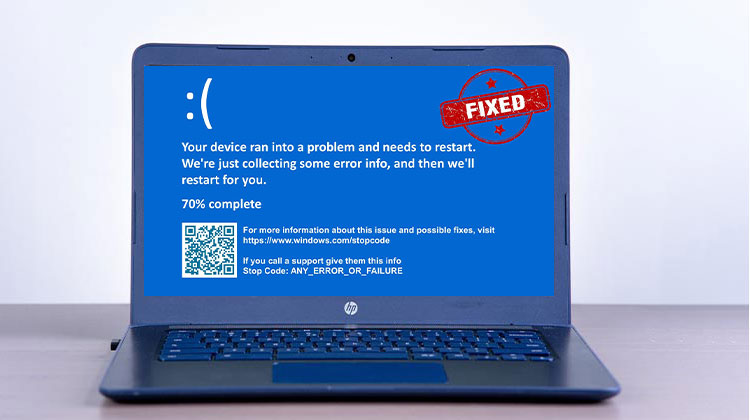
If you’re a Windows PC user, there is a high chance you’ve encountered issues such as Your device ran into a problem and needs to restart. There are many reasons behind this blue screen error on your PC, but the most frightening thing is that it may appear without any warning. When this happens, there’s nothing for the user to do but find the root of the issue and how to fix it, obviously. Let’s get into the details to determine the reasons and fix these problems.
What Does “Your Device Ran Into a Problem and Needs to Restart” Mean?
Most likely, each Windows 10 user experienced this error at some point, whether during startup or when using a computer or software. The most commonly used term for these errors is BSOD, also known as Blue Screen of Death, and is a particularly frustrating error. In addition to randomly shutting down without warnings, your PC could also have a restarting issue.
Why Does “Your Device Ran Into a Problem and Needs to Restart” Error Occur?
There are several possible causes for the “Your Device Ran Into a Problem and Needs to Restart” error.
- Corrupted or missing system files.
- Virus or malware infection.
- Damaged or outdated device drivers.
- Faulty RAM or memory-related issues.
- Overheating hardware components.
- Hard drive or SSD errors.
- Forced or improper system shutdowns.
- Recently installed software is causing conflicts.
- Problematic Windows updates.
If this error occurs, Windows 10 keeps crashing until the issue is resolved.
Also read: Clock Watchdog Timeout BSOD Error? Try These 7 Proven Fixes
Common Stop Codes Associated With This Error
As we mentioned previously, when you get the blue screen that says your Device has encountered a problem, there is also a stop code error at the bottom. It could be one or all of these:
- INACCESSIBLE_BOOT_DEVICE
- BAD_SYSTEM_CONFIG_INFO
- CRITICAL_PROCESS_DIED
- Stop code Code: The stop code is 0xC0000021A.
- FAULTY_HARDWARE-CORRUPTED_PAGE
- DPC_WATCHDOG_VIOLATION
- WHEA UNCORRECTABLE
- KERNEL_SECURITY_CHECK_ERROR
How to Fix “Your Device Ran Into a Problem and Needs to Restart”
There are numerous causes of the Windows 10 error. It is essential to identify the cause of the error, as when you encounter this kind of error, it is helpful to address the issue before attempting to solve it. We’ll look at three cases using an error message that reads: Windows 10 Your Device Ran into a problem and Needs to Restart.
1. Update Device Drivers
One of the primary causes of the Windows “Your Device Ran Into a Problem and Needs to Restart” error is outdated or corrupted device drivers. In most cases, updating or reinstalling the correct drivers can help resolve the issue and restore system stability.
Steps:
- Press Windows + X.
- Select Device Manager.
- Expand the hardware category.
- Right-click the device.
- Choose Update Driver.
- Follow the on-screen instructions.
2. Remove Recently Installed Programs
Another scenario you encounter is the ” Your PC ran into a Problem error after you’ve installed certain software or apps. It could be the source of the error, as it could corrupt important files, or the RAM could be overloaded. To fix this issue, you’ll need to boot into Safe Mode to eliminate the application(s) that created the error. You can uninstall the program as you would normally in Windows 10.
Steps:
- Open Control Panel.
- Select Programs and Features.
- Sort programs by installation date.
- Remove recently installed software.
- Restart your computer.
Check whether the issue has been resolved.
3. Use System File Checker
System File Checker scans Windows for corrupted files and repairs them automatically.
Steps:
- Open Command Prompt as Administrator.
- Type the following command and press Enter:
sfc /scannow
- Wait for the scan to finish.
- Restart your PC.
After this, restart the computer to determine if the ” Your PC Ran into a problem and needs to restart ” message has gone away.
4. Boot Into Safe Mode
Safe Mode is a diagnostic mode for Windows. It is a way to start your computer with the minimum necessary applications and services. In Safe Mode, you can resolve certain system-related issues by uninstalling incompatible drivers or software, eliminating incompatible files, eliminating viruses, and so on. Even if you don’t do anything, it is a good idea to boot to Safe Mode, which resolves system problems by allowing the storage system to be accessed.
Steps:
- Open Settings.
- Navigate to Update & Security > Recovery.
- Under Advanced Startup, click Restart Now.
- Select:
Troubleshoot
Advanced Options
Startup Settings - Restart
- Press 4 to enable Safe Mode.
If your PC works normally in Safe Mode, a driver or third-party application is likely causing the problem.
5. Check Your Hard Drive for Errors
Disk corruption or bad sectors can cause the “Your Device Ran Into a Problem and Needs to Restart” error. Running CHKDSK can help detect and repair these issues.
Steps
- Open Command Prompt as Administrator.
- Type the following command and press Enter:
chkdsk C: /f /r
- If prompted, type Y and press Enter to schedule the scan.
- Restart your computer.
6. Use System Restore
The Windows 10 system usually keeps System Restore points automatically (unless you tell it not to), to allow you to return to the point at which everything was running smoothly before the error began to manifest.
- Boot into Windows Recovery Environment (WinRE).
Go to Troubleshoot > Advanced Options > System Restore. - Select your user account and enter the password if required.
- Choose a restore point from a date when your system was working normally.
- Click Next, then select Finish to start the restoration process.
When the operation is complete, then restart your computer, and you can see that the ” Your PC ran into a problem and needs to restart error is gone.
Also read: 7 Ways to Fix “Operating System Not Found” Error on PC Quickly
7. Run Command Prompt to Restore Registry
The “Your Device Ran Into a Problem and Needs to Restart” error can occur due to corrupted system files or Windows image issues. Instead of manually modifying the registry, it is safer to use built-in repair tools like SFC and DISM.
Steps:
- Step 1: Run System File Checker:
- sfc /scannow
- Step 2: Run the DISM repair tool:
- DISM /Online /Cleanup-Image /RestoreHealth
When you’ve completed it in a sequence, type exit and then select the option to turn off your PC as it appears.
8. Update Your Windows
There are many Windows 10 errors that a simple Windows update can fix, such as Your Device ran into a problem and needs to restart ” error.
Steps:
- Open Settings.
- Go to Windows Update.
- Click Check for Updates.
- Install all available updates.
How to Prevent This Error in the Future
To minimize the chances of seeing the “Your Device Ran into a Problem and Needs to Restart” error again:
- Keep Windows updated.
- Regularly update device drivers.
- Install reliable antivirus software.
- Avoid downloading suspicious applications.
- Monitor system temperatures.
- Back up important files regularly.
- Check hardware health periodically.
Conclusion
This “Your PC ran into a problem and needs to restart” issue is a pain. With the practical solutions here, you’ll be content that there are ways to save your PC. If you know the reasons behind the current issue, it is possible to solve the issue straightforwardly. If not, describe the situation and implement the fixes that could remove the issue.
FAQs: Your Device Ran Into a Problem and Needs to Restart
Is the 'Your Device Ran Into a Problem and Needs to Restart' error a hardware issue?
It can be. Faulty RAM, storage drive problems, or overheating components may trigger system crashes.
What is the easiest way to fix this error?
Basic fixes like restarting the PC, updating drivers, and running built-in Windows repair tools often resolve the issue.
Can a Hard Drive or SSD Issue Lead to the 'Your Device Ran Into a Problem and Needs to Restart' Error?
Yes, bad sectors or storage corruption can cause Windows to crash and restart unexpectedly.
When should I seek professional help for this error?
If the error continues after all troubleshooting steps, it may indicate serious hardware failure requiring expert repair.








Leave a comment