






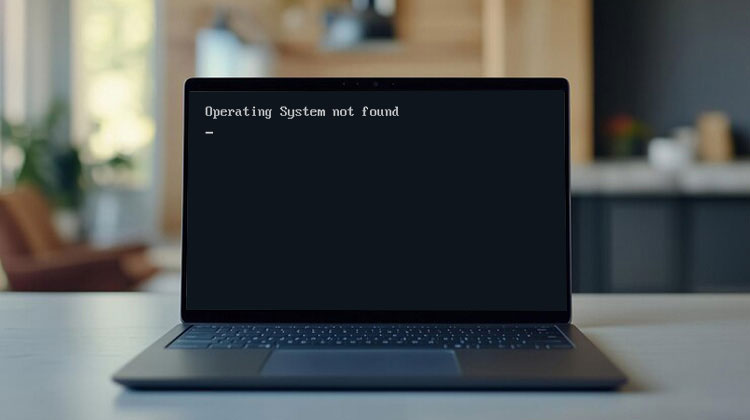
It’s common to be stuck at the same place during the computer’s initial start-up. You can see an error message appear on your screen, such as ” Operating system not found” error. And if you want to know how to solve this issue? This article will guide you step by step through the solutions.
Have you ever found yourself in a similar situation? When you try to start your computer, you could encounter the “No operating system found” or ” Missing operating system” error message.
Why Does the “Operating System Not Found” Error Occur?
The “Operating System Not Found” error prevents users from launching Windows. This problem can occur for several reasons, including:
- Damaged Master Boot Record (MBR)
- Hard drive or SSD issues
- Incorrect BIOS settings
- Corrupted boot files
- Wrong boot order configuration
- Inactive boot partition
Below are the most effective methods to fix this issue.
Also read: System Thread Exception Not Handled Error on Windows: 7 Easy Solutions
How to Fix the Operating System Not Found Error
The Operating System Not Found error prevents Windows from starting normally. The reason for this error is the damaged MBR or hard disk, insufficient BIOS settings, and other causes. You can follow these seven solutions for your particular issue.
1. Check Your Hard Drive for Problems
You can test for issues with your hard drive using your BIOS menu or a third-party program tool.
Check Problems via BIOS
- Turn on your computer, then enter the BIOS settings.
- Select and locate the Primary Hard Drive Auto Test in the BIOS menu using the Arrow keys.
- Click Enter to begin the test.
If the test fails, then you need to check for a hardware malfunction and call the manufacturer to make repairs.
2. Check Whether the Boot Partition Is Active
It’s a hard drive partition created as the bootable partition to start the operating system successfully. On every hard drive, there’s at least one active partition. If you make the wrong partition active, you’ll not be able to access the computer.
Steps:
- Boot your PC from a Windows USB. Select Repair your computer → open Command Prompt.
- Then type diskpart, press Enter, then type list disk, select disk 0, and list partition.
- Select your system partition, type active, and restart your computer.
3. Repair the MBR or Boot Sector
If you boot your computer from a bootable hard disk, the system BIOS code will first determine the startup disk and examine its MBR ( Master Boot Record). The master boot program will search for the active and principal system partition on the disk. If the MBR is damaged or it is unable to locate its boot sector within the system partition, it will fail.
Steps:
- Insert a Windows bootable USB drive.
- Restart your computer and boot from the USB (use F2, F12, DEL, or ESC key).
- On the Windows setup screen, click Next.
- Select Repair your computer.
- Go to Troubleshoot and tap on Advanced Options, then click Command Prompt.
- Type the commands:
bootrec /fixmbr
bootrec /fixboot
bootrec /scanos
bootrec /rebuildbcd - Wait for each command to complete.
- Type exit and press Enter.
- Restart your computer.
4. Check Whether the Hard Drive Is Detected in BIOS
The”No operating system found” error can be caused by issues with the hard disk. This is why I recommend you change the BIOS/CMOS settings by pressing the corresponding button on the first screen that you see when you start your computer. After that, you can check whether the hard disk has been detected.
5. Change the Boot Order in BIOS
After reviewing, if your hard drive is detected, then you should check whether the computer boots from the incorrect drive. It is possible to resolve this issue by changing the boot order.
Steps
- Enter BIOS settings.
- Navigate to the Boot section.
- Locate the Boot Priority or Boot Order section.
- Move your main SSD or HDD to the top of the list.
- Save the changes by pressing F10.
- Save the changes and restart your computer.
This simple adjustment can often solve the problem immediately.
Also read: BIOS ID Check Error: 6 Easy Ways to Fix It During BIOS Update
6. Run Windows Automatic Repair
The problem is not related to BIOS issues; the previous procedure won’t work for you. If this is the scenario, you could use Microsoft’s Windows Automatic Repair utility to solve the issue you’re experiencing with your computer. It will take a few minutes to complete. Follow the steps.
- When your computer is booting up,
- Press the F11 or F12 key during startup to open the Windows Boot Menu.
- Select Troubleshoot.
- Click Advanced Options.
- Choose Automatic Repair.
It will be a while until the utility can repair the operating system on your computer. After it’s completed, reboot your computer and the issue will be resolved.
7. Reinstall the Operating System
Final but not least method to deal with the operating system not found issue is to reinstall your operating system. So long as the hard drive on your computer isn’t damaged physically, this could be the most efficient solution.
Steps
- Create a bootable Windows USB.
- Boot from USB.
- Click Install Now.
- Follow on-screen instructions.
- Select your Windows partition.
- Complete installation.
Ending Notes
Since the Operating System Not Found error could be caused by a variety of reasons, it is difficult to predict exactly when it may occur. If you are facing this problem, then try the solutions provided in this article and restore your system.
FAQs: Operating System Not Found
What does “Operating System Not Found” mean?
It means your computer cannot find the Windows operating system on your hard drive or SSD during startup.
Why does my laptop say operating system not found?
Usually because the BIOS cannot detect bootable Windows files on the storage drive.
Can a bad SSD cause operating system not found?
Yes. A failing SSD or HDD is a common reason for this error.
How do I fix “Operating System Not Found” on startup?
You can fix it by checking the boot order in BIOS, repairing the MBR, running Startup Repair, or checking if the hard drive is detected.









Leave a comment