






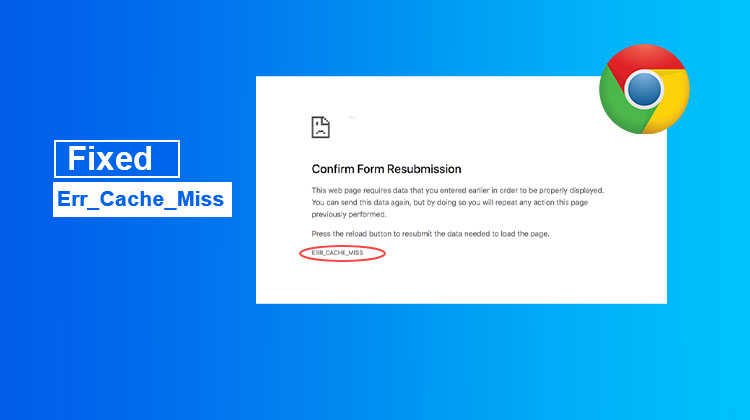
You’re browsing normally, click a link, and suddenly Chrome throws an ERR_CACHE_MISS message. At first glance, it looks like a serious browser issue, but in most cases, it isn’t.
I’ve seen this error appear most often when refreshing pages, submitting online forms, or revisiting websites that rely heavily on cached data. Sometimes Chrome simply struggles to use the stored information it has saved for a website, which leads to the error appearing on screen.
The good news is that you usually don’t need any advanced technical knowledge to fix it. A few basic troubleshooting steps are often enough to get things working again.
What Is the ERR_CACHE_MISS Error?
To understand the error, it helps to know how Chrome handles cached files.
Whenever you visit a website, Chrome stores certain elements locally on your computer. These temporary files help pages load faster the next time you visit. However, if those files become outdated, corrupted, or conflict with newer website data, Chrome may fail to load the page correctly.
When that happens, the browser may display the Confirm Form Resubmission ERR_CACHE_MISS message and request fresh information from the website server.
Interestingly, this issue tends to appear more frequently on login pages, checkout forms, and pages that require user input. That’s because Chrome must manage both cached content and form data at the same time.
Common Reasons Behind ERR_CACHE_MISS
There isn’t a single cause behind Chrome ERR_CACHE_MISS error. In my experience, one of the following factors is usually responsible:
- Corrupted browser cache
- Outdated Chrome versions
- Conflicting browser extensions
- Incorrect browser settings
- Network configuration problems
- Website form resubmission conflicts
The exact fix often depends on what’s triggering the problem on your system.
Also read: ERR_CONNECTION_TIMED_OUT Error: 6 Proven Ways to Fix It Quickly
1. Reload the Page First
Before changing any settings, try the simplest solution.
Sometimes Chrome encounters a temporary loading issue and fails to retrieve webpage resources correctly. Refreshing the page forces the browser to request updated content from the website, which can immediately resolve the problem.
Press F5 or Ctrl + R and see if the page loads normally.
If that doesn’t work, try a hard refresh using Shift + F5.
It’s basic, but you’d be surprised how often this solves the issue.
2. Clear Browser Cache
Chrome relies on cached files to load websites more efficiently. When these files become damaged or outdated, they can interfere with page loading and trigger the ERR_CACHE_MISS message. Clearing your browser cache removes stored data that may be conflicting with website resources. After clearing the cache, restart Chrome and revisit the page to check if the Google Chrome cache error is fixed.
Steps:
- Open Google Chrome.
- Click the three-dot menu.
- Select Settings.
- Go to Privacy and Security.
- Click Clear Browsing Data.
- Select Cached Images and Files.
- Click Clear Data.
Restart Chrome and check if the error persists.
3. Disable Browser Extensions
Extensions that modify website content, block scripts, or filter network requests can occasionally create conflicts with Chrome. Disabling them temporarily can help determine whether an extension is responsible for the ERR_CACHE_MISS error.
Steps:
- Type chrome://extensions in the address bar.
- Disable all extensions.
- Restart Chrome.
- Test the website.
If the error disappears, enable extensions one by one to identify the culprit.
4. Reset Network Settings
Problems with DNS records or network settings can affect how Chrome communicates with websites. Resetting these settings often clears outdated network information and restores normal browsing behavior.
- Press Windows + S and search for Command Prompt.
- Right-click Command Prompt and select Run as Administrator.
- Type:
ipconfig /flushdns
netsh winsock reset
netsh int ip reset
- Restart your computer afterward.
5. Update Google Chrome
Websites are constantly updated, and older browser versions may struggle to handle newer web technologies. Keeping Chrome updated ensures better compatibility, security, and overall performance.
To update Chrome:
- Open Chrome.
- Click the three-dot menu.
- Select Help > About Google Chrome.
- Install available updates.
- Relaunch the browser.
Also read: How to Fix ‘Not Enough Memory to Open This Page’ in 6 Easy Steps
6. Reset Browser Settings
When multiple browser settings have been modified over time, identifying the exact cause can be difficult. Resetting Chrome provides a clean starting point and often resolves issues that are hard to trace manually.
Steps:
- Open Chrome Settings.
- Click Reset Settings.
- Select Restore Settings to Their Original Defaults.
- Confirm the reset.
Tips to Prevent ERR_CACHE_MISS
To avoid future ERR_CACHE_MISS errors:
- Keep Chrome updated.
- Regularly clear browser cache.
- Limit unnecessary browser extensions.
- Use reliable internet connections.
- Monitor website cache settings if you’re a developer
Summing Up
Although the ERR_CACHE_MISS error may seem confusing at first, it is rarely a serious problem. Restoring regular browsing is often as simple as clearing cache files or refreshing Chrome. Finding the core cause can be aided by going through each of the other options one at a time if the problem persists. Most people may swiftly fix the issue and resume browsing without disruptions with the right troubleshooting steps.
FAQs About ERR_CACHE_MISS
Is ERR_CACHE_MISS a serious browser problem?
No, the ERR_CACHE_MISS error is usually not a serious issue. In most cases, it can be resolved by clearing the browser cache, updating Chrome, disabling extensions, or resetting network settings.
Does clearing cache delete my saved passwords?
No. Clearing cached files alone won't remove saved passwords. Just make sure you don't select the password option when clearing browsing data.
Can browser extensions cause loading errors?
Yes. Some extensions may block scripts, modify webpage content, or interfere with network requests, which can lead to unexpected loading problems.
Can a slow internet connection cause this error?
A weak or unstable connection may contribute to page-loading problems, although it is not always the direct cause. Checking your network stability is a good troubleshooting step.









Leave a comment