



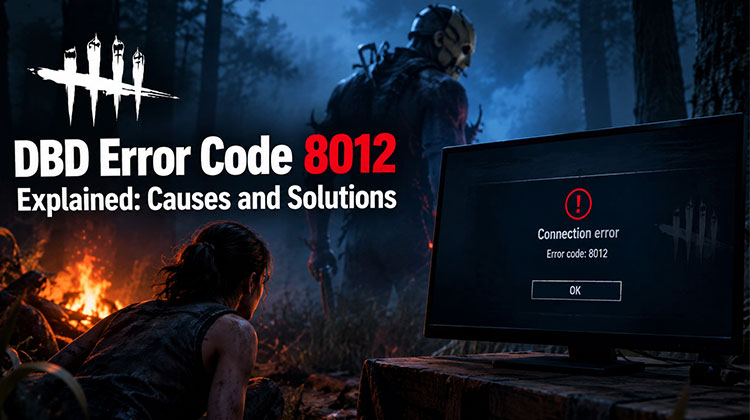
If you cannot connect to Dead by Daylight’s online services, you may be dealing with DBD error code 8012. The issue can prevent you from reaching online features or joining a match. If DBD error code 8012 keeps returning, the cause may be local or server-side.
The error does not always mean your game is damaged. Server maintenance, platform problems, unstable internet, VPN settings, DNS issues, firewall restrictions, and corrupted files can all cause connection trouble.
What Is DBD Error Code 8012?
DBD error code 8012 is a connection-related error that appears when Dead by Daylight cannot communicate properly with its online services. Because the game relies on online servers for multiplayer, even a brief interruption can keep you from playing.
The problem can happen on PC or console and may disappear when a temporary server or network problem is resolved.
Why Does DBD Error Code 8012 Happen?
There is no single cause for every dead by daylight error code 8012 incident. Common causes include:
- Dead by Daylight server maintenance or outages
- Steam or console service interruptions
- An unstable Wi-Fi connection
- Router or modem problems
- VPN or proxy interference
- Firewall or antivirus restrictions
- DNS problems
- Corrupted or missing game files
- Easy Anti-Cheat issues
- An outdated game version
If many players report the same problem at once, the cause may be server-side. In that case, DBD error code 8012 usually means you need to wait for the service to recover.
Also read: How to Fix Steam Error Code 2: Steam Servers Are Busy
10 Ways to Fix DBD Error Code 8012
1. Check the Dead by Daylight Server Status
The first step is to check whether Dead by Daylight’s online services are working normally. Server outages or scheduled maintenance can cause error code 8012 DBD players see when attempting to connect.
Check official Dead by Daylight support channels for service announcements.
If an outage is confirmed, wait for the services to recover. Changing DNS settings or reinstalling the game will not fix a server-side outage.
2. Restart Dead by Daylight
A temporary connection failure can sometimes be cleared by completely restarting the game.
Close Dead by Daylight and make sure it is no longer running in the background. PC players should also close Steam before opening it again. Then launch the game and try connecting to the online services.
This simple step may fix dead by daylight error code 8012 when the problem was caused by a temporary connection failure.
3. Restart Your PC or Console
If restarting the game does not help, restart your gaming device.
Close the game and launcher, restart your PC or console, and then launch Dead by Daylight again. A complete restart can clear temporary software and network states that interfere with the connection.
If you still see DBD error code 8012, continue with the network solutions below.
4. Restart Your Router
Your home network may be responsible for the connection problem. Turn off your router or modem, wait briefly, and turn it back on.
Wait until the internet connection is fully restored before starting the game. Test another website or online game to make sure your connection is working normally.
A stable internet connection is important for avoiding repeated connection failures.
5. Disable VPN or Proxy
A VPN or proxy can change the route between your device and the game’s online services. In some situations, this can cause connection problems.
If you use a VPN, disconnect it temporarily and restart Dead by Daylight. If the game connects afterward, the VPN may have contributed to the problem.
This is also worth checking if error code 8012 in dead by daylight appeared after changing your VPN, proxy, or network configuration.
6. Verify the Game Files
PC players using Steam can check the game installation for missing or damaged files.
Open Steam, go to your Library, right-click Dead by Daylight, select Properties, open Installed Files, and choose Verify integrity of game files.
Steam will check the installation and replace damaged or missing data.
After verification finishes, restart Steam and launch the game. This can help if DBD error code 8012 started after an update or interrupted installation.
7. Repair Easy Anti-Cheat
Easy Anti-Cheat is an important part of Dead by Daylight on PC. If its service or installation has a problem, repairing it can be useful.
Open the Dead by Daylight installation folder and locate the Easy Anti-Cheat setup application. Run it and select the repair option if available.
After the repair finishes, restart your computer and try the game again.
8. Flush Your DNS Cache
DNS problems can sometimes prevent your computer from reaching online services correctly.
On Windows, open Command Prompt as Administrator and enter:
ipconfig /flushdns
Press Enter and wait for the confirmation message. Then restart your computer and launch Dead by Daylight.
Flushing DNS may help when your local DNS cache is causing connection problems, but it will not resolve a server-side outage.
Also read: Best DNS Server for Gaming in 2025: Boost Speed & Reduce Lag
9. Check Firewall Settings and Updates
Your firewall or security software may prevent Dead by Daylight from accessing the internet. Check your firewall’s allowed-app settings and make sure the game and required launcher components have appropriate network permissions.
Also check for available Dead by Daylight updates. If a new version has been released, install it before trying again.
If DBD error code 8012 started after an update, make sure the game has completed all available downloads.
10. Reinstall the Game or Contact Support
If the previous solutions don’t help, reinstalling Dead by Daylight can be considered a final troubleshooting step.
If DBD error code 8012 still appears after a fresh installation, contact official Dead by Daylight Support. Provide your platform, when the problem started, the exact error message, and the troubleshooting steps you have already completed.
Final Thoughts
When DBD error code 8012 prevents you from playing, start with simple checks instead of immediately reinstalling the game. First, confirm that the servers are available, then restart the game, your device, and your router.
If the problem remains, check your VPN, verify game files, repair Easy Anti-Cheat, flush DNS, review firewall permissions, and install pending updates.
These steps can help identify whether the connection problem comes from Dead by Daylight’s services, your network, or your local game installation. If DBD error code 8012 continues after trying all 10 fixes, official support can investigate the issue further.
FAQs: DBD Error Code 8012
Is Error 8012 caused by my internet?
It can be. Network instability, router problems, DNS issues, VPNs, proxies, and other connectivity problems can contribute to connection errors. But server-side problems can produce the same error.
Will reinstalling DBD fix error code 8012??
Reinstalling may help if the game installation is damaged, but it should generally be considered after simpler solutions such as restarting the network and verifying game files.
What should I do if DBD error code 8012 keeps appearing?
If basic troubleshooting does not resolve the problem, contact official Dead by Daylight Support and provide your platform, error details, and the steps you have already tried.
How do I fix DBD error code 8012 if the servers are online?
Restart Dead by Daylight and your gaming device first. Then restart your router, check your connection, and try the other troubleshooting methods in this guide.





Leave a comment