






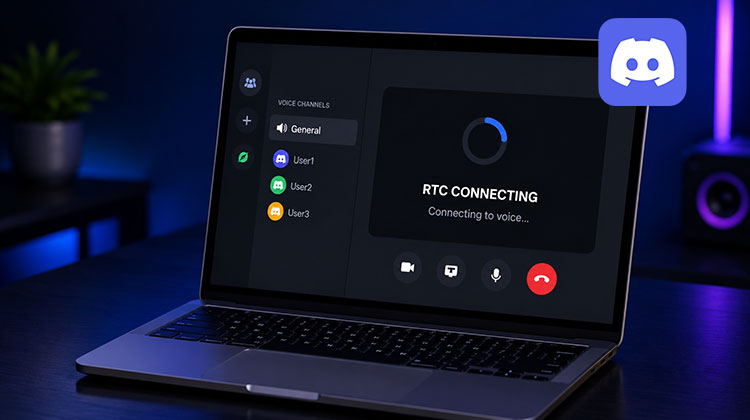
If you’re a Discord user, you may encounter an RTC Connecting error occasionally. What is an RTC Connecting error on Discord? This error can occur when you connect to a voice call that is stuck on Connecting. According to Discord Support, there are a variety of reasons that can cause RTC Connecting and No Route errors. There are a variety of methods to resolve this RTC Connecting Discord error.
What is an RTC Connecting Discord Error?
RTC stands for Real-Time Communication. Discord uses WebRTC technology to establish voice connections between users and Discord’s servers.
When you join a voice channel, Discord attempts to create a connection. If the process gets stuck on RTC Connecting, Discord cannot complete the connection, preventing you from joining the voice chat.
- ICE Checking
- No route errors
- RTC Connecting
- Connecting
Why Is Discord Stuck on RTC Connecting?
Several factors can trigger the RTC Connecting Discord error, including:
- Poor internet connection
- Network instability
- VPN interference
- Firewall restrictions
- Incorrect DNS settings
- Proxy server issues
- Outdated network drivers
- Discord server outages
- Blocked UDP traffic
Let’s look at the best ways to fix the problem.
Also read: Discord Overlay Not Working in 2026? Here’s the Ultimate Fix Guide
How to Fix the RTC Connecting Discord Error
1. Check Your Internet Connection
Nine times out of 10, the issue is due to a poor network connection or instability. Make sure your internet is working properly by using websites like Speedtest. This will fix the RTC Connecting Discord error. If not, you can follow the steps below.
2. Restart your devices
You can restart your router and computer before trying any other major fix on this list. Be sure your router is off for 30 seconds before turning it on. This should solve issues with Discord RTC connecting and No Route error messages.
3. Restart Discord Completely
Sometimes Discord fails to establish a voice connection because of a temporary application glitch.
To restart Discord:
- Close Discord.
- Press Ctrl + Shift + Esc to open Task Manager.
- End all Discord-related processes.
- Launch Discord again.
Try reconnecting to the voice channel.
4. Disable Your VPN
Discord may have difficulty establishing a voice connection if your VPN often changes IP addresses or does not support User Datagram Protocol (UDP), which Discord relies on for voice communication. If you’re using a VPN, you can temporarily deactivate it and then try connecting to your voice channels.
5. Check Discord Server Status
Gamers have had to deal with this problem a lot. If the servers are physically far from your location, Discord has difficulty making an outgoing connection. You can change this by selecting Server Settings > Server Region.
6. Reset Your IP and Network Settings
If nothing else works, resetting your network configuration may solve the RTC Connecting Discord error.
Change DNS Settings:
- Press Windows + R.
- Type:
ncpa.cpl - Open your active network connection.
- Select Properties.
- Double-click Internet Protocol Version 4 (TCP/IPv4).
- Choose Use the following DNS server addresses.
- Enter:
Preferred DNS: 8.8.8.8
Alternate DNS: 8.8.4.4
Reset Network Components
- Open Command Prompt as Administrator and run:
ipconfig /release
ipconfig /renew
ipconfig /flushdns
netsh winsock reset
Restart your computer after running these commands.
7. Disable Quality of Service (QoS)
This could help you fix your Discord RTC connecting error. If you are not sure, follow the steps below.
- Open Discord.
- Click the Settings icon beside your username.
- Select Voice & Video.
- Scroll down to Quality of Service.
- Turn off Enable Quality of Service High Packet Priority.
- Restart Discord.
- Rejoin the voice channel.
Also read: Discord Mic Not Working? 7 Fixes You Should Try Now
8. Allow Discord Through Windows Firewall
There’s a chance your antivirus has isolated Discord and considered it a threat. This can be fixed by making an exception for Discord within your antivirus software. You can disable Windows Firewall; however, this is not recommended.
- Open Windows Security.
- Select Firewall & Network Protection.
- Click Allow an App Through Firewall.
- Locate Discord.
- Ensure both Private and Public networks are checked.
9. Update Network Drivers
Find the Device Manager and then open it. Open Network Adapter and right-click on your network device, and then select Update Driver. Select ‘Search automatically for updated drivers’ and then wait until the process is completed.
- Press Win + X.
- Select Device Manager.
- Expand Network Adapters.
- Right-click your adapter.
- Select Update Driver.
Install available updates and restart your computer
How to Prevent RTC Connecting Discord Errors
To reduce the chances of encountering this issue in the future:
- Keep Discord updated.
- Maintain a stable internet connection.
- Avoid unreliable VPN services.
- Update Windows regularly.
- Keep network drivers current.
- Use trusted DNS providers.
- Restart networking equipment periodically.
These practices can improve overall Discord performance and connection stability.
Final Thoughts
The RTC Connecting Discord error is a network-related issue that blocks Discord from creating a voice connection. Try the basic fixes first, and then proceed to more complex troubleshooting when needed. Following the steps in this article, you can get Discord voice chat working again and avoid RTC Connecting issues.
FAQs: RTC Connecting Discord
What is the difference between RTC Connecting and No Route errors?
RTC Connecting means Discord cannot establish a voice connection, while No Route usually indicates a network configuration or routing problem. Both errors are often related and share similar fixes.
Does the RTC Connecting error happen on mobile devices?
Yes. The issue can occur on Android and iPhone devices if there is a poor internet connection, VPN interference, or incorrect network settings.
Can Wi-Fi cause RTC Connecting Discord errors?
Yes. Weak Wi-Fi signals, network congestion, or packet loss can prevent Discord from establishing a voice connection.
Does changing DNS help fix Discord RTC Connecting?
Yes. Many users resolve the issue by switching to Google DNS or Cloudflare DNS.










Leave a comment