






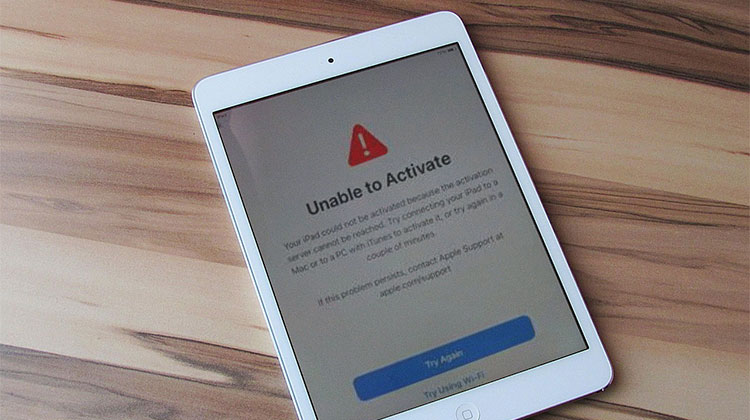
Activating the iPhone or iPad is essential when setting up a new device or restoring an old one. However, many users experience an ” Unable to activate iPad or could not be activated error, which can be frustrating. Most often, the activation issues are fixable manually. If you’re looking for help, you’re in the right place.
This article will explore the causes of this problem and simple and easy solutions to fix the Unable to activate iPad.
Why Does My iPad Say “Unable to Activate”?
iPad and iPhone notifications are not activated when you get a new iPad or a second-hand iPad. Here are some of the most important informational messages:
- “Activation Request Could Not Be Completed.”
- “Unable to Activate. An update is required to activate your iPad.”
- “Your iPad could not be activated because the activation service is temporarily unavailable.”
- “Your iPad could not be activated because the activation server cannot be reached.”
- “We are unable to continue with your activation at this time.”
Common Reasons for the Unable to Activate iPad Error
If you see the ‘Unable to activate message, you need to be aware of the causes and resolve the problem. Here are the possible reasons.
Some common causes include:
- Poor or unstable internet connection
- Temporary Apple activation server outage
- Software glitches after an update or reset
- Activation Lock enabled on the device
- Incorrect date and time settings
- Hardware-related issues
Understanding the root cause is the first step toward fixing the Unable to Activate iPad issue.
Also read: How to Bypass Activation Lock on iPhone/iPad: 4 Best Methods
How to Fix the Unable to Activate iPad Error
If you know the probable reasons why your iPad won’t activate, you can find the right steps to fix the activation error. Here are the easy steps you should first check.
1. Wait and Try Again Later
Check the prompts on the iPad screen carefully. If the activation error message clearly states that the activation server is unable to reach it or has become unavailable for a while, then you should wait and select the ” Try Again” option to enable the device.
2. Check Apple’s System Status
Sometimes the cause of your iPad activation failure is related to the Apple servers. If servers are down or under maintenance, then your iPad will not be able to communicate with them. It’s important to verify that Apple servers are functioning properly.
3. Connect to a Stable Wi-Fi Network
Most of the time, the iPad could not be active due to a poor network. You need to refresh the network. You can restart your router and reconnect to the WiFi network.
4. Restart or Force Restart Your iPad
Try restarting your iPad first. If restarting your iPad does not resolve the iPad activation error, my suggestion is to forcefully restart your iPad to give it a chance to refresh. Restart your iPad according to the model.
5. Reinsert the SIM Card
If your iPad’s cellular data isn’t working, the first step is to insert the SIM card properly.
To ensure the SIM card isn’t valid, remove the SIM card from your iPad, wipe it with a clean cloth, check for any damage, and insert it again.
Also read: How to Jailbreak iPad: Top 5 Tools You Can Use
6. Activate Your iPad Using a Computer
If unable to activate iPad after reset, try using iTunes (or Finder if you have macOS Catalina or later) on your PC. This will assist you in your activation process.
On Mac
- Connect the iPad using a USB cable.
- Open Finder.
- Select your iPad from the sidebar.
- Follow the activation prompts.
On Windows
- Install Apple Devices or iTunes.
- Connect your iPad.
- Follow the on-screen activation instructions.
This method often provides more detailed error messages that can help identify the issue.
7. Contact Apple for Support
There is nothing to worry about if your device is stuck on the “Could Not Activate iPad” screen. You can contact Apple support for more assistance. Perhaps you’re dealing with a software or hardware issue that is difficult to identify on your own. Consulting a professional for advice and repair could be the ideal solution.
Conclusion
This article examines several reasons for being unable to activate iPad. If you know the cause, you can effectively identify the steps needed to fix activation problems. If you are activating a new iPad or attempting to activate an older iPad, these solutions can help resolve most activation issues.
FAQs About Unable to Activate iPad
Why does my new iPad show the Unable to Activate iPad error?
A new device may display the Unable to Activate error due to temporary Apple server issues, Wi-Fi problems, or activation service interruptions.
What should I do if the activation server is unavailable?
If Apple's activation server is temporarily unavailable, wait a while and try again later. You can also check Apple's System Status page to confirm whether the activation service is experiencing an outage.
Can I fix the Unable to Activate iPad error without a computer?
Yes. In many cases, this issue can be resolved by connecting to a stable Wi-Fi network, restarting the device, and trying the activation process again. These simple troubleshooting steps often fix temporary connection or software-related problems.
Why won't my iPad activate after a factory reset?
After a factory reset, activation may fail due to network issues, Apple server outages, software problems, or Activation Lock linked to a previous Apple ID.










Leave a comment