






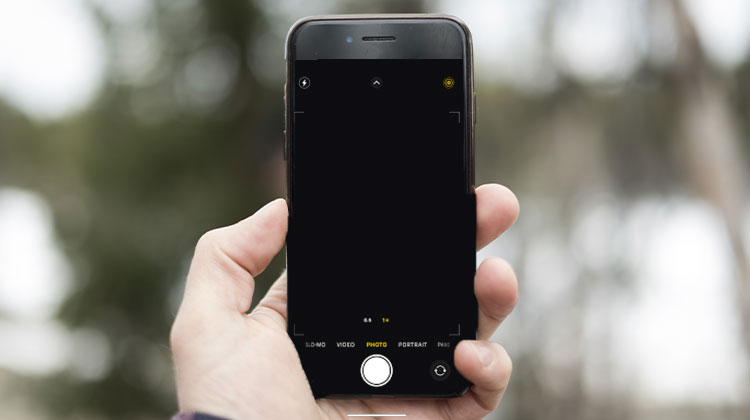
The iPhone camera app takes pictures and videos. However, certain iPhone users have reported a black screen when using the application. Are you interested in knowing the reasons behind this? Read this article, and see eight quick solutions to fix the iPhone camera black screen problem.
Why Is My iPhone Camera Showing a Black Screen?
iPhone camera black screen issue can occur due to a variety of reasons. Hardware and software problems are the primary causes. It is the most frequent cause of hardware issues, a malfunctioning physical camera. You can check for dust or dirt on the camera since it can trigger the issue. They could hinder the camera’s performance or show a black screen on the app.
Software issues, such as an old iOS version, incorrect settings, lagging, crashes, and more, could be the reason.
Basic Checkups for iPhone Camera Black Screen
- Remove phone case or camera attachments
- Clean the camera lens properly
- Restart your iPhone
- Test camera in different apps
- Check for dust or physical damage
Also read: 7 Ways to Fix iPhone Flashlight Not Working Issue Quickly
How to Fix iPhone Camera Black Screen (8 Working Solutions)
Don’t face the iPhone Camera black screen issue for a long time. Solve the problem with the easy solutions listed in this section.
1. Switch Between Front and Rear Camera
The Camera app on your iPhone can be changed. It could be due to the front or back camera. You can determine whether the camera issue is a hardware problem. When the front camera is working, but the back camera is not, or there’s a high chance of a hardware issue. If so, then the iPhone camera will require an upgrade.
However, it could be a glitch in the camera app. You can restart your camera app on the iPhone. you need to do is tap through the camera app to the top and swipe it again before closing it.
2. Force Restart iPhone
Sometimes, the cause of the iPhone front camera black screen is a glitch that causes the app to crash. The camera app may have been crashing due to a system issue. It is necessary to restart your iPhone if that’s the situation.
iPhone with Face ID: Press and release the Volume up button quickly. Same with the Volume Down. Make sure to press and hold to the left. The Apple logo needs to be visible.
iPhone with Home Button: Press and hold Side and Volume Down. Continue pressing these buttons until the Apple logo screen appears.
3. Reset All Settings on iPhone
The Camera application on the iPhone may be defective if the settings aren’t correct. If this is the case, it’s advised to reset all settings to restore the original settings that can fix the iPhone Camera App.
Select Settings and then choose General. Then, select Transfer or Reset iPhone. After that, choose Reset and then tap Reset all Settings.
4. Update iOS
An outdated iOS version might be the reason the iPhone camera is not working. It could be that it isn’t receiving the latest Version of the app, or there are issues with the app’s support for this function. Updating the iOS version can solve the problem.
Choose iPhone Settings and select General. Select the Software Update and then tap the update now button.
6. Factory Reset iPhone
A factory reset on an iPhone will erase all settings and information. It will return it to its default settings. This is a method utilized to fix problems on the iPhone. The steps can be found below.
Open iPhone Settings and tap General. Choose Reset or Transfer iPhone, and then select Erase all content and Settings. Enter the iPhone password.
7. Recovery Mode
If your iPhone has software issues that persist, you can use iTunes or Finder to resolve them. Additionally, you can use an Apple Device on Windows. These tools will help you identify and address the issue using recovery mode. The steps to achieve this are given below.
Step 1: Connect your iPhone to a computer and access iTunes and Finder. Then, put the iPhone in recovery mode.
iPhone without Home button: Press and immediately release the Volume up or Volume down. Press and hold the side, and you will see the connection to the computer display.
iPhone with Home button: Press and hold the Side and volume down or the home button simultaneously. Then you will see the Connect to computer screen.
Step 2: A tiny window will appear at the top of your screen. Select”Restore.” Click the Restore button on the lower right side to fix the iPhone camera problem.
Also read: Why Is Face ID Not Working on iPhone? Quick Fixes
8. Restore iPhone from Backup
iTunes and Finder can also be used to restore your iPhone from backup. An Apple Device on Windows can be utilized. In this way, you can fix the corrupted data or settings that cause the iPhone Camera black screen. You can select the Restore option if you do not have a backup. The steps below show how to use it.
Open the Finder or iTunes tool on your Mac or Windows. Then, connect the iPhone to your computer via a USB cable. Then, tap on the iPhone option, and the information will appear. Click the Restore Backup option and select the most appropriate backup from the list. Input the password, if needed, and the restoration process will begin.
How to Prevent iPhone Camera Black Screen Issue
- Keep iOS updated regularly
- Avoid installing unstable apps
- Clean camera lens gently
- Don’t overheat your device
- Maintain enough storage space
Key Takeaway
A black screen issue when using the iPhone camera is frustrating; however, you can fix it by following the right technical steps. Switching cameras and restarting the Camera application, restarting your iPhone, upgrading your iPhone software, or resetting all settings will increase the chance of fixing the iPhone camera black screen issue.
FAQs About iPhone Camera Black Screen
Why is my iPhone camera black only in certain apps?
The app may not have camera permission or could be experiencing software issues.
Will factory reset fix the iPhone camera black screen?
A factory reset can fix deep software issues, but it will not repair hardware damage.
Is the iPhone camera black screen issue common after iOS updates?
Yes, some users experience temporary camera bugs after major iOS updates until Apple releases fixes.
Why does my iPhone camera work sometimes and then turn black?
Intermittent camera issues are often caused by software glitches or unstable hardware connections.








Leave a comment