






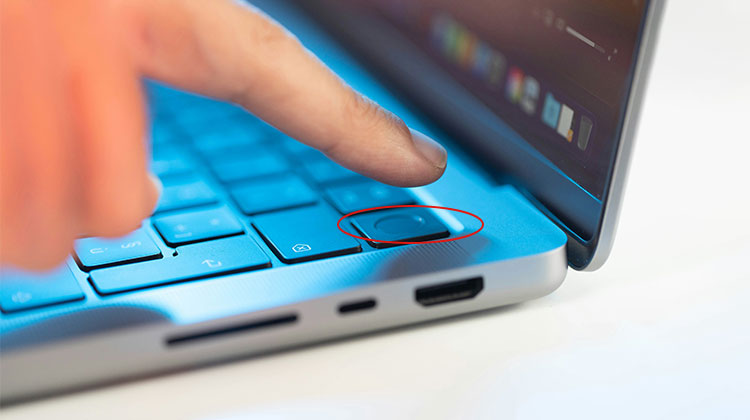
Apple introduced its fingerprint recognition biometric system, Touch ID, in 2016. Since then, Touch ID has continued to be used to unlock your device and make purchases at Apple Store, Apple Books, and the iTunes Store, log into apps from third-party companies, and verify Apple Pay. But Touch ID may not work properly in the future.
This post explains why your Touch ID not working on Mac and provides a comprehensive troubleshooting guide to help you re-enable it. Check out the following section for simple yet effective tricks approved by Apple forum members to resolve Touch ID missing from System Preferences and not functioning properly after an update.
Why Is Touch ID Not Working on Mac?
Touch ID may stop functioning for several reasons, including:
- Dirty fingerprint sensor
- Software glitches
- Outdated macOS version
- Incorrect fingerprint settings
- Hardware-related issues
Before assuming there’s a serious problem, try the fixes below one by one.
Also read: Erase Assistant Is Not Supported on This Mac? 2026 Complete Fix Guide
How to Fix Touch ID Not Working on Mac
1. Clean the Touch ID Sensor
Dirt or liquid on your finger and the Touch ID sensor may cause the MacBook Touch ID not recognizing fingerprint. This could be that Touch ID appears to be working, but it’s unable to identify your fingerprints. To clean the fingerprint sensor, wipe it with a clean and dry cloth. Make sure that your fingers are clean and dry.
2. Restart Your Mac
If Touch ID worked perfectly for a short time, but suddenly stopped responding, you can restart your Mac to eliminate any glitches preventing the Touch ID sensor from responding.
3. Update macOS to the Latest Version
Update macOS is the next step if Touch ID still won’t work after a clean restart. It will fix any bugs that are caused by Touch ID on your current OS. It also helps fix Touch ID not working on Mac after update. For instance, if you have noticed that your Touch ID not working on Mac after you upgraded to macOS Monterey, the best solution is to download a new version, which could contain bug fixes for your issue.
4. Check Touch ID Settings
Sometimes, MacBook Touch ID not working could be a simple settings problem. If Touch ID functions well with many services, but for a specific task, you might have turned it off.
Steps:
- Open Apple Menu > System Settings
- Click Touch ID & Password
- Under Use Touch ID For, enable the features you want:
- Unlocking your Mac
Apple Pay
iTunes & App Store
Password Autofill
Also, make sure Automatic Login is disabled:
- Open System Settings
- Go to Users & Groups
- Select Login Options
- Turn off Automatic Login
5. Remove and Re-Add Your Fingerprints
If the issue persists after upgrading macOS and examining settings, you can erase the saved fingerprints and add new fingerprints. If you have only one fingerprint, add another. It is possible to save up to 5 fingerprints on Touch ID and use up to 3 fingerprints on each account.
How to delete and re-add fingerprints:
- Open System Settings > Touch ID & Password
- Click the X icon to remove existing fingerprints
- Restart your Mac
- Click Add Fingerprint
- Follow the on-screen instructions
You can store up to five fingerprints on your Mac.
6. Check Compatibility
If you’re using a Magic Keyboard with Touch ID features, you need to determine if your Mac is compatible with Touch ID. According to Apple, only Apple Silicon Macs running macOS Big Sur 11.4 or later can use the compatibility.
7. Turn the Magic Keyboard Off and Back On
If you find that the Magic keyboard is compatible with Mac but isn’t working, try turning off the device, then connecting it to Mac via its Lightning to USB-C cable, and then switching it back on. It is possible to disconnect the cable and then use the keyboard wirelessly if Touch ID works.
8. Disable and Re-Enable Touch ID
Some users have been able to solve Touch ID not working on MacBook by turning it off and then re-enabling it.
Steps:
- Open Apple Menu > System Settings > Touch ID
- Uncheck Unlocking Your Mac
- Log out of your account
- Log back in
- Re-enable Unlocking Your Mac
This refreshes the Touch ID configuration.
9. Start Your Mac in Safe Mode
Safe Mode lets you safely turn on the Mac without loading any unnecessary software that can cause Touch ID not working on MacBook Air. The procedure to boot into Safe Mode depends on the processor your Mac is equipped with.
To boot into Safe Mode:
Intel Mac:
- Restart your Mac
- Hold the Shift key during startup
Apple Silicon Mac:
- Shut down your Mac
- Hold the power button until startup options appear
- Select your startup disk
- Hold Shift and click Continue in Safe Mode
Once in Safe Mode, test whether Touch ID works properly.
Also read: MacBook Won’t Power On? 5 Easy Troubleshooting Tips
10. Reset Touch ID
The MacBook Air Touch ID not working problem may persist in Safe Mode. The time to reset Touch ID settings on a Mac is by resetting the SMC or deleting the Secure Enclave data. We’ve provided the steps for resetting SMC on the page on Touch ID not showing in System Preferences on Mac. Scroll to find out more. You won’t find out how to reset Touch ID on MacBook Pro by following the procedure below.
Reset Touch ID by Clearing Secure Enclave Data
If you’re running a T2 Mac and you want to back up your Mac, your Mac’s Secure Enclave data will erase all data stored in your Mac. Follow the steps in this article if you’re certain your Mac does not have the T2 chip or if you’ve already backed up your Mac.
Follow these steps:
- Start your Mac in Recovery Mode
- From the top menu, click Utilities > Terminal
- Enter the following command and press Return:
xartutil –erase-all
- Restart your Mac
- Go back to Touch ID Settings
- Add your fingerprints again
After completing these steps, check whether Touch ID is functioning properly on your Mac.
Contact Apple Support
It is possible that the Touch ID not working on MacBook Pro problem should be solved by the above solutions. If not, it is likely a hardware problem with your Touch ID sensor. You should call Apple support to schedule an appointment at the nearest Apple retail store, or one of Apple’s authorized service providers, and have the Mac & the Magic keyboard tested.
Conclusion
If your Touch ID not working on MacBook Air or Pro, do not panic. Most problems are software-based and can be solved by simple steps like cleaning the sensor, updating macOS, or adding your fingerprint. If the issue is more complex, testing on hardware or seeking professional assistance may be required.
Whether you’re trying to determine which Touch ID is on MacBook Air or troubleshoot the external Touch ID for Mac, this guide provides the tools you need.
FAQs: Touch ID Not Working on Mac
Why is Touch ID not recognizing fingerprints on Mac?
If Touch ID is not recognizing your fingerprint on Mac, your fingers may be wet, oily, or dirty. A dirty Touch ID sensor can also prevent proper fingerprint scanning.
Does Magic Keyboard Touch ID not working on Mac have a fix?
Yes. If Magic Keyboard Touch ID not working on Mac is the problem, reconnect the keyboard using the Lightning cable, restart your Mac, and make sure your Mac supports Touch ID on Magic Keyboard.
Can resetting the SMC fix Touch ID not working on MacBook Air?
Yes. Resetting the SMC can help fix Touch ID not working on MacBook Air, especially on Intel-based Macs experiencing hardware-related Touch ID issues.
How do I fix Touch ID not working on MacBook Pro?
To fix issue, try cleaning the Touch ID sensor, restarting your Mac, updating macOS, and re-adding your fingerprints. Resetting the SMC can also help on Intel-based Macs.







Leave a comment