





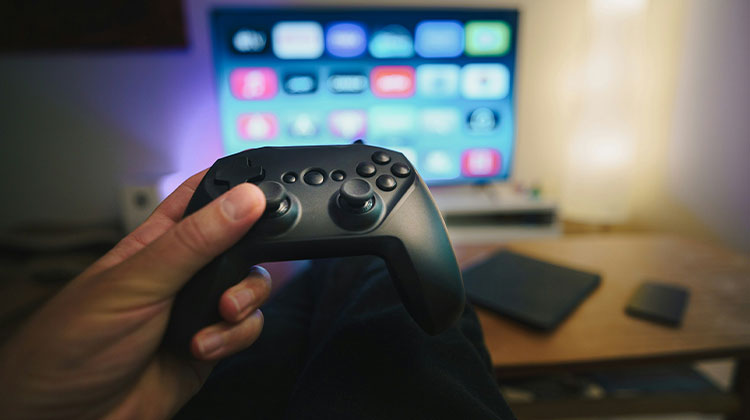
The latest PS4 comes with the DualShock 4 controller, which allows you to play games on your TV, PC or any other device. You need to connect PS4 controller to PC before you can play with it, but it’s not an issue. However, the issue occurs during the process, and users reported that their PS4 controller not connecting to their PC. However, don’t worry, this issue can be solved easily using the following methods.
Overview of the DualShock 4 (PS4) Controller
The PS4 console includes the DualShock 4 (DS4) controller, which is similar to the classic PlayStation controller. It consists of a directional pad and two sticks, four triggers, triangle and circle buttons, cross and square buttons. There’s also a directional pad in the front, and a PS motion-like “light bar” at the top.
However, connecting PS4 controller to PC is not as straightforward as connecting an Xbox controller. Many users have complained that their PS4 controller not connecting to the PC and that they require solutions to fix it.
Ways to Connect a PS4 Controller to a PC
Generally, there are three ways you can connect your PS4 controller to a computer:
- Wired connection.
- Wireless connections.
- Using Bluetooth.
PS4 controller won’t connect to PC by Bluetooth, wired, or wireless, which means you can’t play your favorite games using the controller. This can make gamers mad. Therefore, I’ve compiled the three options below to help gamers overcome the issue if the PC cannot recognize the PS4 controller.
Also read: Is Your PS5 Overheating? Here’s What You Should Do
Why Is My PS4 Controller Not Connecting?
Before jumping into fixes, it helps to understand why my PS4 controller won’t connect to PC. Common reasons include:
- Low or dead controller battery
- Faulty or charging-only USB cable
- Bluetooth pairing issues
- PS4 system software bugs
- Controller firmware or hardware problems
Let’s start with some of these solutions.
4 Ways to Fix PS4 Controller Not Connecting
1. Connect the Controller via USB
The first thing to do is to check if your PS4 controller not connecting to your PC. You can connect the PS4 controller using a USB cable.
- You can turn on your PS4.
- Connect part of the USB cable to the back of the PS4. Plug the other end into the DS4 controller.
- Give it a bit of time (about 30 to 60 minutes) until the controller is fully charged.
- Hold and press the PS button in the middle of the controller to restart.
- There may be a sound that indicates the controller is pairing the console.
If your PS4 controller not connecting to a PC via USB, you can try using another USB cable or follow the instructions listed below.
2. Reset the PS4 Controller
In case your PS4 controller not connecting to the console, you can try to resolve the issue by resetting your PS4 controller.
How do I reset the PS4 controller?
- Switch off your PS4.
- Stop the internet connection by disconnecting your Ethernet cable or the wireless router.
- The controller should be turned towards the rear and search to the left for the reset switch, which is a tiny hole located right to the screw beside the L2 button.
- Use a pin or paperclip insert into the slot with care.
- Press the reset button within the socket for a few seconds and then release it.
- Connect the DS4 controller to the PS4 through a USB cable. USB cable.
- Switch to the PS4 and then press the PS4 button in the middle of the controller to restart synchronization to the PS4 until you can hear a sound.
3. Use DS4Windows App
What should you do if the Bluetooth PC cannot detect PS4 controller, or PS4 controller keeps disconnecting from the Windows PC? The first step is to remove PS4 controllers from Bluetooth devices.
- Reboot your computer and ensure that the DS4 controller is running minimum 10% battery. (If it is not, recharge first.)
- Open Windows search and type Control Panel, and then select Control Panel.
- Click on the View printers and devices link located under Hardware and Sound.
- Find your Bluetooth PS4 controller and right-click on it and choose to Remove device, then click “yes”.
Then you need to download and install the DS4Windows application and connect the controller.
Install and Configure DS4Windows
- Then download DS4Windows from the official site. Save it to your computer’s hard drive.
- Double-click on the DS4Window installation to follow the steps to finish the installation.
- Click Settings and select Hide DS4 controller, and then expand it by dragging the corners. Click the Controller or Driver Setup button under blue.
- Reduce the window size by putting in an image of the controller (don’t shut it).
- Go to the Manage Bluetooth Devices, then hold the share button & PS button for 3 seconds.
- Click to connect the DS4 controller, which appears within the menu.
Also read: Roku Not Connecting to Wi-Fi? 9 Easy Fixes to Reconnect
4. Re-Enable Bluetooth on Windows
If your PS4 controller is connected to a Windows PC through Bluetooth, but it’s not being recognized. Then you can try to resolve the issue by re-enabling Bluetooth. First, disable your PC’s Bluetooth (from Windows Action Center or from the Windows Settings menu), then wait a few seconds before enabling it again, then try pairing it with your device.
PS4 Controller Light Meanings Explained
- Blinking Blue: Trying to pair, but failing
- White Light: Connected successfully
- Orange Light: Charging
- No Light: Dead battery or hardware issue
Understanding these lights helps diagnose the PS4 controller not connecting problem faster.
Ending Notes
Here are some solutions to try if your PS4 controller is not connecting to your PC. You can try all the above solutions to fix the PS4 controller not connecting problem, but if you’re still having connection issues, you’ll need to talk with PlayStation’s support team for further assistance.
FAQs: PS4 Controller Not Connecting
Why is my PS4 controller blinking blue and not connecting?
It usually means a Bluetooth pairing issue or low battery.
Why is my PS4 controller not connecting via USB?
The USB cable may be damaged or charge-only. Use a data-enabled cable.
Why won’t my PC detect my PS4 controller?
Windows does not natively support DualShock 4 controllers. If your PC can’t detect it, install DS4Windows and ensure Bluetooth or USB drivers are working properly.
Can I use a PS4 controller on PC for all games?
Most modern PC games support PS4 controllers, but some require controller configuration tools like Steam Input or DS4Windows.





Leave a comment