






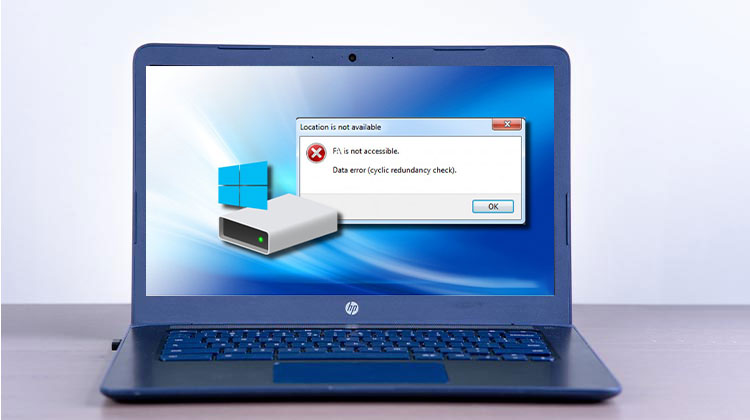
Are you looking to learn the most important details to solve ” How to Fix Cyclic Redundancy Check Error” related questions? Read this blog post to solve all your problems. There are instances where users connect their storage device for data to the computer, as they normally do with folders and files, and see a message on the screen, “Data Error Cyclic Redundancy Check”. On this page, we’ll be able to learn “How to solve cyclic redundancy check error” with both automated and manual solutions.
What Is a Cyclic Redundancy Check Error?
A Cyclic Redundancy Check (CRC) is an error-detection method used by operating systems and storage devices to verify data integrity. Whenever data is stored or transferred, a CRC value is generated and later checked to ensure the information remains unchanged.
Common Causes of CRC Errors
A Cyclic Redundancy Check error can occur due to several factors that affect data integrity and storage device performance, including:
- Bad sectors on the hard drive
- Corrupted or damaged files
- Faulty USB drives or external disks
- Loose or damaged cables
- File system corruption
- Malware or virus infections
- Incomplete file downloads
- Failing storage hardware
Whatever the cause, the Cyclic Redundancy Check error is a major issue and needs to be fixed to avoid data loss or even a complete system failure.
Signs of a Cyclic Redundancy Check Error
You may encounter the following symptoms:
- Error message stating “Data Error (Cyclic Redundancy Check).”
- Files refusing to copy or move
- External drives are becoming inaccessible
- Slow system performance when accessing specific files
- Installation failures for software or games
Also read: Solve External Hard Drive I/O Device Error in 9 Simple Methods
Can I Solve Cyclic Redundancy Check Error?
Yes, the Cyclic Redundancy Check error could be corrected. Errors could be caused by an incorrect software installation or an insufficient area on your disk. To fix the cyclic redundancy errors, users should seek assistance from a specialist tool.
Professional tools are readily available to fix this error. So, by using the tool, one can correct the Cyclic Redundancy Check error.
How to Fix Cyclic Redundancy Check Error
1. Restart Your Computer
Restarting the computer can resolve a myriad of issues, including those associated with data errors, because it’s a rapid and efficient way.
2. Reconnect the Storage Device
If the error appears when you attempt to connect an external disk or hard drive, disconnect it, restart your computer, and then reconnect it.
3. Download the File Again
If the user is experiencing CRC errors when opening or running a downloaded program. It’s possible that the file was corrupted during the download due to a server or internet connection issue. Re-downloading the file often will fix any flaws or bugs.
4. Request a New Copy
If the deficient file was received via email or file-sharing services, ask the sender to send a new copy. The document was not attached or uploaded to the email correctly.
5. Scan the Drive for Errors
User needs to perform a drive scan on Windows and use Disk Utility First Aid on macOS to scan the device in the background to detect and fix issues.
6. Fix CRC Error Using CHKDSK
To fix CRC errors, users must repair the hard drive using the CHKDSK utility. CHKDSK tests the integrity of the hard drive and fixes logical file system errors, bad sectors & file system metadata. Users need to follow certain steps after the program to run CHKDSK:
- Connect the affected storage device.
- Open Command Prompt as Administrator.
- Type the following command:
chkdsk X: /f /r - Replace X with your drive letter.
- Press Enter and wait for the scan to finish.
- After the process is complete, reconnect the drive and check whether the error has been resolved.
7. Fix CRC Error Using SFC Scan
SFC is known as System File Checker. It is a tool for repairing Windows system files, including files, registry files, and other protected files. Sometimes, due to the corrupt registry or file system as mentioned above, CRC errors can occur.
The SFC scan can detect the problem and replace the corrupted or damaged data with new data. The entire process could take between 5 and 20 minutes. It’s dependent on the size and volume of the file. To fix the cyclic redundancy errors, users must perform an SFC scan. Follow these steps:
- Open Command Prompt as Administrator.
- Enter the following command:
sfc /scannow - Press Enter to start the scan.
- Wait for the process to complete.
- Restart your computer and check if the error persists
Also read: 5 Free Disk Cloning Software for 2025
8. Fix Cyclic Redundancy Check Error Using Data Recovery Software
If, after applying the manual solution, you are still having issues, then you should opt for an automatic solution. Using data recovery software, users can solve cyclic redundancy check errors.
This tool will aid you in recovering data from severely corrupted, formatted, or re-formatted, inaccessible hard drives and deleted partitions in a few clicks.
- Recover files from corrupted or inaccessible drives
- Restore permanently deleted files and folders
- Retrieve data from formatted or reformatted storage devices
- Support HDDs, SSDs, USB drives, memory cards, and external hard drives
- Recover documents, photos, videos, emails, and other file types
- Simple and user-friendly recovery process
Conclusion
If you encounter a Data Error (Cyclic Redundancy Check) error, try the above fixes to solve the issue as quickly as possible. The error could lead to more serious problems in the near future and could result in the loss of important information. It is therefore important to fix the problem quickly.
FAQs on Cyclic Redundancy Check Error
Is CRC error dangerous for my hard drive?
Yes, repeated CRC errors may indicate a failing hard drive, which can lead to data loss if not fixed or backed up in time.
Why does CRC error happen while copying files?
It usually happens due to bad sectors, unstable USB connection, or corrupted files during transfer.
Can a virus cause CRC error?
Yes, malware or viruses can corrupt files and storage structures, leading to CRC errors.
Can I recover data from a CRC error drive?
Yes, data recovery software can help recover files from corrupted or inaccessible drives.










Leave a comment