






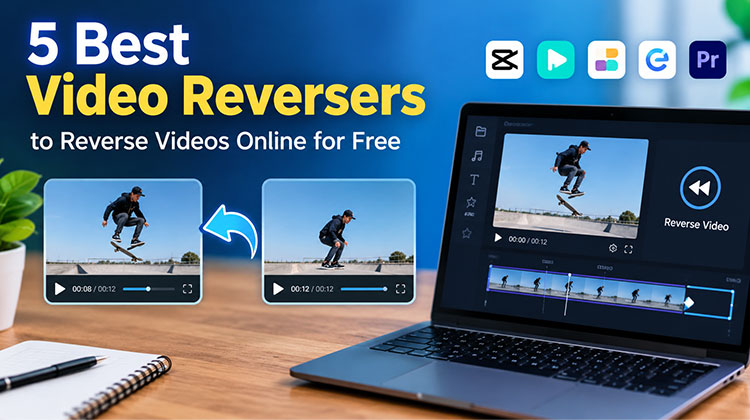
Reversing a video can turn an ordinary clip into a fun social media post, creative effect, or eye-catching short. Whether you want an object to appear to magically return to its original position or create a satisfying reverse-motion effect, a video reverser can do it in just a few clicks. Reversing a video can turn an ordinary clip into a fun social media post, creative effect, or eye-catching short. Whether you want to make an object appear to magically return to its original position or create a satisfying reverse-motion effect, a video reverser can do it in just a few clicks.
The good news is that you don’t always need professional video-editing software. Several online video reversers let you upload a clip, reverse it automatically, and export the finished video.
In this guide, we’ll explore the 5 best video reversers, their key features, ease of use, and what each tool is best suited for.
5 Best Video Reversers
1. CapCut
CapCut is a popular video editing app that can reverse clips in just a few steps. Its simple interface is easy to use for beginners, while features like effects, transitions, filters, text, and music make it useful for social media content. If you need a reverse video app with more editing options, CapCut is a convenient choice for creating short and engaging videos.
Key features:
- Reverse videos quickly
- Supports multiple video formats
- Additional editing tools
- Filters, transitions, and effects
- Suitable for short-form content
- Available on mobile and desktop
Pros
- Available as a mobile and online video editor.
- Offers many editing features beyond video reversing.
- Manual edits can be exported without a watermark in supported workflows.
- Useful for creating social media videos.
Cons
- Some templates and premium assets require payment.
- Watermarks can appear when using certain templates or assets.
- Its large number of features can be unnecessary for a simple reverse edit.
Best for: TikTok, Reels, Shorts, and creators who want additional editing features.
Also read: 10 Best CapCut Alternatives for Video Editing in 2025 (Free & Paid)
2. Clideo
Clideo is a simple online tool that lets you reverse videos directly from your browser. You can upload your clip, apply the reverse effect, and export the finished video without using complicated editing software. Its clean interface makes it suitable for beginners who want to reverse video online quickly. Clideo also offers other basic editing features for making simple changes to your videos.
Key features:
- Works directly in a web browser
- Simple interface
- No professional editing experience required
- Supports common video formats
- Useful for quick video projects
Pros
- Reverse videos directly in a web browser.
- Lets you change the reversed video’s speed.
- Supports muting the original audio.
- Supports files up to 500 MB on the free tier.
Cons
- Free exports include a Clideo watermark.
- Free users are limited to 720p exports.
- Free users have a 500 MB upload limit.
Best for: Beginners who want a simple online video reverser.
The biggest advantage of an online tool like Clideo is convenience—you can use it from a computer or other compatible device without setting up a full video editor.
3. Kapwing
Kapwing is an online video editor that offers a simple way to reverse clips and make other edits. After reversing your video, you can add text, subtitles, effects, or resize it for different social media platforms. Its easy interface makes it useful for beginners and content creators. If you need a video reverser online along with other editing features, Kapwing is worth considering.
Key features:
- Browser-based editing
- Video reversal
- Trimming and cutting
- Text and subtitle tools
- Video resizing
- Social-media-friendly editing workflows
Pros
- Works directly in the browser.
- Includes video editing features beyond reversing.
- Supports common video formats such as MP4, AVI, MOV, and WebM.
- Useful for creating and editing social media content.
Cons
- Free exports include a Kapwing watermark.
- Free plans have limitations on features and video length.
- Free projects may be deleted after three days.
Best for: Content creators who need video reversing plus other editing tools.
4. Ezgif
Ezgif is a lightweight online tool for quick video edits. It can reverse short video clips directly in your browser without installing large editing software. As a free video reverser, Ezgif is a useful option for simple projects and GIF-related work. Its straightforward interface makes the process easy, especially when you only need to reverse a video without advanced editing.
Key features:
- Browser-based tools
- Video editing utilities
- GIF conversion
- Simple workflow
- Useful for short clips
Pros
- Completely free to use.
- No watermark on reversed videos.
- Supports files up to 200 MB.
- Lets you keep, reverse, or mute the audio.
Cons
- The 200 MB file-size limit can be restrictive for large videos.
- Better suited to quick edits than full video production.
- It has fewer advanced editing features than professional editors.
Best for: Users working with short videos, GIFs, and simple web-based edits.
Because Ezgif focuses on lightweight online media tools, it can be particularly convenient for small projects where you don’t need a complete video editor.
5. Adobe Premiere Pro – Best for Professional Video Editing
Adobe Premiere Pro is a professional video editing program designed for users who need more control over their projects. You can reverse clips, adjust their speed, edit audio, add transitions, and apply advanced effects. While it may be more than you need for a simple reverse effect, it is a powerful video reverser for professional projects. It is especially useful for filmmakers, editors, and experienced content creators.
Key features:
- Professional timeline editing
- Reverse playback
- Advanced audio controls
- Color correction
- Transitions and effects
- Precise speed adjustments
- Extensive export options
Pros
- Provides professional video editing tools.
- Reversing a clip takes only a few steps through Speed/Duration.
- Gives precise control over playback speed.
- Supports many video and audio formats.
Cons
- More difficult for beginners than simple online reversers.
- Requires a paid Creative Cloud subscription.
- Can be excessive if you only need to reverse a short video.
Best for: Professional editors, filmmakers, agencies, and advanced creators.
If you only need to reverse one short clip, Premiere Pro may offer considerably more functionality than necessary. However, for larger editing projects, its broader toolset can be valuable.
Also read: Best Video Frame Extractors: 7 Tools to Extract Frames From Videos
Quick Compare
| Tool | Best For | Free Version | Platform | Ease of Use |
|---|---|---|---|---|
| CapCut | Social media videos | Yes | Mobile, Desktop, Web | Easy |
| Clideo | Quick online edits | Yes | Web | Very Easy |
| Kapwing | Online video editing | Yes | Web | Easy |
| Ezgif | Free video reversing | Yes | Web | Very Easy |
| Adobe Premiere Pro | Professional editing | Trial available | Desktop | Advanced |
How to Choose the Best Video Reverser
The right tool depends on what you’re trying to accomplish.
For beginners
Choose a simple browser-based tool such as Clideo if you only need to reverse a video without learning complex editing software.
For social media
CapCut can be useful if you’re creating short-form content and want to combine the reverse effect with music, captions, transitions, and other effects.
For online editing
Kapwing is useful when you want to reverse your video while also performing other edits in the browser.
For GIFs and short clips
Ezgif can be convenient for quick media-processing tasks and GIF-related projects.
For professional projects
If you’re already working with professional editing software, Adobe Premiere Pro provides extensive control over playback, speed, audio, and other aspects of your project.
How to Reverse a Video Online
Most online video reversers follow a similar process:
- Choose your video reverser.
- Upload your video.
- Find the Reverse or Reverse Video option.
- Start the processing.
- Preview the reversed clip.
- Adjust the video if necessary.
- Export the finished video.
For best results, use a video file with good image quality and avoid unnecessarily compressing the clip multiple times.
Final Thoughts
The above 5 best video reversers make it easy to reverse videos quickly and without advanced editing skills. Whether you want to reverse a video for social media, fun, or creative projects, these tools can help. Choose the best video reverser based on your needs, video quality, editing features, and ease of use.
FAQs: Video Reverser
Can I reverse a video online for free?
Yes. Tools such as Clideo, Kapwing, and Ezgif let you reverse videos online. Some may have limits on free exports or file sizes.
Is there a free video reverser without a watermark?
Yes. Ezgif allows you to reverse videos for free without adding a watermark to the output.
Does reversing a video also reverse the audio?
It depends on the tool. Some video reversers allow you to reverse, keep, mute, or remove the original audio.
What video formats can I reverse?
Most video reversers support common formats such as MP4, MOV, AVI, and WebM. Supported formats can vary by tool.







Leave a comment