






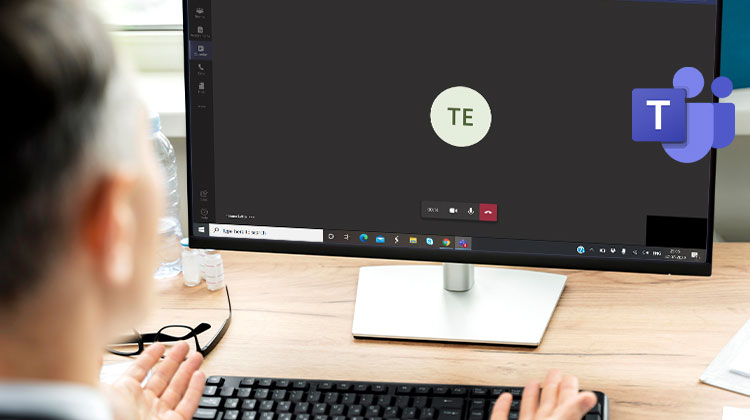
Does your Microsoft Teams camera not work? Read this blog and see how to fix Microsoft Teams camera not working.
Collaboration with colleagues online via Microsoft Teams has become the new normal. But things can get messed up when the Microsoft Teams camera is not working properly.
Don’t worry; here are some easy steps to solve the Microsoft Teams camera not working issue. This article will explore these troubleshooting steps to resolve the Microsoft Teams camera issue.
Why Is My Camera Not Working in Microsoft Teams?
Several factors can be behind the Teams camera not working issue. Common causes include:
- Incorrect camera permissions
- Outdated Teams application
- Camera being used by another application
- Corrupted Teams cache
- Outdated device drivers
- Privacy settings blocking camera access
- Hardware-related issues
Let’s explore the fixes step by step.
How to Fix Microsoft Teams Camera Not Working
1. Configure Microsoft Teams Camera Settings
In general, without additional settings, Microsoft Teams identifies the camera. However, if the camera not working on Teams, it seems there’s a problem with the app settings. To fix the issue and to set up cameras, you can follow these steps:
- Open Microsoft Teams.
- Click your profile picture and select Settings.
- Navigate to Devices.
- Under the Camera section, click the dropdown menu.
- Select the camera you want to use.
- Check whether the camera preview appears.
After that, you can make a test call or contact someone to determine whether the camera is functioning or not.
Also read: iPhone Camera Not Working? 10 Easy Solutions to Fix It
2. Disconnect Additional Camera Devices
If the camera cannot be detected in MS Teams, try disconnecting and reconnecting it. Additionally, shut down any other applications that may connect to the camera (like Zoom or Skype) and restart your PC. If you’ve already completed these steps but you are still having trouble, try these troubleshooting techniques:
- If you are using multiple cameras, you can try disconnecting them to test whether the built-in camera functions.
- If that doesn’t work, you can disable the camera in Device Manager, then try using a web camera. Before you proceed, you can disable the camera on your external device.
To accomplish this, take these steps:
- Press Windows + X and select Device Manager.
- Expand Cameras or Sound, Video and Game Controllers.
- Locate your webcam.
- Right-click the device and select Disable Device.
- Connect your external webcam.
- Open Microsoft Teams and test the camera.
3. Check Camera and Microphone Privacy Settings
If MS Teams is unable to access your camera, you must change the security settings. To make this change, take these steps:
Allow Camera Access
- Press Windows + I to open Settings.
- Select Privacy & Security.
- Click Camera.
- Enable:
Camera access
Let apps access your camera
Let desktop apps access your camera
Restart Teams and check if the issue is resolved.
Allow Microphone Access
If your webcam includes a built-in microphone:
- Open Settings > Privacy & Security.
- Select Microphone.
- Enable:
Microphone access
Let apps access your microphone
Let desktop apps access your microphone
This allows Teams to use both the camera and microphone during meetings.
4. Update the Camera Driver
If you have followed the steps above and the Teams camera not working issue persists, try updating the webcam driver in Windows 10.
- Press Windows + X and open Device Manager.
- Expand Cameras.
- Right-click your webcam and select Update Driver.
- Choose Search Automatically for Drivers.
- Follow the on-screen instructions.
After the update is complete, restart your PC and test the camera in Teams.
5. Temporarily Disable Antivirus Software
Sometimes, the third-party security app you use on your computer interferes with Teams’ run and prevents Teams from accessing the camera. In this case, it is suggested to disable the antivirus temporarily.
Once you’ve uninstalled it, you can try using MS Teams with the camera. You shouldn’t have any issues.
6. Allow App Access to Media
If there’s an issue with Microsoft Teams permissions, then you could face a Teams camera not working on PC. To resolve this issue, you must permit Teams add-ons to connect to the peripherals.
- Open Microsoft Teams.
- Click your profile picture and select Settings.
- Go to App Permissions.
- Enable Media (Camera, Microphone, and Speakers).
By doing this, the app adds to access to the webcam.
7. Update Microsoft Teams
Running an outdated app can cause an issue. To fix the Teams camera not working issue, try updating the application.
- Open Microsoft Teams.
- Click your profile picture.
- Select Check for Updates.
- Install any available updates.
8. Reinstall Microsoft Teams
If the problem persists, reinstalling Teams can help eliminate corrupted files.
To uninstall Teams:
- Press Windows + I and open Settings.
- Navigate to Apps > Installed Apps.
- Locate Microsoft Teams.
- Click Uninstall.
- Confirm the removal.
Restart the computer and reinstall Microsoft Teams. Try using the camera when running Teams. This should resolve the issue.
Also read: Laptop Touchpad Not Working? 4 Simple Ways to Fix It
9. Use Microsoft Teams in a Web Browser
If none of the steps above have worked, if your Teams camera not working, consider using MS Teams in a web browser.
- Open Chrome, Edge, or another compatible browser.
- Sign in to Microsoft Teams.
- Join or start a meeting.
- Allow the browser to access your camera and microphone when prompted.
If your browser doesn’t require permission, you’ll have to change the settings.
10. Run the Hardware and Devices Troubleshooter
If you double, you notice that it’s due to the device malfunctioning. Therefore, you should try running Hardware and Device Troubleshooter. To do this, follow these steps:
- Open Command Prompt as Administrator
- Type msdt.exe -id DeviceDiagnostic and press Enter.
- This will open Hardware and Devices troubleshooter. Select Next to start the scanning.
If any issues arise, they will be automatically fixed by the Hardware and Device Troubleshooter.
Final Thoughts
A Microsoft Teams camera issue can occur for several reasons, including a faulty driver, privacy settings, antivirus software, or even a damaged USB port. No matter what caused the Teams camera not working issue, these solutions can help you fix it quickly and get your camera working again.
FAQ: Microsoft Teams Camera Not Working
Why is Microsoft Teams not detecting my webcam?
This usually happens due to outdated drivers, hardware issues, or another app using the camera in the background.
Why does my camera work in other apps but not in Teams?
This usually means Teams settings or permissions are misconfigured while the camera itself is working fine.
What should I do if Teams says no camera found?
Check if the camera is connected properly, enable permissions, and ensure no other app is using the webcam.
How can I solve Microsoft Teams camera not working permanently?
To solve Microsoft Teams camera not working permanently, keep drivers updated, allow full permissions, and regularly update the Teams app.






Leave a comment