






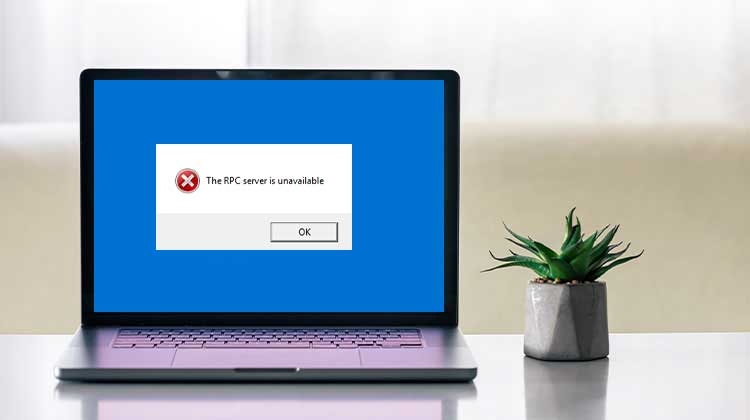
You’ve probably encountered the “RPC Server is unavailable error message while trying to access files saved on a server. This issue prevents computers from logging in and connecting to the server/service, resulting in the error message. When this error message appears on the display, it may display a bug check value; the error code is 0x800706ba. The RPC server is unavailable.
This error message can occur at various times and cause problems with communication between two devices and local processes. If you don’t have any network experience, the error message can be a difficult issue to fix. But it’s an easy issue to address. Read on to learn more about this issue.
What is RPC?
RPC (Remote Procedure Call) is an integrated Windows mechanism that enables different Windows applications to communicate with each other. It also allows computers that are connected to networks to connect to a server.
Many Windows applications use RPC; RPC communicates with the server via dynamic ports. It uses the static port (TCP port 135) as its starting point.
What Causes “RPC Server is Unavailable” Error?
The ‘RPC Server is Not Available error is a networking error that could be caused by many reasons. Some possible causes are:
- Disabled or stopped RPC services
- Firewall or antivirus blocking RPC traffic
- Network connectivity problems (RPC error 1722)
- Third-party software interference
- Temporary system glitches requiring a restart
Also read: Kernel Data Inpage Error: 9 Easy Fixes for Windows Users
How to Fix “RPC Server is Unavailable”?
Resolving the RPC server is unavailable on Windows 10 is similar to solving the issue on Windows 11 – follow the procedures below to determine the solution that works for you.
1. Restart RPC-Related Services
Restarting is the most efficient way to resolve the issue and to begin. This will force Windows to re-establish the connections to all processes and services.
- Enter ‘Services’ in the Start search bar.
- Choose Run as administrator.
- Find and double-click the “DCOM Server Process Launcher’.
- Verify that “Startup type” is set to Automatic and that ‘Service status is set to Running.
- If you find an error, set the ‘Startup type’ to Automatic, then click Start under ‘Service status.’
If this doesn’t fix the ‘RPC is unavailable error,’ move to more extensive fixes since the problem could lie deeper.
2. Perform a Clean Boot (Disable Third-Party Apps)
To rule out third-party software as the source of your issue, try a clean boot. A clean boot is a startup state that turns off all third-party software and services. While it isn’t a built-in feature in Windows, it’s fairly easy to implement. Many users have reported that unreliable third-party applications are responsible for the “RPC Server is unavailable problem.
- Enter sysconfig in the Start menu search bar and choose ‘System Configuration.’
- Click on the Services tab, and then click the “Hide all Microsoft services Select the checkbox.
- Then choose each service in the list, and then click “Disable all.’
- The Task Manager can be launched by right-clicking on the Taskbar and then selecting Task Manager.’
- Go to the Startup tab, and then turn off all services one after one.
- Exit the program and restart your computer.
Check your computer to determine whether the error occurs. It indicates that a third-party application has caused the problem if it didn’t. Uninstall any software installed recently and then download a fresh version to prevent the issue from happening again.
3. Check Network Connection Settings
If you are unable to open certain directories or files in File Explorer, your network settings may be incorrectly configured. To make sure you are enabling the best optimal network options, take these steps:
- To access the Run command, press Windows Key + R. Enter ncpa.cpl into the dialog box, then press ‘Enter.’
- Right-click on the network connection and choose Properties. Right-click on Wi-Fi, for instance, when you’re connected to it.
- Then select ‘Properties’. To do this, administrator rights are required.
- Allow ‘File and Printer sharing for Microsoft Networks and Internet Protocol Version 6’ (TCP/IPv6) choices in the Properties menu.
4. Reinstall Network Drivers
You can reinstall the network drivers if this fails to fix the issue. This could result in Windows downloading and installing the network drivers, which could solve the issue. Take these actions to do this:
- In the Run dialog box, press Windows Key + R and enter devmgmt.msc.
- The Device Manager will be launched.
- You can expand the Network adapters by clicking it.
- Uninstall the network drivers by right-clicking on them.
- Restart your PC after closing all active windows.
5. Allow RPC Through Windows Firewall
Sometimes, the Windows Firewall blocks RPC server traffic, resulting in the RPC server is unavailable message. Users should change their firewall settings to allow traffic in these situations.
Third-party firewalls‘ steps could differ, but here’s how to adjust your Windows Firewall:
- Go to Control Panel in the Start menu search box and then click it to open it.
- On the Control Panel search bar, type in “firewall.”
- Allow an app to access Windows Firewall under the Windows Firewall option.
- Find Remote Assistance in the dialog window, and then check the items.
- Restart your computer after saving your changes.
Also read: Getting Windows Ready Stuck? 6 Easy Fixes to Get Your PC Again
6. Use System Restore
A System Restore could be needed if you’ve tried everything else and still cannot fix the problem. If you turn on System Protection, Windows will usually create restore points either automatically or after installing new programs.
- Click Control Panel in the Start menu search bar and then click the best Match option.
- Enter ‘Recovery’ In the Control Panel and select Recovery.
- Within the Recovery window, click “Open System Restore”. To do so, you’ll require administrator rights.
- Choose a restore point by clicking the ‘Next.’
- Finish by clicking on the “Finish” button.
Wrapping up
If you’re faced with the “RPC server is unavailable (0x800706BA)error, you might be wondering how to resolve the issue. With this guideline, you can solve the issue by identifying the root cause and then following the solution.
FAQs: RPC Server is Unavailable
What is the RPC Server is Unavailable error?
The RPC Server is Unavailable error occurs when Microsoft Windows cannot communicate with another system, service, or application through the Remote Procedure Call (RPC) protocol.
What is RPC error code 0x800706BA?
Error code 0x800706BA indicates that Windows failed to connect to the RPC server due to communication or network issues.
Can VPN cause RPC Server is Unavailable error?
Yes. Incorrect VPN configurations or blocked ports may interrupt RPC communication.
Is RPC Server is Unavailable a virus?
No. It is a Windows networking or communication error, not malware or a virus.








Leave a comment