






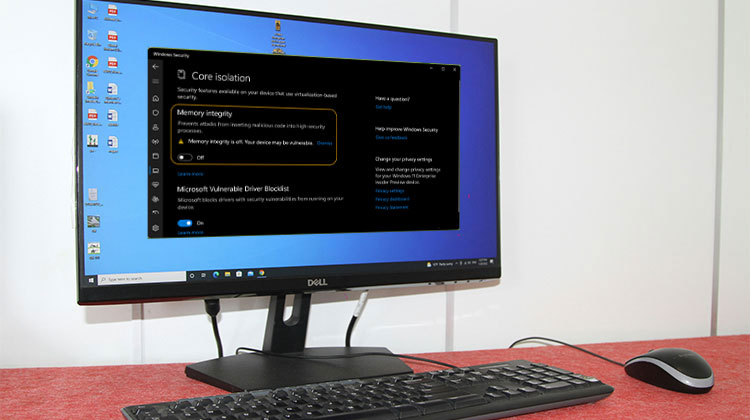
Many users report that Windows 11 Memory Integrity is off, with a warning. What’s the reason for this? What can be done to fix the Memory Integrity greyed out? Let’s read this blog.
Memory integrity is a Windows Security feature that provides hypervisor-protected code integrity to protect your system from malicious code attacks. Additionally, it helps ensure that all drivers for devices running on the Operating System are secure. This feature is enabled by default in Windows Security for all new Windows 11 devices.
But many users have reported that Memory Integrity is off in Windows 11 and cannot be turned on. We’re here to help you grow stronger mentally and emotionally. It’s a real example from the responses.
Common Causes of the Memory Integrity Is Off Issue
What is the reason Memory Integrity is off in Windows 11? After analyzing extensive user reports and the issue, we discovered that it is usually due to incompatible drivers. Other factors, like outdated systems or corrupted system files and conflicting software, may be to blame for the issue. Don’t worry. We will provide you with a summary of the solutions.
Also read: Kernel Data Inpage Error: 9 Easy Fixes for Windows Users
How to Fix Windows 11 Memory Integrity Is Off
What can you do to fix the Windows 11 Memory Integrity is off issue? Here we summarize 6 proven ways. Let’s go through them in order until the issue is resolved.
1. Check All Incompatible Drivers
As we’ve discussed, the primary reason for this Windows 11 Memory Integrity can’t be turned on issue is outdated or incompatible drivers. Therefore, it is recommended to look for drivers that are incompatible according to the following:
- Type security in the Search box, then click Windows Security and click on the Device Security tab on the right side of the screen.
- Click Core isolation details, and then enable Memory integrity.
- If you receive an error that says “Resolve any driver incompatibilities and scan again,, click on Review compatible drivers.
- The next step is to identify any drivers that trigger this “Memory integrity is off Windows 11” error. You can then follow the steps below to fix the driver issue.
- Click the Start button on the left side, and then select the Device Manager. Click on View, and then choose Display hidden devices.
- Right-click on the problematic driver and choose Uninstall device. Follow the on-screen prompts to complete the process. If this doesn’t work, click to upgrade the driver and keep the driver updated.
2. Remove All Incompatible Drivers
If Device Manager cannot assist you uninstall the incompatible drivers, you can try using tools such as the Autoruns program or Command Prompt. This method has been proven by some answers.microsoft.com users who have been helped. Let’s give it a go.
Method 1. Uninstall Incompatible Drivers Using Autoruns
- Click Download Autoruns for Windows, then follow the on-screen directions to install the application.
- Run Autoruns as an administrator, and go to Drivers
- The incompatible driver can be identified. Uncheck the checkbox next to the incompatible drivers to disable them.
- Close the app and restart your system to check whether the “Windows 11 Memory integrity is greyed out” issue is solved.
- If you still can’t turn on Memory Integrity in Windows 11, right-click on the review incompatible driver.
Method 2. Uninstall Incompatible Drivers Using CMD
- Type cmd in the search box, then right-click on it in the Command Prompt app and choose Run as Administrator.
- Within the elevated Command Prompt window, type the following command, then press Enter to list all drivers from third parties for Windows 11. Note down the problematic drivers.
dism /online /get-drivers /format:table
- To remove the drive that triggers “Windows 11 Memory integrity is off” to appear, execute this command. For example, to uninstall an infdriver, you can run pnputil /delete-driver oem0.inf/ uninstall/force.
pnputil /delete-driver (driver’s published name) /uninstall /force
3. Check for Windows Updates
A few users have reported that the “Windows 11 Memory Integrity cannot be turned on” issue can be resolved by installing the latest version of Windows. To accomplish this, press Windows + the keys to open the Settings, and then select Windows Update and click on “Check for updates” on the options.
4. Perform a Clean Boot
In some cases, Windows 11 Memory Integrity is off due to conflicts with third-party drivers and software. To rule out the cause, then test by performing a clean reboot. After you’ve identified the conflicting software, you can uninstall the program from Windows 11.
5. Repair the System Files
If your system’s important files are damaged or corrupted or damaged, you could encounter the “Windows 11 Memory integrity is greyed out” error. To verify that your system files are intact, run an SFC scan on Windows 11.
- Open an elevated Command Prompt window as we have previously described.
- Type in the command sfc/scannow and press Enter. The process could take a long time to scan, so be patient.
6. Force Enable Memory Integrity via Registry Editor
If you’re still having Memory Integrity is off after trying all the methods above to enable it, you could try turning on the entire virtualization-based security, on which Memory Integrity depends. To accomplish this, you will need Registry Editor.
- Press Win + R keys to open the Run dialog box, then type regedit and press Enter. Click on “Yes ” in the UAC screen.
- In the Registry Editor window, locate the path you want to follow in the navigation left panel.
Computer\HKEY_LOCAL_MACHINE\SYSTEM\CurrentControlSet\Control\DeviceGuard\Scenarios\HypervisorEnforcedCodeIntegrity
- With the HypervisorEnforcedCodeIntegrity folder selected from the left panel, double-click the Enabled key from the right panel. Change the value information from zero to 1, and click “OK to save the setting.
Final Thoughts
Memory integrity is an essential security feature. If Memory integrity is off, it could seriously compromise the device’s security. If you follow the suggestions in this article, you’ll be able to fix the issue and turn on Memory Integrity.
FAQs: Memory Integrity Is Off
Why is the Memory Integrity toggle greyed out?
The toggle may be greyed out because virtualization is disabled in BIOS, security policies are restricting changes, or Windows detects a configuration issue.
Can outdated drivers cause the Memory Integrity is off error?
Yes. Outdated or unsupported drivers are the most common cause of the Memory Integrity is off issue in Windows 11.
How do I enable Memory Integrity in Windows 11?
Open Windows Security, go to Device Security > Core Isolation Details, and turn on the Memory Integrity toggle. Restart your PC if prompted.
What should I do if Memory Integrity still won't turn on?
Try updating or removing incompatible drivers, running SFC and DISM scans, installing Windows updates, enabling virtualization, or performing a clean boot.









Leave a comment