





Are you having trouble sending or receiving texts on your iPhone, iPad, or Mac? Are your normally blue speech bubbles becoming green? Are your messages not showing in the correct order? Are you getting an iMessage saying that the message hasn’t delivered? Do you know the reason behind iMessage not working?
In this post, we will discuss the reasons for the iMessage not working issue and provide simple troubleshooting suggestions to help solve this issue on iPhone, iPad, or Mac. Learn how to determine when iMessage is down and what to do when iMessage not working on your iPhone or iPad. We’ll help you resolve any iMessage issues.
Common Reasons Why iMessage not Working on My iPhone
There are many reasons iMessage not working properly:
- Poor internet connection (Wi-Fi or mobile data)
- Outdated iOS or macOS version
- Incorrect date and time settings
- Problems with Apple ID
- iMessage server issues
How to Fix iMessage Not Working Issue
1. Check if iMessage Server is Down
One possibility could be that the iMessage server is down, which means iMessage not working for anyone. It’s rare, but it can occur from time to time.
You can determine whether any of Apple’s web-based services are down by visiting the Apple System Status page. Click the + icon to display all services, as well as scrolling down for iMessage
Solutions:
The great thing is that when the message server is down, you should contact your friends through normal text messages.
If iMessage is not working, the message will be transformed into green bubble text instead of blue-bubble iMessages. Green signifies that the message was sent as a text message, instead of an iMessage.
Also read: How to Fix Siri Not Working on iOS Devices
2. Check Your Internet Connection
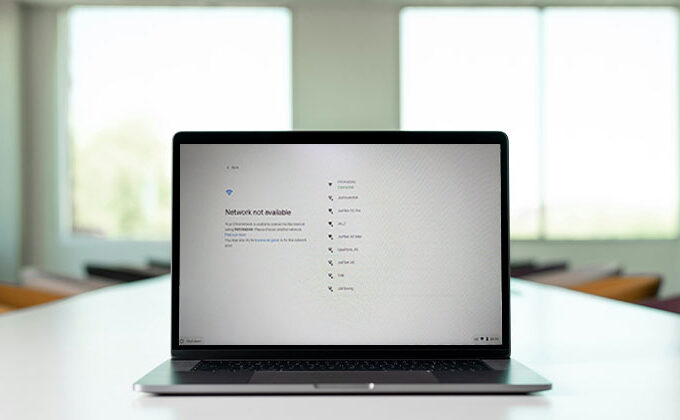
iMessage requires an internet connection to work, and you must ensure an active cellular connection or a strong WiFi signal. If you don’t have WiFi or a mobile connection to data, then your iMessage will not be able to send.
Make sure you can connect to the internet using an instant search within Safari. If you don’t see any results, you’ve found the cause of your issue.
Steps:
- Open Settings → Wi-Fi (or Cellular) and ensure you’re connected.
- Try opening a webpage to confirm connectivity.
- If on Wi-Fi, toggle it off and on again.
3. Ensure iMessage Is Enabled
Make sure you’re ready to receive and send iMessages. First, verify that iMessage is enabled.
On this page, you’ll see an error message stating that iMessage was “Waiting for activation” or “Activation unsuccessful”, then you need to fix it.
If iMessage is turned on but there isn’t a message regarding activation, make sure that your phone is properly configured to receive iMessages. Go to Settings > Applications > Messages, and look up the addresses for email and mobile numbers that you have listed in Send and Receive.
4. Restart iMessage and Your Device
In all troubleshooting posts, the most important point to remember is to turn it off and then turn it on. Start by pressing the home screen and then swiping up to close the Messages app and relaunch it. If the app is hanging, it might be possible to fix the issue.
Steps:
- Close the Messages app completely.
- Go to Settings → Messages, turn iMessage OFF, then ON again.
- Restart your iPhone, iPad, or Mac.
- Sign out and back into your Apple ID if the issue persists
5. Delete Some Messages
If your Messages app contains a lot of videos and pictures, it can slow down your iPhone. Deleting some old iMessages, particularly those filled with photos and videos, can solve your issue.
Steps:
- Swipe left on old messages and tap Delete.
- Tap Edit in Messages to remove multiple conversations at once.
- Go to Settings → Messages → Keep Messages and choose 30 Days or 1 Year instead of Forever.
- Enable Low-Quality Image Mode in Settings → Messages to save space.
6. Update iOS or macOS
When your application isn’t up-to-date, it could have an issue that prevents it from working effectively.
Steps:
- Go to Settings → General → Software Update.
- Install any available updates.
- Restart your device after the update.
Also read: Apple Music Not Working on iPhone or Mac? 11 Easy Solutions
7. Reset Network Settings
One of the most effective ways to solve the issue of iMessage not working is to reset your network settings and then restart the device. This should be the last option, since it will erase all the saved Wi-Fi passwords and Bluetooth devices. However, it can also provide a new start to everything by resolving the iMessage issue.
Steps:
- Go to Settings → General → Transfer or Reset iPhone → Reset → Reset Network Settings.
- Re-enter your Wi-Fi passwords and reconnect devices.
- Optionally, toggle Wi-Fi Assist off and on via Settings → Mobile Data → Wi-Fi Assist
8. Check Time Zone Settings
Some users have discovered that they were unable to send messages when the time zone was not set to automatically update. It’s unclear what could be the cause of the iMessage not working issue; maybe it’s related to the carrier settings.
Steps:
- Go to Settings > General > Date & Time.
- Enable Set Automatically.
- Restart your device and test iMessage again.
Contact Apple Support
If you’ve tried all of the troubleshooting methods but iMessage not working on your device, it may be time to check out Apple’s store. There may be something wrong with your device or internal components. In such instances, the best option is to reach out for Apple support, which will provide the best solution and repair for your device.
Final word
These were the best solutions to fix your iMessage not working problem. We have a thorough guide to help you. That’s something to examine, too. Please let us know via the comment section whether you think these helped you solve the issue.








Leave a comment