






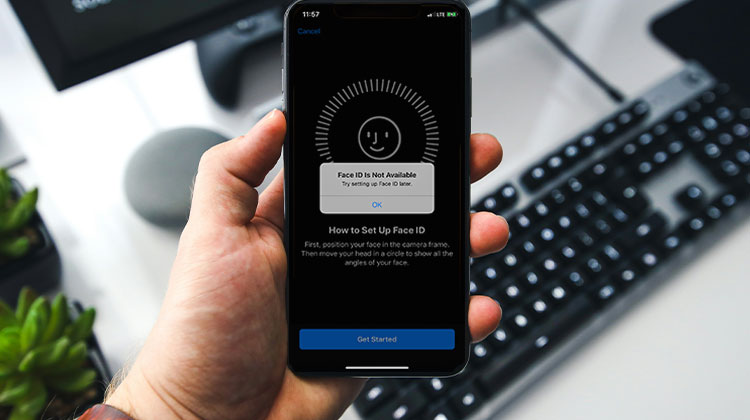
iOS 16 lets you unlock your iPhone using Face ID while wearing a mask. It’s an amazing feature that was awaited for a long time. Face ID isn’t available after the iOS update in certain situations. In this article, we’ll cover why the iPhone’s Face ID not available at times and explain how to solve the issue.
What Causes Face ID Not Available?
Face ID not Available may be due to numerous reasons. Unlocking your iPhone by using Face ID requires both the camera and the Face ID feature. So either one could be the culprit if Face ID is not working. Here are a few examples of possible reasons:
- Your face isn’t fully visible to cameras due to the lens angle.
- The camera is covered with a little dust.
- If you have five failed attempts, the computer will cease working.
- If your iOS version or device does not support Face ID.
- You might have locked the iPhone by using the “Find My iPhone” app.
According to Apple, you’ve not used the password to unlock your iPhone for more than six and a quarter days, and not used your Face ID to unlock it in over four hours.
Also read: FaceTime Photos Not Saving? 9 Easy Solutions for iPhone Users
How to Fix Face ID Is Not Available
If you’re having trouble with Face ID is not available on your iPhone. You can try these easy fixes below to resolve the issue effectively.
1. Check Device Compatibility
If you notice that Face ID is not available on your iPhone, make sure your device supports Face ID, as not all iPhones are compatible with this new feature.
- Face ID works only on iPhone X and later models; older iPhones do not support it.
- After iOS 16, users got Face ID with mask support, but it is limited to specific devices.
- Some iPads support Face ID, including iPad Pro 11-inch (2nd gen and later) and iPad Pro 12.9-inch (3rd gen
- and later).
Face ID with a mask is mainly designed for iPhones and not fully supported on all iPad models.
2. Clean or Unblock the TrueDepth Camera
As we mentioned earlier, cameras can be a reason behind Face ID not work. The TrueDepth Camera captures your Face data to allow you to unlock your iPhone. So don’t touch it and clean the camera lens when there’s dust.
fix this:
- Clean the front camera area using a soft microfiber cloth
- Remove dust, fingerprints, or oil
- Check if your screen protector is interfering
- Avoid covering the camera while holding the phone
3. Reset Face ID
If you get an error message that reads “Face ID not available, try again later,” try removing the stored Face ID, then create a new one. For instance, iOS Face ID unlock can be somewhat complicated when a mask is in place. If something goes wrong with the initial setup, it could be a problem with Face ID in the future.
Steps:
- Go to Settings
- Tap Face ID & Passcode
- Enter your passcode
- Tap Reset Face ID
- Set it up again carefully in good lighting
This often fixes Face ID errors after iOS updates.
4. Reset All Settings on iPhone
If iPhone Face ID not available, you can try resetting all settings on the phone, which will restore all settings to their factory defaults.
Launch your Settings app and select General > Transfer or Reset iPhone, Reset all Settings in the main menu. When the confirmation pop-up appears on the screen, enter your password. After that, your iPhone will reboot automatically.
5. Restart Your iPhone
If you notice something wrong with your iPhone, you can restart the device. This can fix a variety of minor problems. If Face ID not available, try again later. Turn your iPhone off/on, or perform a force restart.
Additionally, you can reset your iPhone with “Erase All Content and Settings”. Be sure to make a copy of the backups you have made to your iPhone before your trip so that you can recover your data.
Also read: Cannot Verify Server Identity on iPhone: 8 Ways to Fix It Fast
6. Update iOS to the Latest Version
iOS update introduces new features and fixes remaining bugs and issues. iOS 16 introduces Face ID with a mask. Check for the Update on your iPhone and update it to the latest iOS version. It will provide answers to your concerns regarding Face ID not available.
To update:
- Go to Settings → General → Software Update
- Install the latest available iOS version
Tips to Prevent Face ID Problems
To avoid future issues with Face ID:
- Keep your iPhone updated
- Avoid dropping or damaging your device
- Clean the front camera regularly
- Do not use low-quality screen protectors
- Restart your device occasionally
Conclusion
After you’ve completed the steps above to fix the iPhone Face ID issue, you’ll be able to use the feature without issues, and it will work exceptionally well. If you’re not sure, try the methods below to fix Face ID not available on your iPhone in just a few clicks.
FAQs: Face ID Not Available
What does “Face ID not available” mean on iPhone?
“Face ID not available” means your iPhone’s TrueDepth camera system is unable to detect or verify your face due to software issues, blocked sensors, or hardware problems.
Why is Face ID not available after iOS update?
After an iOS update, Face ID may stop working due to installation errors, temporary system bugs, or compatibility issues. Updating again or restarting the device often fixes it.
Can Face ID not available be a hardware problem?
Yes. If the TrueDepth camera, infrared sensor, or dot projector is damaged, Face ID will stop working and require repair from Apple or an authorized service center.
How do I fix Face ID not available on iPhone quickly?
You can fix it by restarting your iPhone, cleaning the TrueDepth camera, resetting Face ID, updating iOS, or resetting all settings. These are the most effective troubleshooting steps.










Leave a comment