






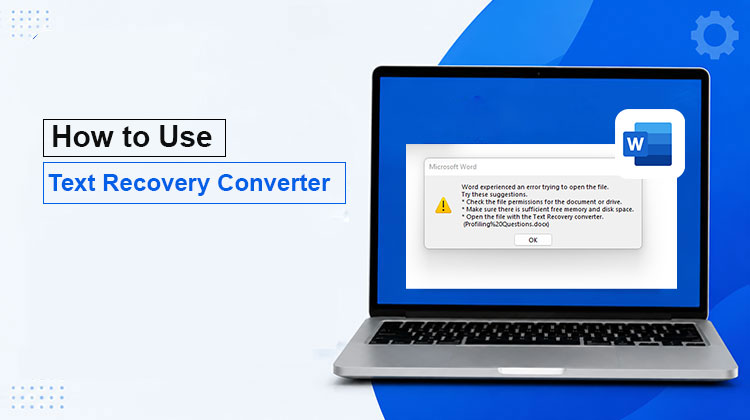
“I have a document, but when I open it, Word tells me it is unable to read this document and suggests I use the text recovery converter. How do I use it?” It is a built-in function in Microsoft Word, most people do not know the meaning of the Text Recovery Converter is, let alone discuss how to use it or Recover Word document. This guide will outline the feature and explain how to use recover text from damaged or corrupted files and documents.
What Is Text Recovery Converter?
Text Recovery Converter is an essential feature that is built into Microsoft Word. It retrieves documents from corrupt or damaged files and converts non-readable files into accessible documents in order to limit data loss. This feature can help recover crucial data even if something goes wrong. This feature is especially useful in the following situations:
- A Word document gets lost while saving it.
- There is an error message when you open a file.
- The file is opened within MS Word but displays unreadable content or blank pages.
Microsoft Word Text Recovery Converter mostly works with documents. It can extract text but formatting and tables might not be maintained in a perfect manner. It also works with non-document files, like HTML and many more.
Be aware that this tool can only recover images but not text. It is an important step befor trying other advanced tools to recover files.
Also read: How to Remove Password from Excel Workbook & Sheet (4 Easy Tricks)
How to Use Text Recovery Converter in Microsoft Word
The method for opening the files using Text Recovery Converter can be somewhat different, depending on what version of MS Word you are using. This tutorial demonstrates the process for Windows as follows:
Step 1. Open MS Word on your desktop.
Step 2. Go to the File tab located on the top ribbon.
Step 3. Locate and click the Open menu and select Browse.
Step 4. When the File Explorer opens, navigate to the folder that stores the corrupted file and then select it.
Step 5. Click and expand the All Files option, scroll down, then select Recover Text from any File.
Step 6. Next, hit the Open drop-down menu and select Open and Repair.
Step 7. Now, you can save and copy the text into your file.
How to Use Text Recovery Converter on Mac
Mac users can also recover damaged Word documents using the built-in recovery option.
Step 1. Open the Word application from the Applications folder.
Step 2. Click the File menu and select”Open” in the menu bar.
Step 3. Navigate to the site where the corrupted data is located and choose the file.
Step 4. Pull down the Open option and choose Recover Text.
Step 5. Next, click on the Open button.
Step 6. When prompted, select Yes on the alert message.
Text Recovery Converter Limitations
Although useful, Text Recovery Converter has several limitations.
- It mainly recovers plain text.
- Original formatting may be lost.
- Images and graphics usually cannot be restored.
- Tables may appear broken.
- It cannot recover every corrupted file.
- Success depends on how badly the document is damaged.
For severely corrupted documents, professional file recovery software may be required.
Alternative Ways to Recover Documents Without Text Recovery Converter
As we’ve mentioned before, the free built-in function has several drawbacks. It’s not available for all damaged or corrupted documents. Additionally, it can only extract text from documents. This makes the chance of success quite low. We offer more ways to fix and restore your documents.
Recover a Corrupted Word Document Using Google Docs
Google Docs can sometimes repair Word files that Microsoft Word cannot open.
Step 1. Access Google Drive through your browser or desktop client.
Step 2. Sign in with your Google account.
Step 3. Click New and select File Upload.
Step 4. Select the damaged document, then click to open it.
Step 5. After the file has been uploaded, you can open it in Google Drive.
Step 6. Go to the File menu and select Save as Google Docs.
Step 7. Next, click the File menu, then choose Download, then choose Microsoft Word.
Step 8. Set a proper destination for the file and download it.
Step 9. Now, you can open it in MS Word and check if the online Text Recovery Converter alternative solution can recover it.
Also read: Master Google Docs Voice Typing in 2026: Step-by-Step Guide
Tips to Prevent Word File Corruption
To reduce the chances of document corruption:
- Save files frequently while working.
- Enable AutoSave or AutoRecover in Microsoft Word.
- Avoid force-shutting down your computer.
- Store important files on cloud storage.
- Keep Microsoft Office updated.
- Scan your PC regularly for malware.
- Safely eject USB drives before removing them.
Conclusion
You should now understand what Text Recovery Converter is and how you can use it to repair damaged or corrupted Word files on Windows or Mac. Although it’s simple, this built-in feature is worth a try if your documents become unreadable. Additionally, we suggest more alternatives to recover corrupted Word document files. Google Docs can repair damaged documents online.
FAQs: Text Recovery Converter
How do I enable Text Recovery Converter?
Open File > Open > Browse, select your document, change the file type to Recover Text from Any File, and then open the document.
Can Text Recovery Converter recover deleted Word documents?
No. It only attempts to recover text from existing damaged or corrupted files. It cannot recover permanently deleted documents.
What should I do if Text Recovery Converter doesn't work?
Try opening the document in Google Docs, restore an earlier backup, use Word's Open and Repair feature, or use professional document recovery software if the file is severely corrupted.
Can Text Recovery Converter recover DOC and DOCX files?
Yes. It supports both DOC and DOCX files, although the recovery success depends on the level of file corruption.










Leave a comment